

 Klarna is one of the best-known “buy now, pay later” options in Europe, and many shoppers look for it before they buy. The good news: a Shopify Klarna setup is often just one checkbox, if your store is in the right country. If it isn’t, there are other routes.
In this guide I explain how to offer Klarna on Shopify in Europe, the UK and the USA, as of November 2026. I have set up Klarna and other pay later options on many client stores. Every fee, setting and rule below comes from Shopify’s and Klarna’s own help pages.
Here is what you will learn:
- The three Shopify Klarna routes, and which one your country can use
- How to turn on Klarna in Shopify Payments
- Klarna fees, from Shopify’s own pricing pages
- How to add Klarna on-site messaging in Dawn and Horizon
- Why Klarna is not showing, and how to fix it
- How Klarna compares with
 Shop Pay Installments, Afterpay (Clearpay in the UK) and PayPal Pay Later
How Shopify Klarna works in November 2026
There are three ways to add Klarna to a Shopify store. The one you can use depends on the country of your Shopify Payments account, not on where your customers live.
| Route | Who can use it | Klarna account? | Fees set by |
|---|---|---|---|
| Shopify Payments | Stores in 26 European countries | Not needed | Shopify pricing page |
| Klarna’s own app | Managed merchants only | Direct contract | Your Klarna contract |
| Another provider | Depends on the provider | Via the provider | The provider |
Europe and the UK: Klarna in Shopify Payments
This is the route Klarna itself recommends. You need no Klarna account, app or Merchant ID. The money lands in your normal Shopify Payments payout.
Your Shopify Payments account must be in one of 26 countries: Austria, Belgium, Croatia, Cyprus, Czechia, Denmark, Estonia, Finland, France, Germany, Greece, Ireland, Italy, Latvia, Lithuania, Luxembourg, Malta, the Netherlands, Norway, Poland, Portugal, Slovenia, Spain, Sweden, Switzerland or the UK.
Shoppers see Klarna in 19 countries, and only when they pay in their own currency. So a UK store that sells to Germany needs a German market in euros. My Shopify Markets Europe guide shows how to set that up.
USA: no Shopify Payments route yet
Shopify Payments in the United States has no Klarna as of November 2026. Klarna’s own business page says US availability is “coming soon”.
So a US store has two choices today: a direct Klarna contract with Klarna’s app, or a payment provider that supports Klarna on Shopify.
Klarna’s own app and other providers
Klarna’s app is called Klarna Payments for Enterprise. It is free to install, but only for select, managed merchants with a direct Klarna agreement. It offers Klarna only in your store’s base currency. On November 28, 2026, it had a 1.2-star rating from 5 reviews.
Some providers, such as Mollie and Global-e, also offer Klarna on Shopify. If Klarna shows up several times at checkout, a partner runs it, not Klarna.
How to turn on Klarna in Shopify Payments
Your Shopify Klarna option may already be on. Shopify turns it on by default for new eligible Shopify Payments accounts. If not, Klarna first reviews your business. Then you switch it on:
- In your Shopify admin, go to Settings, then Payments.
- In the Shopify Payments section, click Manage.
- In the Payment methods section, select Klarna.
- Click Save.

Shopify’s Klarna help page has the full rules. Note that you can’t pick which Klarna options shoppers get. Klarna chooses from Pay in 30 days, Pay in full, Pay in 3 and Financing.
What Klarna checks on your store
Klarna can decline your store, or switch Klarna off later, if key details are missing. Shopify says your store must show:
- Your business tax ID and contact details.
- Delivery methods and delivery times.
- Return address, costs and conditions.
- A right of withdrawal policy.
- Accurate product descriptions and genuine reviews.
My guides to the Shopify Impressum and the EU withdrawal button cover the legal pages.
Klarna fees for Shopify stores
Klarna fees depend on your route. With Shopify Payments, Shopify charges a Klarna rate and lists it on its pricing page for each country. With Klarna’s own app, you pay Klarna a percentage plus a fixed fee per order, set by your contract.
| Store and route | Plan | Klarna fees (Nov 2026) |
|---|---|---|
| UK, Shopify Payments | Basic, Grow, Advanced | 4.99% + 30p |
| UK, Shopify Payments | Plus | 3.79% + 30p |
| Ireland, Shopify Payments | Basic, Grow, Advanced | 4.99% + €0.35 excl. VAT |
| Ireland, Shopify Payments | Plus | 3.99% + €0.35 excl. VAT |
| Klarna’s own app | Any | Your Klarna contract |
Other countries have their own Klarna fees. Check the Shopify pricing page for your country, or click View payment rates in your Shopify Payments settings. To see what the fee does to your margin, try my free Shopify fee calculator.
Two more points: if you refund a Klarna order, Shopify keeps its processing fee. And if Klarna runs through a third-party provider, Shopify may add a third-party transaction fee.
Shoppers pay no interest on Pay in 30 days or Pay in 3. Klarna may charge them late fees, and Financing can carry interest.
Add Klarna on-site messaging to product and cart pages
Klarna on-site messaging is the short line near the price, such as “Pay in 3 interest-free payments”. Klarna’s free app adds it as an app block, with no code.
In the Shopify App Store the app is called Klarna Promotional Messaging. Klarna’s docs call it the Klarna On-Site Messaging app. It only shows the message and doesn’t add Klarna at checkout. On November 28, 2026, it had a 2.3-star rating from 112 reviews.
Step 1: Install and connect the app
- Make sure Klarna works at checkout, then install the app.
- The app tries to link your store on its own. If it asks for a Merchant ID, go to Apps, Klarna On-Site Messaging, Settings. Enter the ID and click Connect.
No Merchant ID? If Klarna runs through Shopify Payments, Klarna says to ask your payment partner. Here, that means Shopify Support.
Step 2: Add the Klarna block in Dawn
- Go to Online Store, then Themes, and click Customize.
- In the top drop-down, choose Products, then Default product.
- In Product information, click Add block. Under Apps, choose Klarna Placement.
- Drag it right under the Price block, pick a Placement type, and click Save.
For the cart, open the cart template. In the Subtotal section, add the same block near the subtotal.
Step 2: Add the Klarna block in Horizon
- Open the Default product template.
- In Product information, open the Details block.
- Click Add block and choose Klarna Placement from the apps.
- Drag it just above the Variant picker, under the price, and click Save.
- For the cart, open the cart template and add the block to the Cart section.

The block has four settings: Placement type, Theme, Padding and Message prefix.
Which Klarna on-site messaging type to pick
Klarna recommends a price breakdown on product and cart pages. It shows the split payment and updates when the price changes.
- Product and cart pages: credit-promotion-badge or credit-promotion-auto-size.
- Header: a top-strip-promotion placement.
- Home and collection pages: a homepage or sidebar placement.
- FAQ page: info-page, which explains how Klarna works.

Keep three rules in mind. The cart message works on the full cart page, not in a cart drawer. To use the page, set Theme settings, Cart, Type to Page. And the product message follows the variant price, not the quantity.
Klarna on-site messaging adds the legal text each country needs. Your own Klarna banners or emails must follow Klarna’s marketing rules for each country.
How to test your Shopify Klarna setup
Test your Shopify Klarna setup the way a customer sees it. Klarna’s own advice is to add a product to the cart and go through checkout.
- Open your store in a private window.
- Pick a country where Klarna works, for example Germany in euros.
- Check the Klarna message on a product page and the cart page.
- Go to checkout and check that Klarna is listed.
- Choose it and check that the Klarna page opens.
Shopify says some local payment methods don’t show at checkout in test mode. So for a full Shopify Klarna test, place one small real order and refund it. The processing fee is not refunded.
Klarna not showing on Shopify? Common problems and fixes
When Shopify Klarna is missing, the cause is almost always country, currency or approval.
Klarna is missing at checkout
- Wrong country: your Shopify Payments account is not in one of the 26 countries. This includes every US store.
- Wrong currency: the shopper’s market doesn’t use their local currency.
- Not approved: Klarna is still reviewing your store, or it said no. Look for a message on the Payments page.
- Box not ticked: Klarna is not selected under Payment methods.
Klarna on-site messaging is not showing
- Country or currency mismatch: the message hides outside Klarna markets, by design.
- Price out of range: the price is below or above Klarna’s limits.
- Old manual code: Klarna script or klarna-placement tags pasted into the theme can block the app. Remove them.
- Cart drawer: the block works on the full cart page only.
- Cache: wait a few minutes, then test in a private window.
To see what the app is doing, add ?consoleDebug=true to the end of a product URL. Then open your browser’s developer tools and look for Klarna lines in the Console.
Refunds, returns and disputes with Klarna
You refund Shopify Klarna orders the normal way, from the order page. A few rules differ:
- 180-day limit: Klarna refunds only work within 180 days of the first charge.
- Fee kept: Shopify keeps its processing fee when you refund.
- Disputes: you answer them in your Shopify admin, but Klarna decides. For return claims, Klarna checks the tracking.
- Manual capture: capture Pay in 30 days orders by midnight UTC on day 28, or they expire.
To avoid most disputes, see my guides to Shopify chargebacks and holiday return policies.
Klarna vs Shop Pay Installments vs Afterpay vs PayPal Pay Later
For European stores, Klarna is the widest pay later option on Shopify. For US stores, the other three are easier today. Here is how they compare as of November 2026:
| Klarna |  Shop Pay Installments |  Afterpay / Clearpay |  PayPal Pay Later | |
|---|---|---|---|---|
| Store location | 26 European countries | US, Canada, UK, Australia (early access) | US (Afterpay), UK (Clearpay) | US, UK, FR, DE, IT, ES, AU |
| How to add | Shopify Payments | Shopify Payments | Payment app | PayPal checkout |
| Merchant fee | UK: 4.99% + 30p | Shown in admin | Your agreement | No extra outside US |
| Price message | Klarna app | Built into theme | Afterpay app | PayPal app |
Shop Pay Installments is powered by Affirm and needs Shopify Payments and Shop Pay. You see its rate under View payment rates in your payment settings.
Shopify shows Klarna fees on its pricing page in markets like the UK and Ireland, while Afterpay sets its fees in your merchant agreement. Afterpay is for Shopify stores with a US address, and Clearpay for UK addresses. PayPal Pay Later comes with a fully active PayPal account. If yours says “partially active”, see my PayPal partially active fix. In the US, PayPal lists 4.99% + $0.49 as its standard Pay Later rate.
Which way should you use?
Pick the route your country already supports.
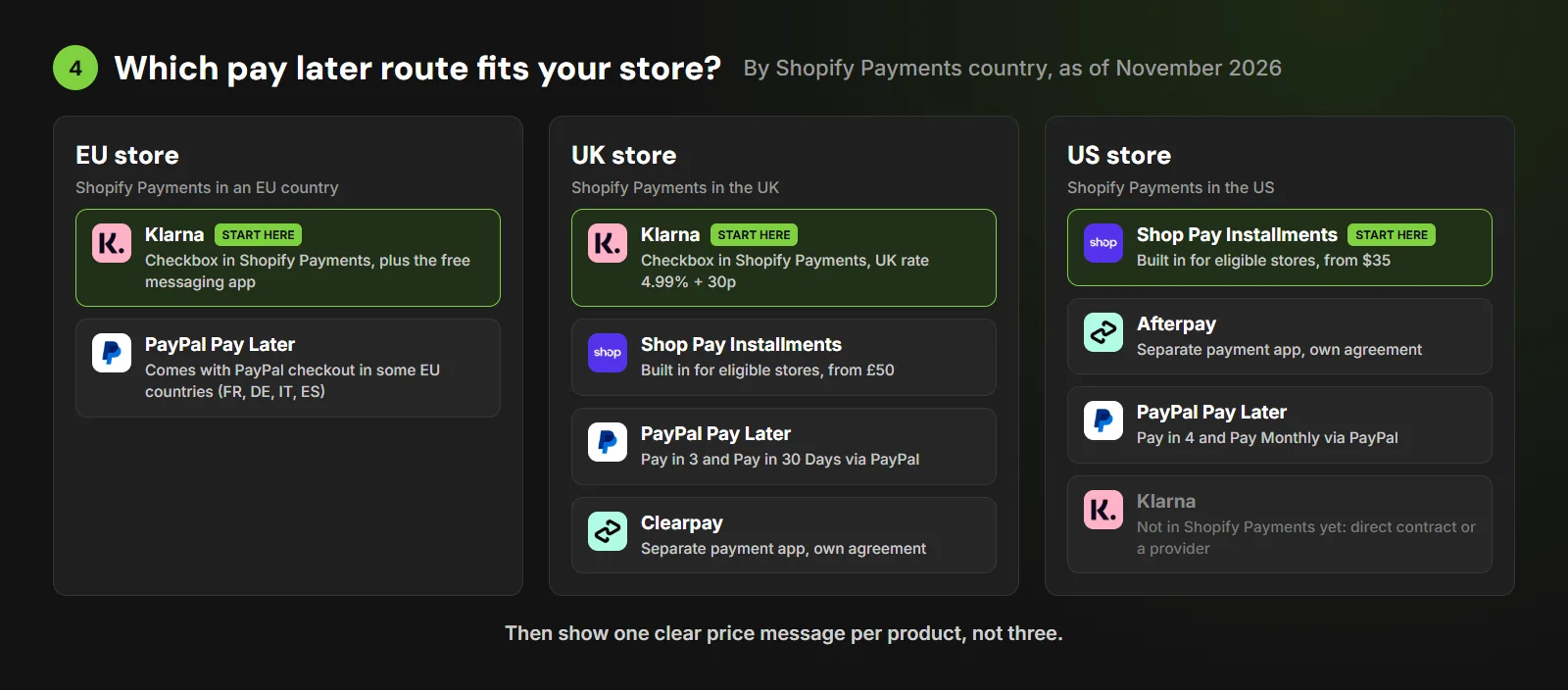
- EU store: turn on Klarna in Shopify Payments and add Klarna on-site messaging. It is the simplest Shopify Klarna setup.
- UK store: Klarna works the same way. Shop Pay Installments and PayPal Pay Later are there too, so compare fees first.
- US store: start with Shop Pay Installments, since it is built in. Add Afterpay or PayPal Pay Later if customers ask.
- Large brand: talk to Klarna about a direct contract and its enterprise app.
Don’t stack three pay later messages under every price. It looks busy and pushes Add to cart down on phones. If two banners compete, you can hide the Shop Pay Installments message and keep the option at checkout.
Frequently asked questions
Does Shopify accept Klarna?
Yes. Shopify Klarna works in 26 European countries, including the UK, through Shopify Payments. US stores can’t turn it on in Shopify Payments as of November 2026. They need Klarna’s enterprise app or a provider that supports Klarna.
How much does Klarna charge merchants on Shopify?
With Shopify Payments, Shopify sets the Klarna fees by country and plan. In the UK it is 4.99% + 30p on Basic, Grow and Advanced, as of November 2026. With a direct contract, the fees are in that contract.
Which countries can use Klarna with Shopify Payments?
Your store must be in one of 26 European countries. Shoppers in 19 countries can pay with Klarna, in their local currency only: CHF, CZK, DKK, EUR, GBP, NOK, PLN, RON or SEK.
How do I add Klarna to my Shopify product page?
Install Klarna’s free app and connect it. In the theme editor, open Default product, add the Klarna Placement app block under the price, and save. Klarna on-site messaging then shows the split payment.
Is Klarna or Afterpay better for a Shopify store?
It depends on your country. In Europe, Klarna is simpler because Shopify Payments includes it. Afterpay works only for US stores, and Clearpay for UK stores, each as a separate app with its own agreement.
Why is Klarna not working on my Shopify store?
Check your Shopify Payments country, the shopper’s currency and Klarna’s approval. For the message, check the price range, old Klarna code and cart drawers. Adding ?consoleDebug=true to a product URL shows the app’s log.
Once Klarna shows at checkout and next to your prices, check both again after every theme change. If you would rather have it set up for you, I handle payment settings and theme changes in my Shopify store management service. Message me on WhatsApp and I will take a look.



