


A clear holiday return policy tells gift buyers one thing before they order: the gift can still come back in January. Shopify has no “holiday” switch, but its return rules can do the job. The catch is that the setting counts days, not dates.
In this guide I show you how to write a rule like “orders from November 15 can be returned until January 31”, and how to make Shopify follow it. I have set up holiday returns on many client stores in Europe, the UK and the US. Every setting below was checked in Shopify’s Help Center as of November 2026.
This is general information, not legal advice. Consumer laws differ by country and by US state, so check your final policy with a local advisor.
Here is what you will learn:
- What a holiday return policy is, and what the law already gives your customers
- How to write the policy, with a free template you can paste
- How to set the holiday return window in Shopify, then switch it back
- How to handle gift returns and store credit for gift recipients
- Where to show the policy: footer, product page and FAQ
What is a holiday return policy?
A holiday return policy is a longer return period for orders placed in the gift season. A common version covers orders from mid November to December 31 and accepts returns until the end of January. Orders outside those dates follow your normal policy.
It solves a simple problem. A sweater bought on November 20 gets opened on December 25. With a normal 30-day return window, the time may already be up. A holiday return policy removes that worry when people buy.
What the law already requires
Your holiday window must sit on top of the legal minimum, never below it. Here is the short version for the markets my readers sell to.
| Market | Legal minimum online | Return costs |
|---|---|---|
| EU | 14 days from delivery | Customer pays, if told before buying |
| UK | 14 days to cancel, then 14 to send back | Refund standard delivery, no fees |
| US, for example Washington | None, unless faulty or misrepresented | Set by your policy |
| California | Display a no-refund policy clearly | Otherwise 30-day refund |
- EU: the Your Europe returns page confirms 14 days from delivery, with exceptions such as personalised items. Since June 19, 2026, EU buyers also need an online way to withdraw. See my Shopify withdrawal button guide.
- UK: GOV.UK says you must refund within 14 days of getting the item back, with no fees unless it was used or damaged.
- US: the FTC’s Cooling-Off Rule doesn’t cover sales made entirely online, so states set the rules. Washington’s Attorney General says no law there requires returns unless goods are defective or misrepresented. California’s Attorney General says a no-refund policy must be clearly displayed, or buyers get 30 days for a full refund.
So a holiday return policy is a voluntary extra in all three regions. Just never let it shrink an EU or UK customer’s legal rights.
Step 1: Write your holiday return policy
Start with the words, because the settings must match your promise. Shopify says you must follow your published policy.
Decide five things first
- The order dates. For example, November 15 to December 31, 2026.
- The return deadline. For example, January 31, 2027.
- What is excluded. Final sale, personalised and opened hygiene items.
- Who pays return shipping. Free, a flat fee, or the customer.
- What gift recipients get. Store credit or a gift card, while refunds to the card go to the buyer.
Free holiday return policy template
Go to Settings, then Policies, and open your return and refund policy. Shopify policies accept HTML, so you can paste this and change the dates. Replace the link with your own customer accounts URL.
<h3>Holiday returns</h3>
<p>Orders placed from November 15 to December 31, 2026 can be returned until January 31, 2027.</p>
<p>Items must be unused and in their original packaging. Final sale, personalised and opened hygiene items can't be returned.</p>
<p>Gifts: the recipient can return a gift for store credit or a gift card. Email us the order number or the buyer's name. Refunds to the original payment method go to the buyer.</p>
<p>To start a return, sign in and choose Return items on your order: <a href="https://shopify.com/STORE-ID/account">Request a return</a>.</p>
<p>Orders placed from January 1, 2027 follow our standard 30-day policy. Customers in the EU and UK keep their legal right to cancel within 14 days of delivery.</p>
One detail matters. If Use automated policy is on, Shopify rebuilds the text from your return rules, so it shows a number of days, not your January date. Turn it off for the season. Save a copy first, because turning it back on replaces your text. No policy yet? My free Shopify Policy Generator writes one you can start from.
Step 2: Set the holiday return window in Shopify
Shopify’s Return window counts days from delivery, and it has no end date field. As of November 2026, the options are No returns, 14 days, 30 days, 90 days, Unlimited and Custom days. The trick is another rule from the Shopify return rules guide: changes apply only to future orders. Each order keeps the rule that was active when it was placed.
Work out the custom days
Delivery always comes after the order. So count the days from the date you change the setting to January 31. Every order placed after that change then reaches at least January 31. Lower the number every two weeks to stay close to your promise.
| Change the setting on | Custom days | Covers orders |
|---|---|---|
| November 15 | 77 | Nov 15 to Nov 30 |
| December 1 | 61 | Dec 1 to Dec 14 |
| December 15 | 47 | Dec 15 to Dec 31 |
| January 1 | 30 (normal) | New orders |
A parcel that arrives later gets a few extra days. That’s fine: you are more generous than promised, never less.

Change the return rule
- In your Shopify admin, go to Settings, then Policies.
- In Return and cancellation rules, click your rule. Make sure return rules are turned on.
- Under Return window, choose Custom days and enter the number from the table.
- In Starting from, choose Item’s delivery or Delivery of last item in order. For EU markets, Shopify recommends the second.
- Tick Extend to account for weekends or holidays. January 31, 2027 is a Sunday, so the window moves to the next business day.
- Click Save. If you have extra rules for markets, repeat this for each one.

Return shipping, restocking fees and final sale
The same rule holds your fees. Under Return shipping, choose free returns, Flat rate return shipping with a Return shipping rate, or let customers buy their own label. A Restocking fee is a percentage, and Shopify doesn’t deduct fees from refunds automatically. You subtract them yourself when you refund.
Under Final sale items, add products or collections, but not both. Bundles can’t be final sale. For EU and UK customers, only mark items the law already exempts. A Black Friday discount isn’t on the GOV.UK or Your Europe exemption lists. A separate EU or UK market rule without a restocking fee keeps this clean.
Optional: a return window override for gift items
A Return window override gives specific collections, products or variants their own days. It works by product, not by order date, so January buyers get the long window too. If an item sits in two overrides, the shortest wins, and final sale always wins. I use overrides for short clearance windows, not for the holiday plan.
Switch back after the season
Set a reminder for January 1. Put the Return window back to your normal days and save. Holiday orders keep their longer window. Then turn Use automated policy back on if you want it.
Step 3: Turn on self-serve Shopify returns
Self-serve Shopify returns let customers request a return from their order page, so January doesn’t flood your inbox. You still approve or decline every request.
- Go to Settings, then Customer accounts.
- If you see an Order actions section, click Manage, click the settings icon, and turn on Return.
- If there is no Order actions section, turn on Self-serve returns and cancellations and choose Return and cancel requests.
- Click Save.
Customers need the new customer accounts. They sign in with their email and a 6-digit code, then click Return items on the order. Legacy accounts don’t show return options. Exchanges can’t be requested this way, but you can add exchange items when you approve.
Check requests daily in January. Edit the request emails in Settings, then Notifications, then Returns. If you dropship, my dropshipping returns guide covers return addresses and supplier claims.
Step 4: Handle gift returns and store credit
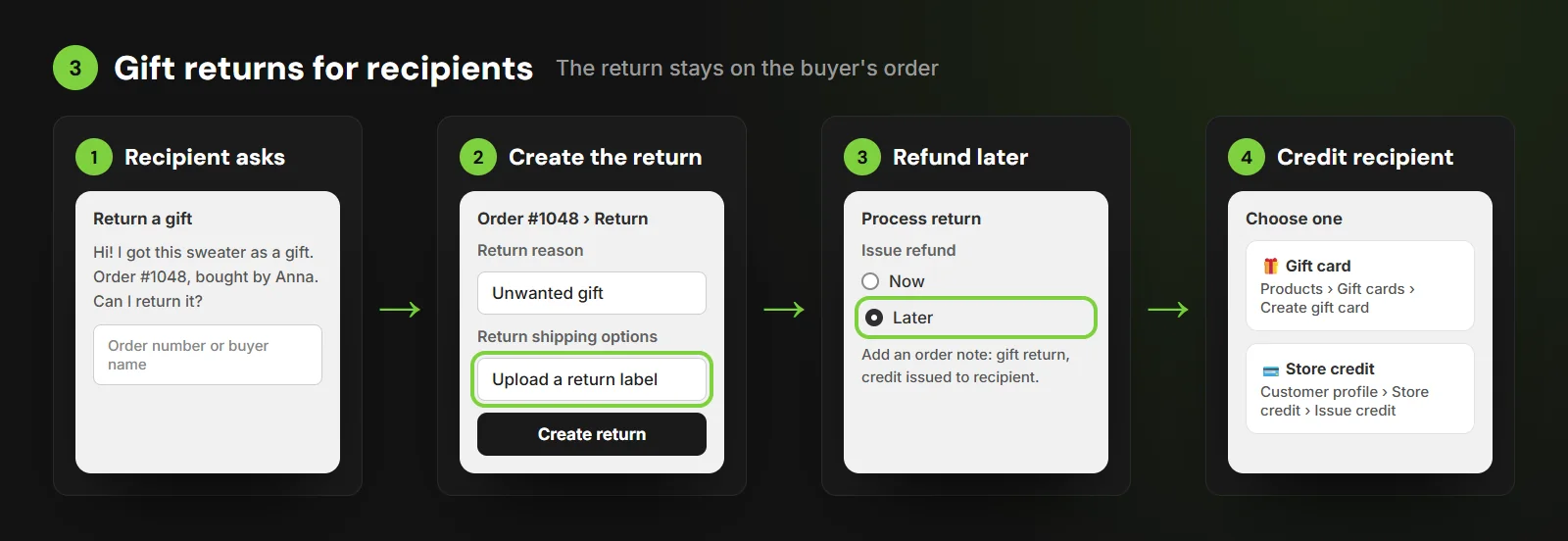
Gift returns run through your admin, not self-serve Shopify returns. Self-serve requests are tied to the buyer’s email, and I found no built-in gift return flow in Shopify’s Help Center as of November 2026. So recipients email you, and you handle it in the admin.
- Find the order. Ask for the order number, or the buyer’s name or email.
- Create the return. Open the order, click Return, and pick a Return reason. Under Return shipping options, choose Upload a return label. Create a return label in Shopify only works within the US or Canada. Click Create return.
- Process it, but don’t refund the buyer. When the item arrives, click Process return. Under Issue refund, choose Later. The order shows a balance banner, so add a note to the order explaining why.
- Give the recipient value. Use one of the two options below.
- Gift card: go to Products, then Gift cards, and click Create gift card. Enter the Initial value, add the recipient in Customer, and save. Admin-created gift cards can be worth up to $2,000 USD, or the local equivalent.
- Store credit: open the recipient’s customer profile. In Store credit, click Edit, enter the Amount, tick Notify customer, and click Issue credit. They use it at checkout while signed in.
When the buyer returns an item, refund them normally. The Refund method menu offers Original payment, Store credit or both. Check local laws before you set store credit expiry dates. Some returns apps add a gift return page for recipients, which helps at high volume.
Step 5: Show the holiday return policy on your store
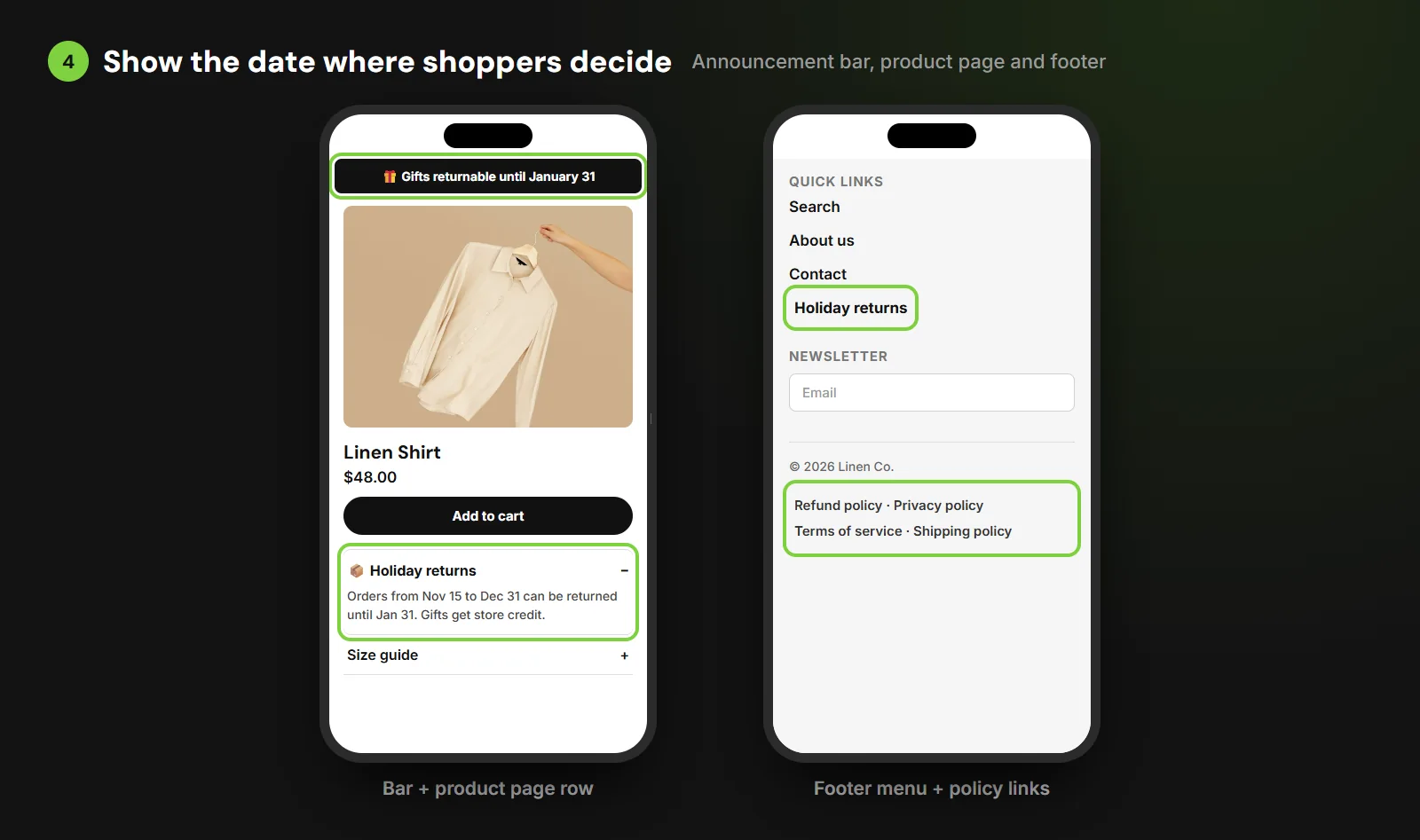
Show the holiday return policy where shoppers decide, not only on the policy page. Shopify already links your policies in the checkout footer.
- Footer, Dawn: in the theme editor, select the Footer section and tick Policy links.
- Footer, Horizon: the Policies and links section in the footer holds a Policy links block. Add the section if it’s missing.
- Footer menu: in Content, then Menus, open Footer menu, click Add menu item, search for your return policy, and save. The page lives at /policies/refund-policy. My Shopify footer design guide shows good layouts.
- Product page: in Dawn, add a Collapsible row block named Holiday returns. In Horizon, add an Accordion block with an Accordion row and a text block inside.
- Announcement bar: one line such as “Gifts returnable until January 31”. See my scrolling announcement bar guide.
- FAQ: add a holiday question to your Shopify FAQ page.
One more place:  Shop app product pages can show your return window. Shopify takes it from your return rules, so a policy written only as free text won’t appear there.
Which way should you set it up?
For most stores, I use step-down custom days. It takes four small edits and stays close to January 31.
| Setup | Effort | Result | Best for |
|---|---|---|---|
| One 90-day window | Two edits | Very generous | Small catalogs, good margins |
| Step-down custom days | Four edits | Close to Jan 31 | Most stores |
| Override on a gift collection | Medium | By product, not date | Gift-only items |
| Returns app | Monthly fee | Extra features | Many gift returns |
A 90-day window set on November 15 runs until at least February 13. Check your margins before you choose it.
Common mistakes with holiday returns
- Turning return rules off. With rules off, customers can request a return with no time limit. To stop returns, choose No returns instead.
- Changing the window too late. Rule changes don’t reach orders already placed. Set it before your first holiday order, not in December.
- Forgetting to switch back. Without a January reminder, every new order keeps the long window.
- Leaving the automated policy on. Your policy page then shows “47 days” instead of your January date.
- Marking sale items final sale for the EU and UK. A discount alone doesn’t remove the legal 14-day right.
- Hiding the date. Put it near the buy button, next to your trust badges.
Frequently asked questions
What is a holiday return policy?
It is a longer return period for orders placed in the gift season. For example, orders from November 15 to December 31 can be returned until January 31. Other orders follow your normal policy.
When does a holiday return policy start?
You choose. Many stores start in mid November, before Black Friday. On Shopify, change the return window before your first holiday order, because rule changes only apply to future orders.
Can I set a return window end date in Shopify?
Not as of November 2026. The return window takes a number of days from delivery. Use custom days that reach your end date, and lower them in steps through December.
Do stores have to accept returns?
In the EU and UK, yes, for most online orders within 14 days of delivery. In the US it depends on the state. Washington, for example, only requires returns for faulty or misrepresented goods.
Can I refund to store credit on Shopify?
Yes. When you refund, choose Store credit in the Refund method menu. For EU and UK legal cancellations, offer store credit as an option, not as the only refund.
Can gift recipients return items on Shopify?
Not through self-serve returns, which are tied to the buyer’s account. Create the return on the original order in your admin, then give the recipient a gift card or store credit.
A clear date and a calm January come from the same few settings. For more guides like this, see my Shopify tips. If you would rather have it done for you, I set up return rules, policies and holiday banners as part of my Shopify store management service. Message me on WhatsApp and I will take a look.



