


Is the  Shop Pay Installments line under your prices (“Pay in 4 interest-free installments”) wrong for your store? Maybe you sell low-priced items, or you don’t want to pay the higher fee. You can remove Shop Pay Installments from your Shopify store in a few minutes, and you don’t need an app.
There are two very different things you can do. You can turn off Shop Pay Installments as a payment option. Or you can keep the option at checkout and only hide the message on your product and cart pages. I have done both on many client stores, and in this guide I show you exactly how, in Dawn and Horizon.
Here is what you will learn:
- The difference between turning the feature off and hiding the message
- How to turn off Shop Pay Installments in your payment settings
- How to hide the Shop Pay Installments banner in Horizon and Dawn
- Why some sellers keep it, and how to turn it back on
- What to do when the message still shows
Turn it off or just hide the message?
This is the first choice to make, because the two paths have different results.
- Turn off the feature. Customers can no longer pay in installments. The product page and cart messages go away on their own, because Shopify only shows them when the feature is on.
- Hide the message only. Customers can still choose installments at checkout. You simply stop advertising it on the product and cart pages.
If you want to remove Shop Pay Installments completely, pick the first path.
In both cases, regular Shop Pay stays on. Shop Pay and Shop Pay Installments are two separate settings. Turning off one does not turn off the other.
| Method | Product page | Cart | Checkout |
|---|---|---|---|
| Turn off in settings | Message gone | Message gone | No installments |
| Horizon theme toggles | Message gone | Message gone | Installments stay |
| Dawn custom CSS | Message hidden | Message hidden | Installments stay |
| Turn off Shop Pay | Message gone | Message gone | No Shop Pay at all |
The last row is there as a warning. Many forum answers tell you to turn off Shop Pay itself. That removes far more than the message, so I don’t recommend it for this job.
What Shop Pay Installments is, in short
Shop Pay Installments is Shopify’s own “buy now, pay later” option. The shopper pays over time, and you get the full amount up front. Shopify’s help page says you receive it within 1 to 3 business days after you capture the payment, minus the fee. You are not at risk if the customer stops paying.
Not every store gets the Shop Pay Installments Shopify option. These are the rules (checked November 2026):
- Shopify Payments and Shop Pay must both be on.
- Your business must be in the United States, Canada or the United Kingdom, selling in USD, CAD or GBP. Australia (AUD) is in early access.
- Orders must fall in a set range. In the US it is $35 to $30,000, including shipping and taxes.
So if your store is in another country, or you don’t use Shopify Payments, you won’t have this option at all. Any “pay in 4” message on your store then comes from a different app.
Way 1: Turn off Shop Pay Installments in your settings
This is the way to remove Shop Pay Installments completely. It takes about one minute and needs no theme changes.
Steps to turn off Shop Pay Installments
- In your Shopify admin, go to Settings, then Payments.
- In the Shopify Payments section, click Manage.
- Find the Shop Pay section. Shopify’s help page also calls it the Shop section.
- Uncheck Shop Pay Installments. Leave Shop Pay checked.
- Click Save.
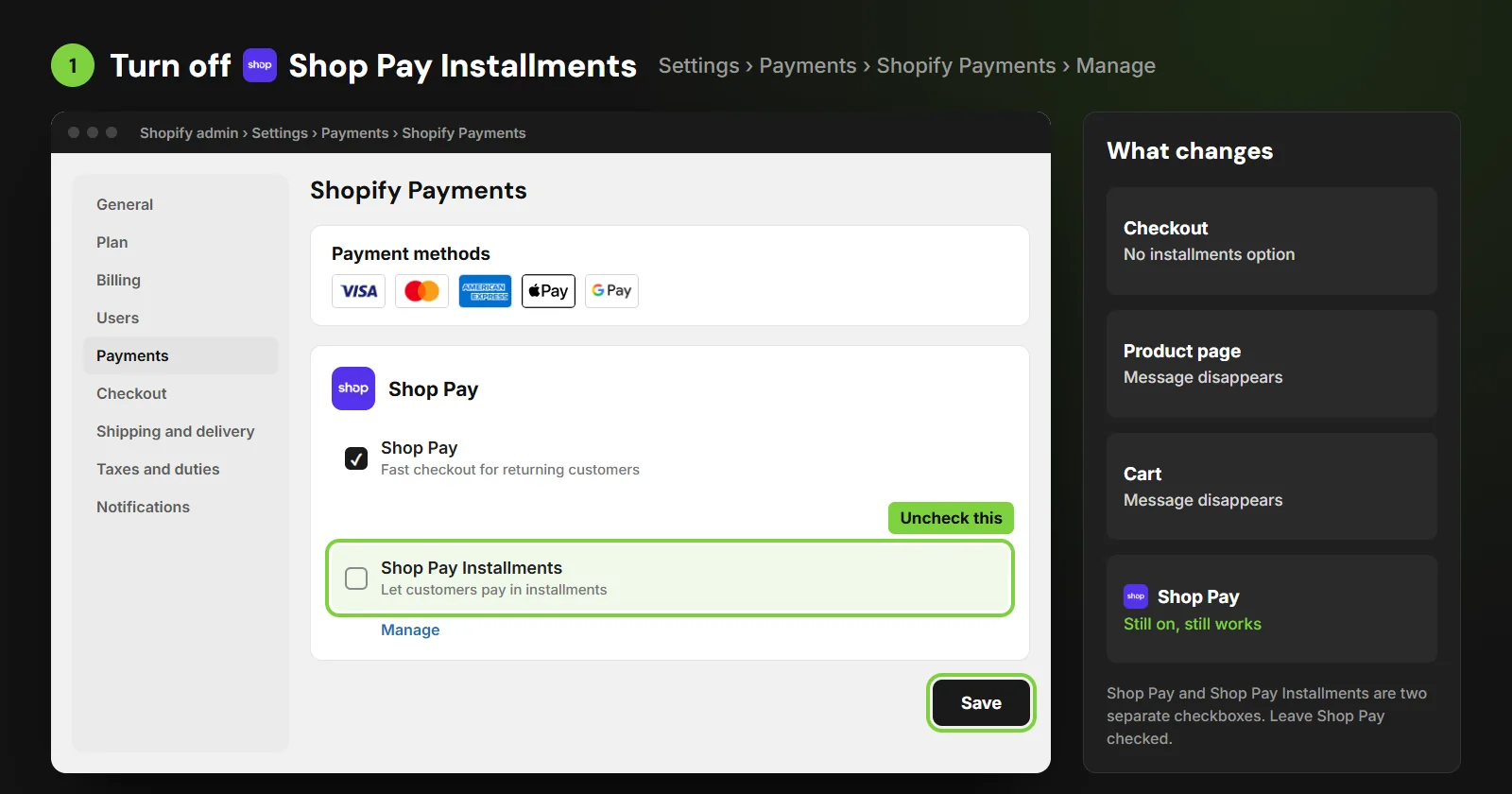
To turn off Shop Pay Installments on the Shopify app, the path is the same: Settings, Payments, then Manage under Shopify Payments.
If you sell from more than one business entity (a Shopify Plus feature), each entity has its own Shopify Payments account. Turn the option off on each one.
What changes after you remove Shop Pay Installments
- The installments option no longer shows at checkout.
- The product page and cart messages disappear, because Shopify only shows them when the feature is on.
- Shop Pay stays as a normal, fast way to pay.
- Refunds on past installment orders still go through Shopify Payments, as before.
After you turn off Shop Pay Installments, open a product in a private browser window to check. I explain what to do if the message is still there in the problems section below.
Way 2: Hide the Shop Pay Installments banner but keep the option
Some stores want to keep installments at checkout but don’t want the message under every price. In that case, you only hide the Shop Pay Installments banner.
Shopify’s developer docs say the banner’s text, logo and pop-up are controlled by Shopify and can’t be changed. You can only control where it appears, or hide it.
In the Horizon theme (no code)
Horizon has two simple checkboxes for the Shop Pay Installments banner, one for the product page and one for the cart.
- Go to Online Store, then Themes, and click Customize.
- In the top drop-down, choose Products, then Default product.
- In the Product information section, expand the blocks and click Price.
- Uncheck Show Shop Pay payment options.
- Now open Theme settings (the gear icon) and click Cart.
- Uncheck Show Shop Pay payment options there too, then click Save.
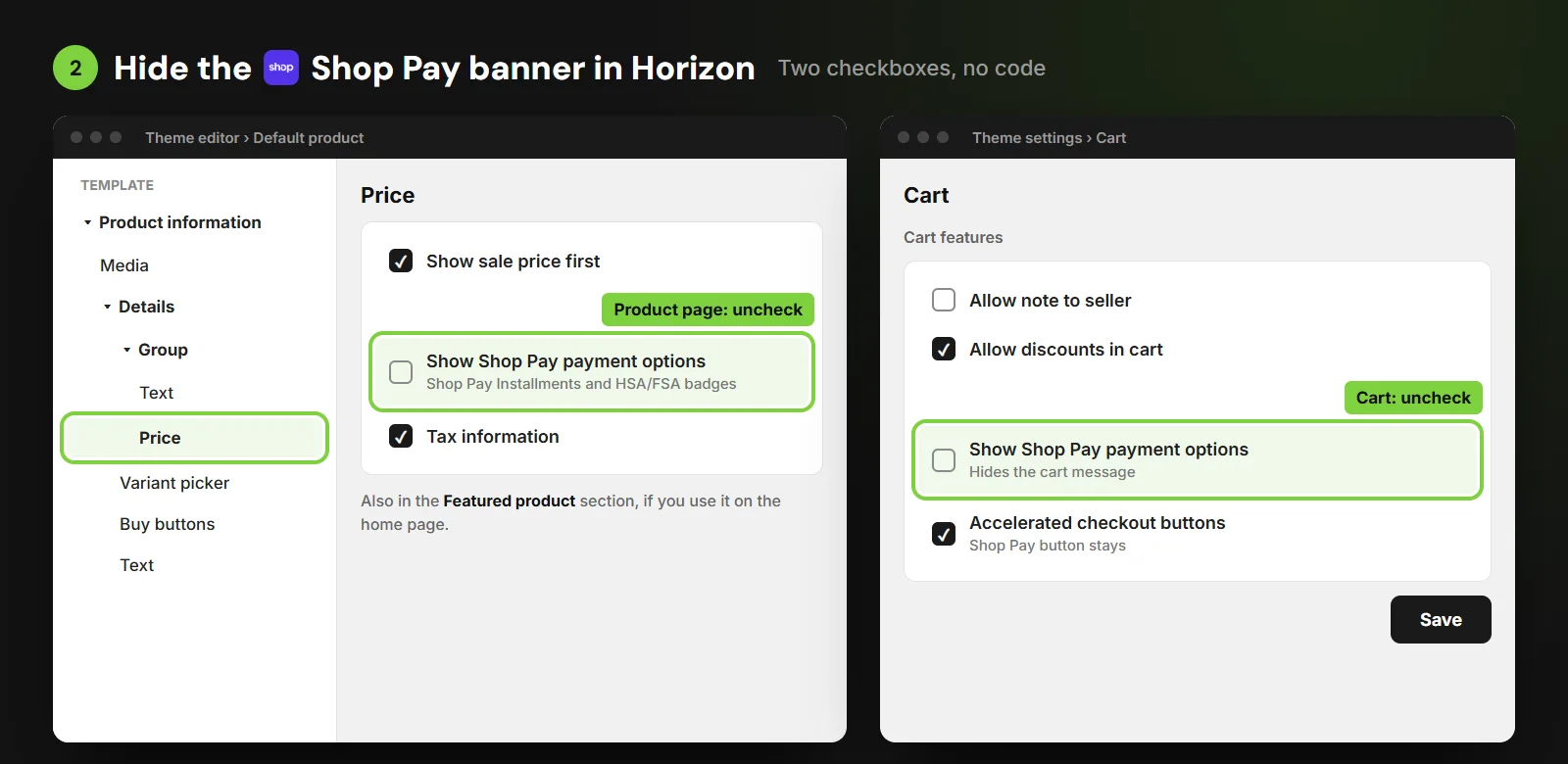
Two notes from Horizon’s own files. First, the same checkbox also controls HSA/FSA badges, so those go too. Second, the Featured product section has its own Price block with the option turned on by default. If you use it on your home page, uncheck it there as well.
In the Dawn theme (one line of CSS)
Dawn has no checkbox for this. It prints the message inside the Price block on every product page, and the block can’t be split. So we hide the Shop Pay Installments banner with a small piece of CSS. It’s safe, and you can undo it any time.
- Go to Online Store, then Themes, and click Customize.
- Click the gear icon to open Theme settings.
- Open Custom CSS and paste the code below.
- Click Save.
shopify-payment-terms {
  display: none !important;
}
“shopify-payment-terms” is the element Shopify adds for the banner, on product pages and in the cart. I tested this rule on desktop and phone widths. It hides only the message and leaves the price, buttons and layout as they were.

Hide it on only some products
Shopify does not let you choose which products offer installments. Its FAQ says the option covers every product in the price range, except gift cards and subscriptions. But you can hide the message on some products:
- Create a new product template, for example for services or sample items.
- Horizon: in that template, uncheck Show Shop Pay payment options in its Price block.
- Dawn: in that template, click the Product information section, open Custom CSS at the bottom, and paste the same code. Section CSS only affects that section.
- Assign the template to the products in the product editor, under Theme template.
Shoppers can still pick installments at checkout for those items. Only the message is gone.
Should you remove Shop Pay Installments? Why some sellers keep it
Before you remove Shop Pay Installments, weigh both sides. Shopify says it can improve conversion rates and average order value. That makes sense for higher-priced items, where paying over time helps people say yes.
Reasons sellers keep it:
- There is no cost to turn it on. You only pay the fee when a customer uses it.
- You get the full amount within 1 to 3 business days, not over months.
- You don’t chase late payments. Shopify’s lending partner collects them.
- It suits furniture, electronics, jewelry and other bigger orders.
Reasons sellers turn off Shop Pay Installments:
- The fee is higher than a normal card payment. Shopify says it is higher because it also includes the standard Shopify Payments fee. Check your exact rate under Settings, Payments, Manage, More actions, Manage payment methods, View payment rates.
- Most of their orders are small, so few customers use it.
- They sell to businesses, or they prefer another pay-later provider.
Which way should you use?
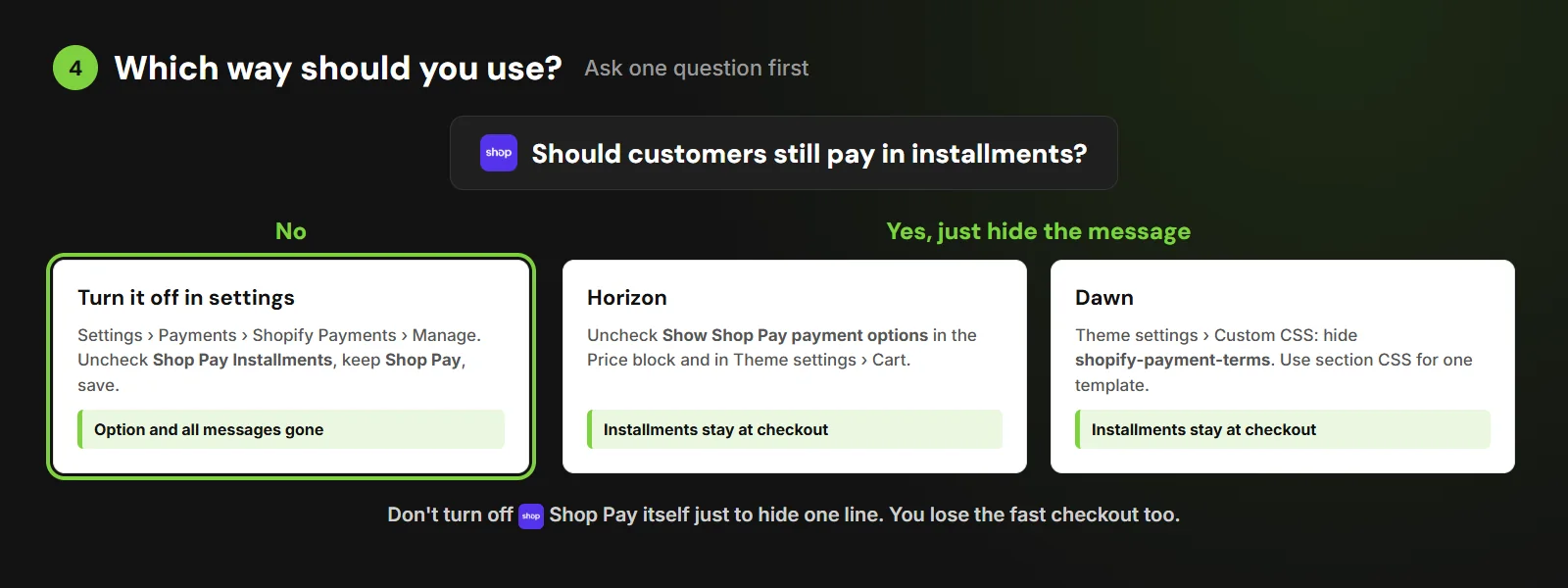
- You never want installments: use Way 1 to remove Shop Pay Installments completely. The messages go with it.
- You want installments, but not the message (Horizon): hide the Shop Pay Installments banner with the two theme checkboxes.
- You want installments, but not the message (Dawn): add the CSS in Theme settings.
- Only some products should skip the message: use a separate product template.
- You want to drop Shop Pay completely: that is a bigger decision. Shopify warns that subscriptions using Shop Pay will fail if you turn it off.
How to turn Shop Pay Installments back on
- Go to Settings, then Payments.
- In the Shopify Payments section, click Manage.
- In the Shop Pay section, check Shop Pay Installments and click Save.
- Optional: click Manage under Shop Pay Installments to see if you can choose the premium package for larger orders.
If you hid the Shop Pay Installments banner, undo that too. In Horizon, check the two boxes again. In Dawn, delete the CSS. Older or custom themes may need the banner added in code. Shopify’s guide on the Shop Pay Installments product page banner shows where it goes.
Don’t see the option at all? Then your store doesn’t meet the rules above, or your new store is still in Shopify’s first review period.
Common problems and fixes
These are the issues I see most when store owners remove Shop Pay Installments.
The message still shows after I turn off Shop Pay Installments
This comes up on Reddit and in the Shopify Community. Try these in order:
- Check that you clicked Save on the payments page.
- Open the store in a private window, or another browser. Your own browser may show an old copy.
- Read the message closely. If it doesn’t mention Shop Pay, it comes from another pay-later app. Turn it off in that app.
- Look for text typed into the theme by hand, such as a Text block or Custom Liquid block that says “pay in 4”.
- If none of that works, contact Shopify Support.
Shop Pay vanished from the payment list
Some store owners report that after they turn off installments, Shop Pay no longer shows in the list of payment options. In one Shopify Community thread, it still showed as the express button at the top of checkout. Check that Shop Pay is still checked in your settings. If it is and you can’t find it at all, ask Shopify Support.
My theme has no setting for the Shop Pay Installments banner
Older and custom themes add it in code. Search your theme files for “payment_terms”. The CSS from Way 2 works in almost any theme, so try that first. Deleting the line that contains “form | payment_terms” also works, but duplicate your theme before you edit code.
I can’t find Shop Pay Installments in my settings
The Shop Pay Installments Shopify setting only appears for eligible stores. Check your country, currency and that Shopify Payments and Shop Pay are both on.
Mistakes to avoid
- Turning off Shop Pay to hide the Shop Pay Installments banner. You lose the fast checkout too.
- Hiding the price block in Dawn. It removes your price along with the message.
- Editing the live theme code without a backup. Duplicate it first, or use the CSS way.
- Forgetting the cart. In Horizon, the cart has its own checkbox in Theme settings.
- Not testing on a phone. Check a product page and the cart on mobile after every change.
Small clean-ups like this add up. If you are tidying your product page, you might also want to remove the quantity selector or add honest Shopify trust badges near the price.
Frequently asked questions
How do I remove Shop Pay Installments from my product page?
To remove the message and the option, turn off Shop Pay Installments under Settings, Payments, Manage. To hide only the message, uncheck Show Shop Pay payment options in the Price block (Horizon) or add the CSS in Theme settings, Custom CSS (Dawn).
How do I turn off Shop Pay Installments on Shopify?
To turn off Shop Pay Installments, go to Settings, then Payments, and click Manage in the Shopify Payments section. In the Shop Pay section, uncheck Shop Pay Installments and click Save.
Can I turn off Shop Pay Installments but keep Shop Pay?
Yes. You can remove Shop Pay Installments and keep Shop Pay, because they are separate settings. Uncheck only Shop Pay Installments and leave Shop Pay checked. Shop Pay keeps working at checkout.
How do I turn on Shop Pay Installments?
Go to Settings, Payments, and click Manage under Shopify Payments. Check Shop Pay Installments in the Shop Pay section and save. Your store must use Shopify Payments and be in an eligible country.
Can I choose which products offer Shop Pay Installments?
No. Shopify applies it to all products in the eligible price range, except gift cards and subscriptions. You can only hide the message on some products with a separate template.
Why is Shop Pay Installments not showing on my store?
Your store may not be eligible, the order may be outside the price range, or the customer may not qualify. Also check that your theme shows the banner, for example the Price block checkbox in Horizon.
Whichever way you choose to remove Shop Pay Installments, test one product page and the cart on your phone before you move on. For more small fixes like this, browse my Shopify tips. If you would rather have it done for you, I handle payment settings and theme changes in my Shopify store management service. Message me on WhatsApp and I will take a look.



