


Selling coffee, vitamins or pet food on repeat is a simple way to get steady monthly sales. On Shopify, most stores choose between two apps.  Shopify Subscriptions is Shopify’s own free app.
 Recharge is a long-standing paid subscription app used by many large brands.
Both add a subscribe and save option to your product page and use the normal Shopify checkout. The real differences are price, the customer portal and retention tools. I have set up subscribe and save offers on many client stores. Every price and feature below comes from official pages, checked in November 2026.
Here is what you will learn:
- What each app costs, including the fee on every order
- A side-by-side table: customer portal, build-a-box, analytics, migrations,
 Shop Pay and Markets
- Two cheaper alternatives worth a look
- Which app fits your store
- How to add a subscribe and save widget in Dawn and Horizon
- The basic US, UK and EU rules for auto-renewal and cancelling
 Shop Pay and Markets
Shopify Subscriptions vs Recharge: the short answer
Start with Shopify Subscriptions if you sell a simple refill product and want the app part to cost nothing. Pick Recharge when subscriptions are a big share of your sales and you need tools Shopify Subscriptions doesn’t have: product swaps, offers that stop cancellations, build-your-own boxes and deeper reports.
The free app covers the basics: customers can skip, pause or cancel, and failed payments are retried. It lacks a retention toolkit. That is what the paid app sells, for a monthly fee plus a fee on every order.
What each app costs (as of November 2026)
Shopify’s own app is listed as free on the Shopify App Store, with no extra fee per order. You still pay your normal payment processing rates, like on any order.
The paid app has three plans on its official pricing page:
| Plan | Monthly fee | Fee per order | Good to know |
|---|---|---|---|
| Starter | $149 | 1.50% + 20¢ | 60-day free trial |
| Scale | $499 | 1.25% + 20¢ | Build-your-own bundles, migration help |
| Custom | Quote | Volume rates | High-volume brands |
Fees are billed in US dollars, on top of your Shopify costs.
A quick cost example
Say you sell $5,000 of subscriptions a month across 125 orders of $40. On the Starter plan that is $149, plus $75 (1.50%), plus $25 (125 orders at 20¢). The total is $249 a month, about 5% of that revenue. At $15,000 a month and 375 orders, it comes to $449.

So ask: will the extra tools earn back more than that fee? For a few dozen subscribers, often not yet. To see your full monthly Shopify costs, try my free Shopify pricing calculator.
Feature comparison table
In short: the paid app adds swaps, cancel-save offers, boxes and deeper reports.
| Feature | Shopify Subscriptions | Recharge |
|---|---|---|
| Price | Free | From $149 a month |
| App fee per order | None | 1.25% to 1.50% + 20¢ |
| Customer portal | Skip, pause, cancel, edit card and address | Also swap, add products, reschedule |
| Build-a-box | Not supported | Scale plan |
| Cancel-save offers | No | All plans |
| Failed payments | Retries you set | Smart retries |
| Analytics | 4 core numbers + sales reports | Retention reports, benchmarks |
| Migrations | CSV import of contracts | Full help on Scale |
| Shop Pay | Yes | Yes, not Installments |
| Local currencies | Test before launch | Yes, with some limits |
| Managed Markets | No | No |
| Shopify POS | Yes | No |

Customer portal
Shopify Subscriptions lives inside Shopify customer accounts, where shoppers sign in with an emailed 6-digit code. On the Subscriptions tab they can skip an order, pause, resume or cancel, and change their card or shipping address. Shopify also emails them 3 days before each renewal charge.
The paid app’s no-code portal also lets subscribers swap products, add items and reschedule deliveries.
Build-a-box and bundles
Shopify’s help center says bundles aren’t compatible with Shopify Subscriptions, so build-your-own boxes need a paid app. The paid app lists them on its Scale plan. Its help center also says products made with Shopify’s own bundles feature can’t be sold as subscriptions. For one-time bundles, see my guide to Shopify bundles without an app.
Failed payments and cancellations
In the free app, go to Apps, then Subscriptions, then Settings. Under Billing attempts you set the Number of retry attempts, the Days between payment retry attempts and the Action when all retry attempts have failed: skip, pause or cancel.
The paid app adds smart retries, win-back offers and cancellation flows that show an offer before someone leaves. That is the main thing you pay for.
Selling to customers in other countries
This part matters for stores in Europe and the UK. A subscription needs a payment method that can be charged again. Shopify warns that local, manual or non-card methods might not work. The paid app’s help center lists  Klarna,
 iDEAL, SEPA and Sofort as unavailable for subscription purchases. Cards and Shop Pay still work.
Also, Managed Markets doesn’t support subscriptions with any app. Shopify removes the subscription option for countries run through Managed Markets, so subscriptions work for domestic orders only. With plain Shopify Markets, the paid app supports local currencies with some limits. For the free app, test a renewal in each currency before launch. More on that in my guide to Shopify Markets for Europe.
Two alternatives worth a look
 Appstle and
 Loop are two cheaper paid options with free plans. Prices and ratings come from their App Store listings on November 26, 2026.
| App | Free plan | Paid from | Fee per order |
|---|---|---|---|
| Appstle | Up to $500 a month in sales | $10 a month | 0% |
| Loop | Up to 50 active subscribers | $99 a month | 1% on Starter |
- Appstle Subscriptions has build-a-box on its $30 Business plan, for up to $15,000 a month in subscription sales. It is rated 5.0 from 9,380 reviews.
- Loop Subscriptions lists Shopify Markets and multilingual support on its $399 Pro plan. It is rated 4.9 from 820 reviews.
For context, the free app is rated 3.8 from 927 reviews, and the paid one 4.8 from 3,162. Also, in April 2026  Skio, another big subscription platform, joined the paid app’s company.
Which subscription app should you pick?
- Shopify’s free app if you sell refill products on a fixed schedule with a simple discount and want $0 in app fees. It also works in your shop with Shopify POS.
- The paid app if subscriptions are a main part of your revenue and you have enough subscribers for cancel-save offers, win-backs and swaps to earn back the fee. Choose Scale if you need build-your-own boxes.
- A cheaper paid subscription app such as Appstle if you need build-a-box on a small budget.
My usual advice: start free, watch how many people subscribe and stay, and switch only when you can name the feature you miss. If you mainly want bigger orders, try Shopify upsells without an app first.
How to add a subscribe and save widget in Dawn and Horizon
You need three steps: create a plan, add the widget block, and turn on self-service. They are almost the same in both themes.
Step 1: Create a subscription plan
- Install Shopify Subscriptions from the Shopify App Store.
- In your admin, go to Apps, then Subscriptions, click Plans and then Create plan.
- In Title, type a name that customers will see, such as Subscribe and save.
- In the Products section, add the products for this plan.
- Under Discount type, choose Percentage off, Amount off or Fixed price, and enter the discount.
- In Delivery frequency, enter a number and pick weeks, months or years. Click Option to add more choices, such as every 2 months.
- Click Save.
You can also add plans from a product’s Purchase options section.
Step 2: Add the Subscription widget block
- Go to Online Store, then Themes, and click Customize.
- Open a product template from the drop-down at the top.
- Dawn: in Product information, click Add block and choose Subscription widget. Drag it just above Buy buttons.
- Horizon: in Product information, open the Details block, click Add block and choose Subscription widget. Place it just above Buy buttons.
- Click Save.
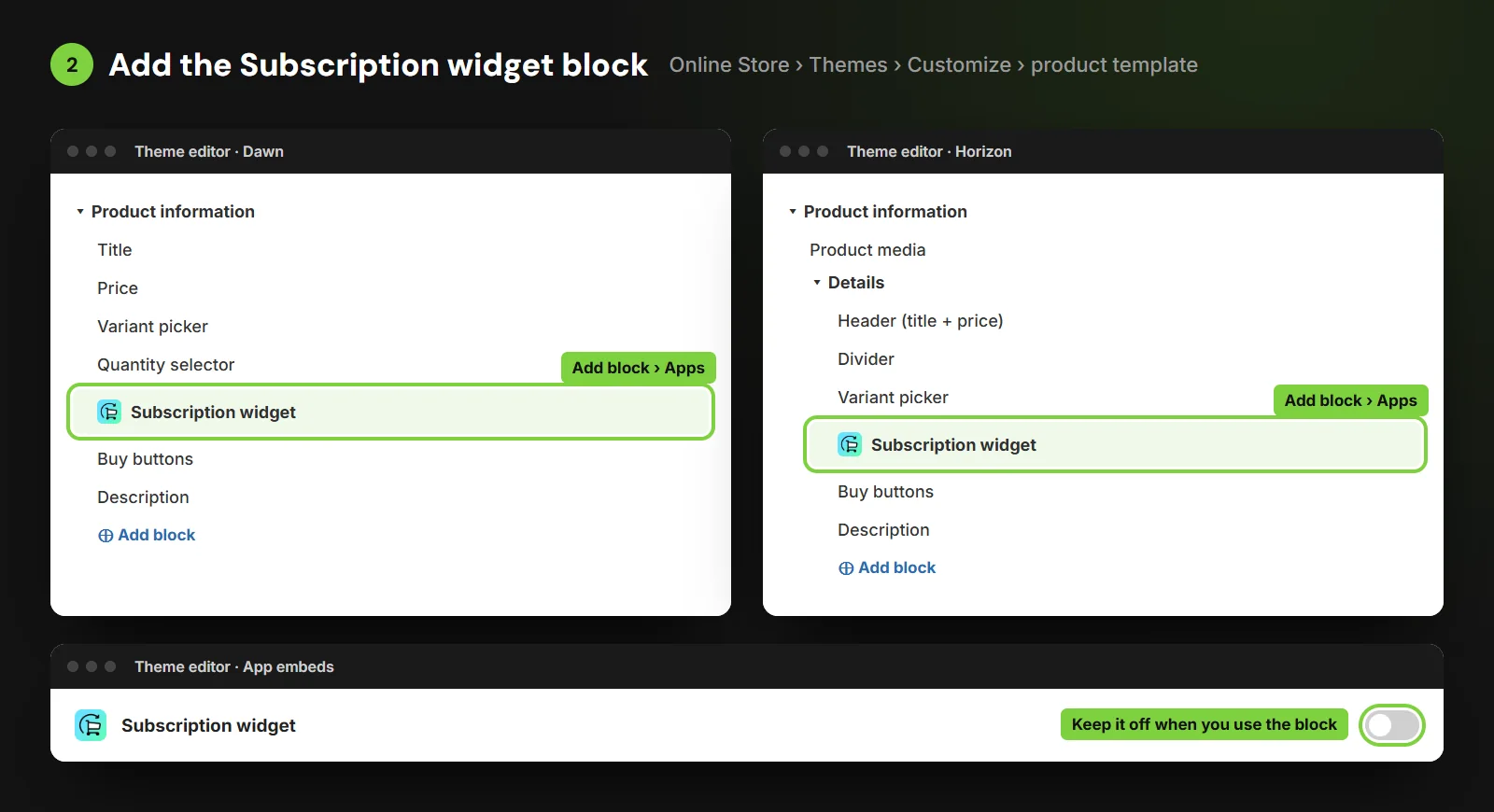
Shopify says to keep the Subscription widget toggle under App embeds off when you use the block, or it may not display correctly. Both themes then show the plan name under the item in the cart. In Horizon, the quick add button on collection pages shows Choose for these products, so shoppers pick their option on the product page.
Step 3: Let customers manage their subscriptions
- Go to Settings, then Checkout, and click Edit next to your configuration.
- Open the apps panel in the sidebar and search for the Subscriptions app.
- Click the plus icon beside Subscription management and choose Accounts. Optional: click Add to menu.
- Optional: add Order action button (order pages) and Manage subscription link (Thank you page) the same way. Click Save.
Turn on customer accounts so shoppers can sign in from your store menu. Otherwise they reach their subscription through the link in Shopify’s emails. Shopify’s Shopify Subscriptions setup guide has every step.
Optional: show the saving under the price
Shoppers often miss the discount inside the widget. This small code shows “Subscribe and save 10%” (or “up to 15%” with several plans) right under the price. In Dawn, add a Custom Liquid block to Product information and place it under Price. In Horizon, add it inside Details, right under the Header group that holds the price.
{%- liquid
  assign best_save = 0
  assign plan_count = 0
  for group in product.selling_plan_groups
    for plan in group.selling_plans
      assign plan_count = plan_count | plus: 1
      assign adjustment = plan.price_adjustments.first
      if adjustment.value_type == 'percentage' and adjustment.value > best_save
        assign best_save = adjustment.value
      endif
    endfor
  endfor
-%}
{%- if best_save > 0 -%}
  <p class="subscribe-save-note">
    <span>Subscribe and save {% if plan_count > 1 %}up to {% endif %}{{ best_save | floor }}%</span>
  </p>
  <style>
    .subscribe-save-note { margin: 0.25em 0 0.75em; }
    .subscribe-save-note span {
      display: inline-block;
      max-width: 100%;
      padding: 0.3em 0.8em;
      border-radius: 999px;
      background: color-mix(in srgb, currentColor 8%, transparent);
      font-size: 0.9em;
      line-height: 1.4;
      overflow-wrap: anywhere;
    }
  </style>
{%- endif -%}
It reads Shopify’s selling plans, so it works with any app that uses them. It only counts percentage discounts and shows nothing otherwise. I tested it against Dawn-style and Horizon-style product pages at 360, 390 and 1280 px, in light and dark colors, with no overflow. It also passed Shopify’s Theme Check.

Moving from Recharge to Shopify Subscriptions
Yes, you can switch. In the free app, go to Apps, then Subscriptions, click Contracts and then Import. Shopify’s rules:
- The old app must use Shopify’s checkout. If it doesn’t, you can’t import its contracts.
- You can’t import straight from the old app. Put its export into Shopify’s CSV format (download the sample first).
- Each file can be up to 10 MB, and the next billing date must be at least 24 hours after the import.
- Create your plans before you import, so new customers can still subscribe.
Don’t uninstall the old app in a hurry. Shopify deletes an uninstalled third-party subscription app’s data, apart from contracts and payment details, after 48 hours. Going the other way, the paid app’s Scale plan includes end-to-end migration help.
Auto-renewal and cancellation rules (US, UK, EU)
Subscription rules are getting stricter in all three regions. This is general information, not legal advice.
- California: the Automatic Renewal Law needs clear renewal terms next to the sign-up, express consent and a confirmation that explains how to cancel. If people sign up online, they must be able to cancel online. If you show a save offer, a “click to cancel” button must show with it. Price changes need notice 7 to 30 days before. These rules apply to contracts from July 1, 2025.
- Rest of the US: a court struck down the FTC’s 2024 click-to-cancel rule in July 2025. In March 2026 the FTC asked for comments on a new rule.
- UK: new subscription rules under the Digital Markets, Competition and Consumers Act 2024 are due to apply to new contracts from 1 January 2027, with reminders, cooling-off periods and easy exits. The GOV.UK guidance explains them.
- EU: shoppers can withdraw from online purchases within 14 days of delivery, and since June 19, 2026 stores need an online withdrawal function. See my guide to the Shopify withdrawal button.
Both apps help a little: Shopify’s checkout makes buyers agree to a cancellation policy, and customers can cancel online.
Common mistakes to avoid
- Prices in plan names. A name like “$9 a month” won’t change with the shopper’s currency. Shopify’s developer guidelines say to use percentages instead.
- Expecting subscriptions abroad with Managed Markets. They only work for domestic orders there.
- No customer accounts. Shoppers who can’t cancel easily send angry emails and file chargebacks.
- Paying for tools you don’t use yet. $149 a month is hard to earn back from 20 subscribers.
Frequently asked questions
Is Shopify Subscriptions free?
Yes. The app is free on the Shopify App Store and adds no fee per order. You only pay your normal Shopify plan and payment processing rates.
How does Shopify Subscriptions work?
You create plans with a delivery frequency and discount, add the widget to your product page, and customers subscribe at checkout. Shopify saves their payment method, charges each renewal the day after it is due at 10:00 am store time and emails a reminder 3 days before.
Can you do subscription boxes on Shopify?
Yes, but not with the free app, which doesn’t support bundles. You need a paid app with build-a-box, such as Recharge on its Scale plan or Appstle on its Business plan.
Can I migrate from Recharge to Shopify Subscriptions?
Yes, if your store uses Recharge with Shopify’s checkout. Export your subscriptions, put them in Shopify’s contract CSV format and import them under Contracts in the free app.
What is the best subscription app for Shopify?
There is no single best one. For simple refill products, the free app is enough. For a large program with swaps, boxes and cancel-save offers, a paid app earns its fee.
Does Recharge work with Shop Pay?
Yes. Shop Pay works as an express checkout option for subscriptions. Shop Pay Installments does not work with subscription purchases.
Pick the app your subscribers can pay for, not the one with the longest feature list. For more help, browse my free Shopify tools. If you want subscriptions set up for you, I do this as part of my Shopify store management service. Message me on WhatsApp and I will take a look.



