


Shopify maintenance is the small, regular work that keeps your store safe, fast and selling. Shopify runs the servers, but it does not check your apps, your theme, your links or who can log in. That part is yours. I have looked after many client stores, and most problems I fix come from skipped checks, not from Shopify itself.
This guide gives you a simple plan, plus honest prices if you want help. Every menu name and rule here comes from Shopify’s help pages, checked in November 2026.
Here is what you will learn:
- What Shopify already does for you, and what you must do yourself
- A store maintenance checklist: weekly, monthly, quarterly and yearly
- How to update your theme, audit apps and back up your store safely
- What a monthly Shopify maintenance plan costs, with named sources
- Which tasks to do yourself and which to hand off
What Shopify maintenance means
Shopify maintenance means checking and fixing the parts of your store that you control: apps, theme, content, links, speed, data and access. Shopify looks after the platform. You look after the store you built on it.
Shopify’s help center and pricing page list what is built in. Your store runs on Shopify’s servers, with a content delivery network run by  Cloudflare. Images are compressed and resized for you, and CSS and JavaScript files are minified. Every plan includes a free SSL certificate. Shopify also sends automated updates to fix bugs or security issues in themes from the Theme Store.
| Shopify does it | You do it |
|---|---|
| Hosting and servers | Remove apps you don’t use |
| Free SSL certificate | Add theme updates |
| Image compression | Fix broken links |
| Theme bug and security fixes | Back up products and theme |
| Fast global CDN | Review who has access |
One note: “maintenance mode” is a different thing. If you want to hide your store while you work on it, read my guide to the Shopify password page.
Shopify maintenance checklist: weekly, monthly, quarterly, yearly
A good store maintenance checklist matches each task to how fast it can go wrong. Orders and checkout change every day, so they get a weekly look. Backups and access can wait for a monthly or quarterly pass.
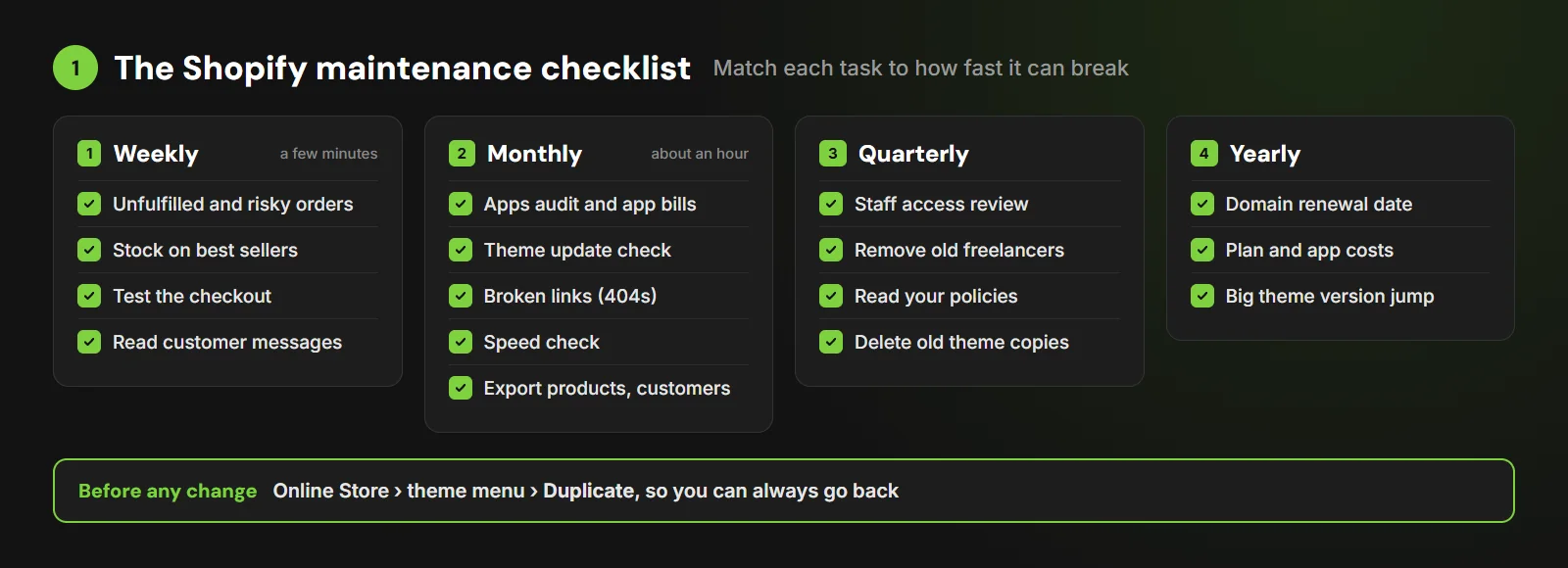
| Task | How often | Where in Shopify |
|---|---|---|
| Orders and stock | Weekly | Orders, Products |
| Test the checkout | Weekly, and after changes | Your storefront |
| Apps audit | Monthly | Settings > Apps |
| Theme update check | Monthly | Online Store |
| Broken links | Monthly | Search Console, redirects |
| Speed check | Monthly | Online Store |
| Export products and customers | Monthly | Products, Customers |
| Staff access review | Quarterly | Settings > Users |
| Policies | Quarterly | Settings > Policies |
| Domain and billing | Yearly | Settings > Domains |
Weekly: orders, stock and checkout
- Orders. Look for unfulfilled, stuck or risky orders. Old unfulfilled orders lead to angry emails and chargebacks.
- Stock. Check your best sellers. A low stock alert saves you from selling items you don’t have.
- Checkout. Shopify suggests a test order whenever you change your payment settings. I also test after any app or theme change. If something fails, my guide on a Shopify checkout that is not working covers the usual causes.
- Customer messages. Look for patterns. Three people saying “the code didn’t work” means a broken discount.
Monthly: apps, theme, links, speed and a backup
This is the core of Shopify maintenance. Set one hour aside each month and work through the store maintenance checklist from top to bottom. The next sections show each step.
Quarterly: access and policies
- Staff access. Go to Settings > Users. Shopify’s own advice is to deactivate any unused user logins. Click a user, then Actions > Suspend to pause access, or Actions > Remove to delete it for good. Remove old freelancers too.
- Policies. Open Settings > Policies and read each one. Shopify warns that its automated policies may not include every detail your business needs. Check that your return window and shipping times are still true.
Yearly: domain, plan and the big theme update
- Domain. In Settings > Domains, check when your domain renews. If you bought it through Shopify, you can turn on automatic renewal there. If it lapses, shoppers can’t reach your store at your own address.
- Bills. Add up your plan and app charges. Cancel anything you stopped using.
- Theme. Plan the big version jump if you are far behind (more on this below).
How to audit your apps
Once a month, open each app in Settings > Apps and check its cost, its access and whether you still need it. Shopify itself says your theme, your apps and any extra code you added have the biggest effect on your store’s speed.
- Go to Settings > Apps and click each app name.
- Under Billing and usage charges, check what you pay and the next bill date.
- Under Activity and permissions, look at what the app can see and edit. If you see an Unused access list, those are permissions the app has not used in the last 30 days.
- Ask one question: did this app make me money or save me time this month? If not, plan to remove it.
- To remove it, click the menu next to the app and choose Uninstall.
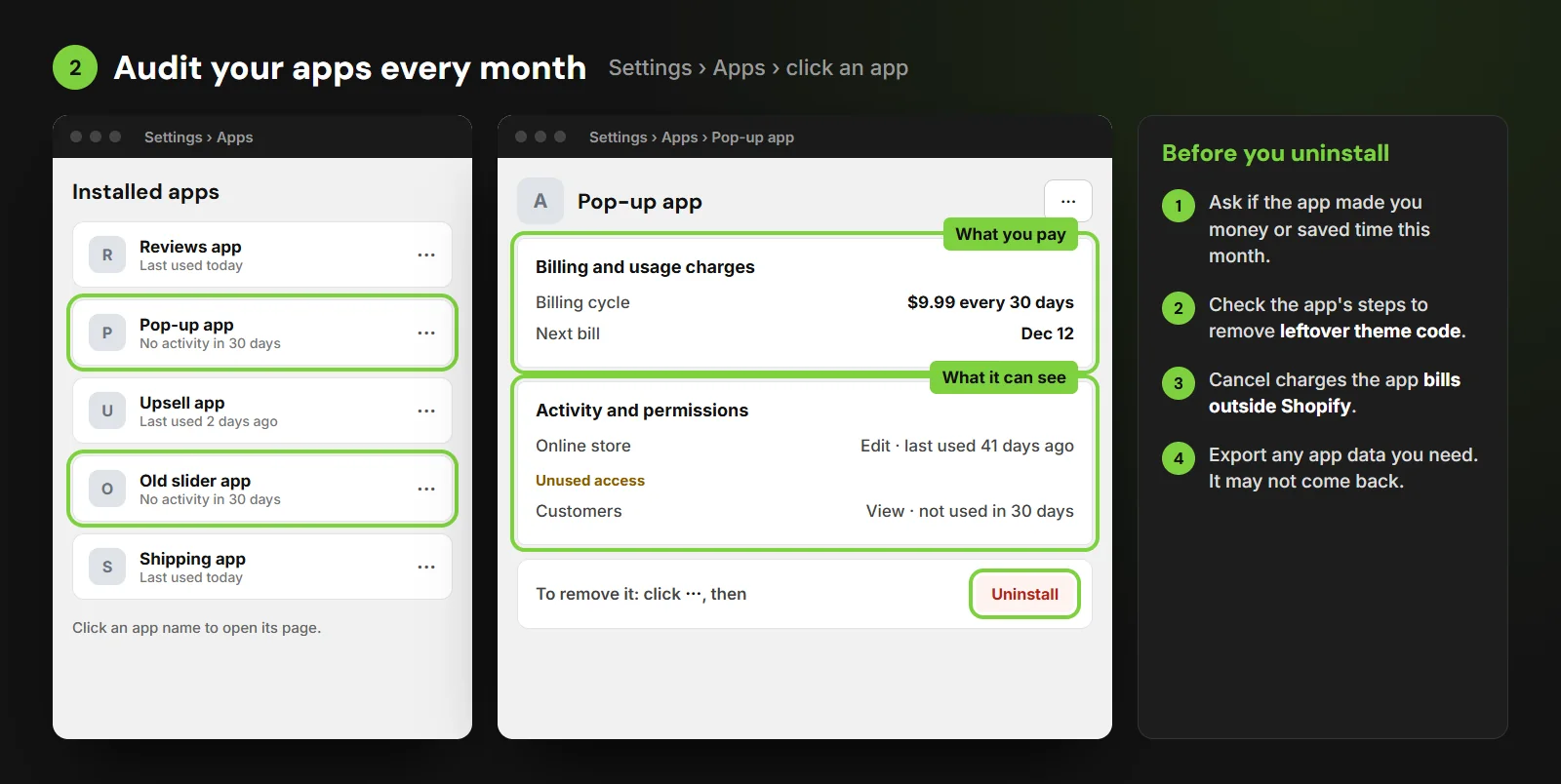
Two warnings from Shopify’s help pages. Some apps leave code in your theme after you uninstall them, so check the app’s instructions. And some apps bill you outside Shopify, so uninstalling does not stop those charges. My Shopify speed optimization guide shows how to find leftover app code.
How to update your Shopify theme safely
The safe way is to add the new version to your draft themes, test it, then publish it. Themes from the Theme Store get updates with new features and bug fixes. When an update is ready, a notice replaces the version number on your Online Store page. My free Shopify theme updates tracker shows the latest versions. As of November 2026, Dawn is on 16.2.0 and Horizon on 4.5.0.
- Go to Online Store and click the update notice on your theme.
- Click View release notes and read what changed.
- Click Add to draft themes. The new copy is named Updated copy of plus your theme name. Your live store does not change.
- Read the message on the new copy. “Code edits successfully included” means your custom code came across. “Code edits could not be included” means you must copy it over yourself.
- Click Review and test the homepage, a product page, the cart and the menu on a phone.
- Click Publish when everything works.
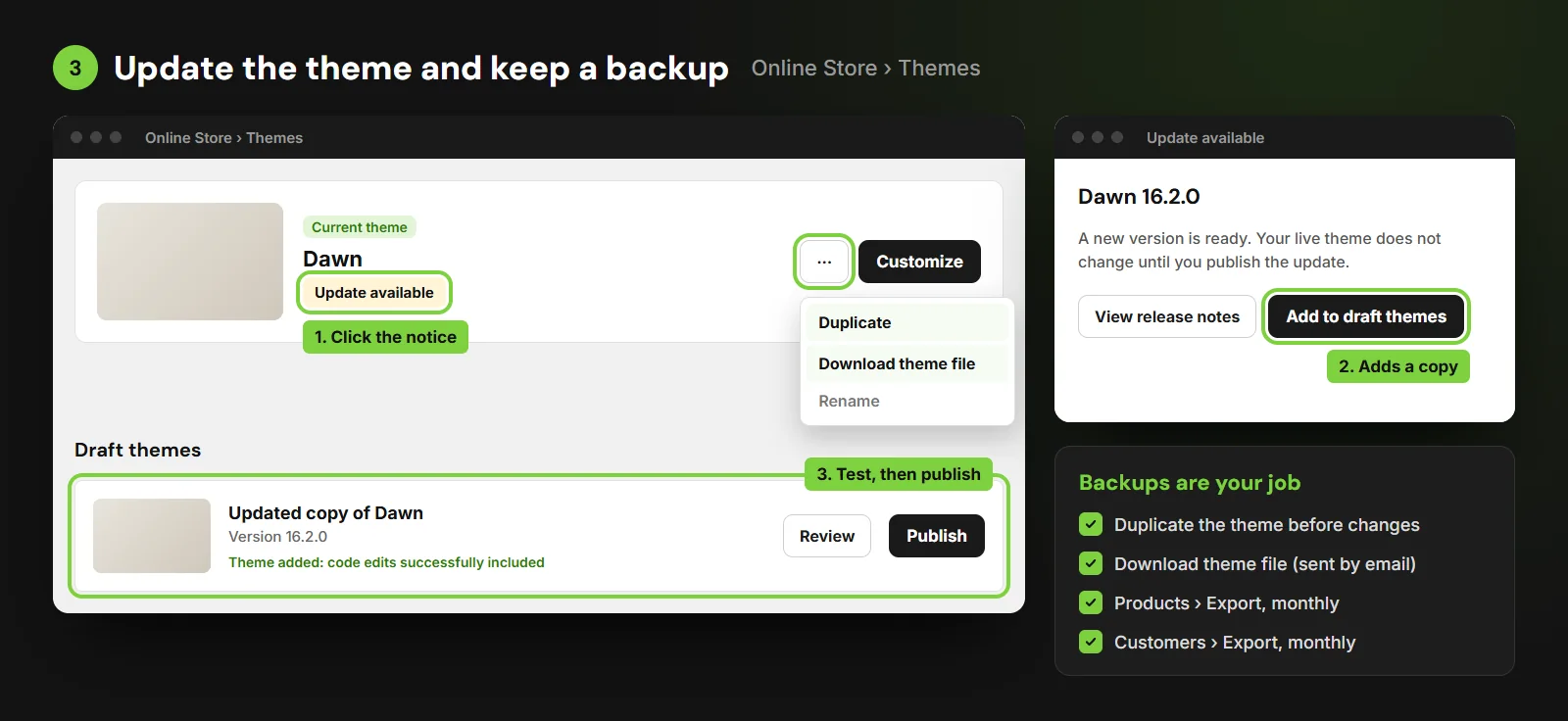
Settings you changed in the theme editor carry over to the update. Code edits carry over only when they don’t clash with the new version. Read the full rules in Shopify’s guide to updating themes.
Big version jumps need extra care. Dawn 16.0.0 removed the old customer account pages. Its release notes say stores on legacy customer accounts must move to new customer accounts before they publish it. Horizon updates use the same flow in the admin. Themes bought outside the Theme Store don’t get these updates, so ask the theme designer.
How to back up your store
Shopify does not back up your store data for you, so you need your own copies. This surprises most people who maintain a Shopify store. Shopify’s help center says that if you delete all your products, there is no way to restore them.
- Duplicate your theme before any change. In Online Store, open the menu on your theme and click Duplicate. The copy shows up in your theme list with “Copy of” in front of its name.
- Download a theme file. In the same menu, click Download theme file. Shopify emails you a .zip file.
- Export products. Go to Products, click Export, choose All products and export. The file does not include images or collections.
- Export customers. Do the same from Customers.
- Consider a backup app. For a big catalog or a busy team, Shopify points to backup apps in the App Store.
Delete old theme copies now and then. Basic, Grow and Advanced plans can hold up to 20 themes, and Plus can hold 100.
How to check broken links and speed
Use Google’s free tools for broken links and Shopify’s own report for speed. Both are free.
Broken links
Open  Google Search Console and go to the Page indexing report. Look for the Not found (404) reason. These are often products or pages you deleted. For each one, add a redirect in Content > Menus > View URL Redirects. Shopify only lets you redirect from a broken URL, so a page that still loads can’t be redirected. My Shopify URL redirects guide walks through it.
Speed
Your Online Store page shows a speed summary for loading (LCP), response to taps (INP) and layout shifts (CLS). Shopify rates each one Good, Moderate or Poor, based on real visits. LCP counts as good at 2.5 seconds or less. The data can lag by up to 36 hours. For more detail, test your key pages in  Google PageSpeed Insights and write down the scores each month, so a drop stands out.
What a monthly Shopify maintenance plan costs
A monthly Shopify maintenance plan costs from under $100 to several thousand dollars a month. On one expert marketplace, the median retainer is $500 a month from freelancers and $2,399 from agencies. Prices are in US dollars, as of November 2026.
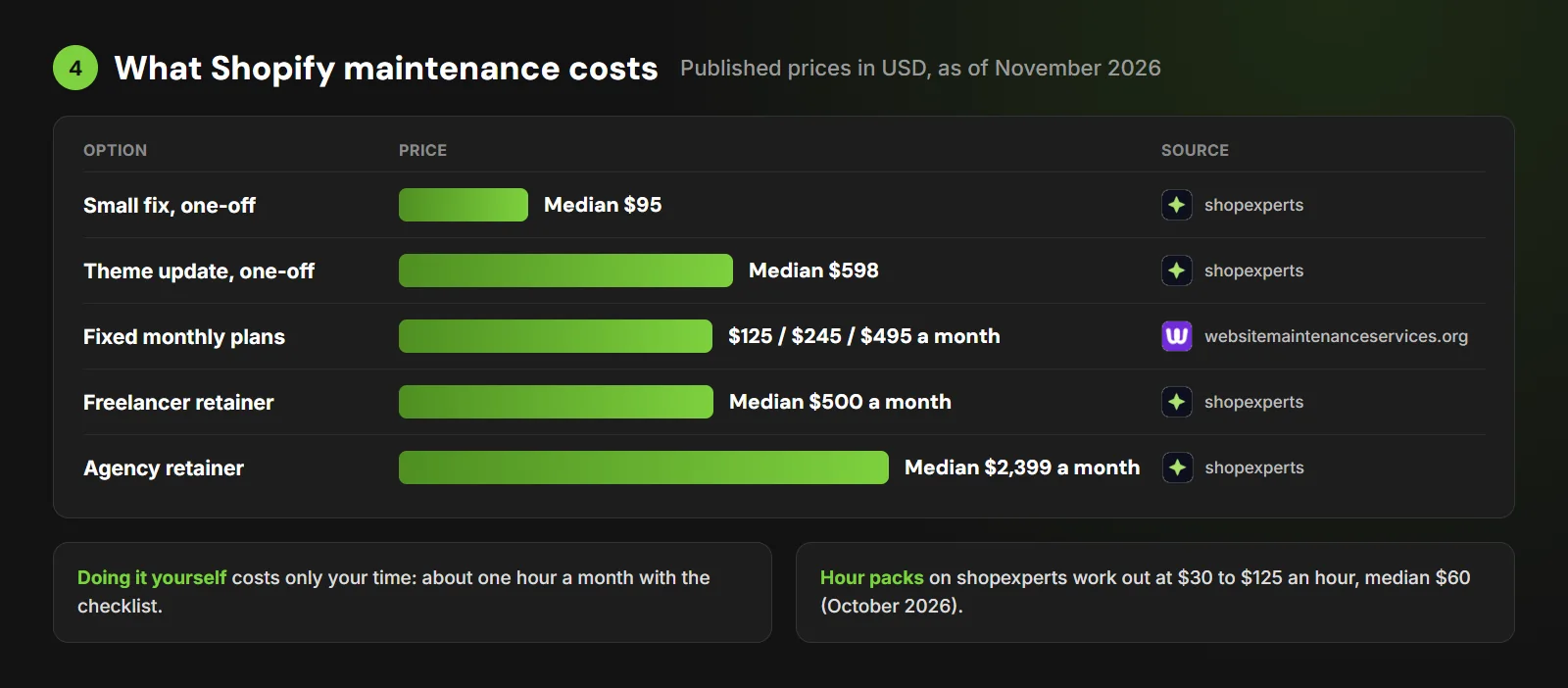
| Option | Price | Source |
|---|---|---|
| Small fix, one-off | Median $95 |  shopexperts |
| Theme version update, one-off | Median $598 | shopexperts |
| Fixed monthly plans | $125, $245, $495 a month |  websitemaintenanceservices.org |
| Freelancer retainer | Median $500 a month | shopexperts |
| Agency retainer | Median $2,399 a month | shopexperts |
The shopexperts figures come from packages listed on its Shopify maintenance cost page, updated in October 2026. The same data puts hour packs at $30 to $125 an hour, with a median of $60. The three monthly plans come from the websitemaintenanceservices.org price page, which also lists lower prices for yearly billing.
As one honest example, here is how I price it. My speed packages cost $80, $100 or $150 as one-off jobs. For monthly store management I don’t have a list price. I look at your regular tasks first, then we agree a fixed monthly price. The final price always depends on the work and is agreed after we talk about your store.
Your Shopify plan and apps are a separate cost, covered in my guide to the Shopify store cost per month.
What you can do yourself vs hand off
You can maintain a Shopify store yourself if you have an hour a month and some patience. Hand off the tasks where one mistake costs more than the fee.
| Task | Do it yourself? | Hand off when |
|---|---|---|
| Orders and stock | Yes | Volume gets too high |
| Exports and access review | Yes | Rarely needed |
| Apps audit | Mostly | Old app code is left behind |
| Theme updates | If no custom code | Code edits not included |
| Speed fixes | Images, app removal | Theme code needs changes |
A useful rule: if a task touches theme code, the checkout or customer data, ask someone who has done it many times.
Common Shopify maintenance mistakes
- Editing the live theme. Duplicate it first, and publish updates only after testing on a phone.
- Uninstalling an app and moving on. Check for leftover code and for charges billed outside Shopify.
- Leaving old staff accounts active. Every unused login is a door. My guide on a Shopify store that got hacked shows what can happen.
- Never writing anything down. Keep a short Shopify maintenance log of what you changed and when. It shows you where to look when something breaks.
Which way should you use?
- Do it yourself if you maintain a Shopify store that is small, uses a free theme with little custom code, and you have an hour a month. Use the checklist above.
- Pay per job if things rarely break. A one-off fix or theme update is cheaper than a monthly fee you don’t use.
- Get a monthly plan if you change the store often, run many apps, or lose real money when something breaks for a day. Ask for a written list of what is included and a short monthly report.
Frequently asked questions
How much does Shopify maintenance cost?
Shopify maintenance costs nothing if you do it yourself, a few hundred dollars a month for a fixed plan, and more with an agency. Published examples in November 2026 range from $125 a month for a small plan to a $2,399 median for agency retainers.
How much does it cost to maintain a Shopify store?
To maintain a Shopify store, add up your Shopify plan, your paid apps and any help you hire. In the US, the Basic plan is $39 a month, or $29 a month billed yearly. Apps and outside help come on top.
What are the main Shopify maintenance tasks?
A basic store maintenance checklist covers these: check orders and stock, test the checkout, audit apps, add theme updates, fix broken links, check speed, export your data, review staff access and read your policies.
Does Shopify back up my store?
No. Shopify’s help center says it does not offer an option to back up your store data. Export your products and customers, duplicate your theme, or use a backup app.
How often should I update my Shopify theme?
Make it part of your monthly Shopify maintenance. Check for an update and add it to your draft themes. Publish it after you test it. Read the release notes first when the first number of the version changes.
How do I put my Shopify store in maintenance mode?
Use the password page. It hides your store from visitors while you work on it, and you turn it off again when you are ready.
A short Shopify maintenance routine each month keeps small problems from turning into lost sales. For more help, try my free Shopify tools. If you would rather hand the checks to someone, I do this as part of my Shopify store management service. Message me on WhatsApp and I will take a look.



