


You found a developer, agreed on the job, and now they ask for access. Don’t send your password. The safe way is a Shopify collaborator account. The developer asks for access, and you choose what they can touch. When the job is done, you remove them in a few clicks. It costs nothing, and it does not use up a seat on your plan.
I have asked for collaborator access on many client stores, so I know both sides of this screen. This guide is the store owner’s side, with the steps from  Shopify’s own Help Center, checked in November 2026.
Here is what you will learn:
- What a collaborator account is, and how it differs from a staff account
- Where to find your collaborator request code, on desktop and on your phone
- How to check and approve a request safely
- Which permissions to tick for theme work, products, apps and tracking
- How to remove access when the job is done
What is a Shopify collaborator account?
A Shopify collaborator account is a login for a Shopify Partner, such as a freelancer or an agency. It works only on your store, and only in the areas you allow. The Partner logs in from their own Shopify Dev Dashboard or from the Shopify mobile app. You manage and remove that access from your admin.
Three facts from Shopify’s collaborator accounts guide matter most for owners:
- It is free and unlimited. Collaborators don’t count toward your store’s user limit, on any plan.
- Only Partners can use it. The person needs a Shopify Partner account. A Partner also needs a safe way to sign in, like a passkey or two-step login. Without one, they can’t log in to your store.
- It has limits on purpose. They can’t use Shopify POS, can’t get the Administrator role, and can’t be given ownership of your store.
Don’t mix this up with customer accounts. Those are logins for your shoppers, which I cover in my guide to Shopify new customer accounts.
Shopify collaborator account vs Shopify staff account
A Shopify collaborator account is for outside help. A Shopify staff account is for people on your own team. Shopify’s newer screens call staff accounts “users”, but the pricing page still says “staff accounts”. The biggest difference is the plan limit.
| Question | Collaborator | Staff account |
|---|---|---|
| Made for | Freelancers, agencies | Your own team |
| Who starts it | The Partner sends a request | You send an invite |
| Basic plan | Yes, unlimited | 0 users |
| Grow / Advanced | Unlimited | 5 / 15 users |
| Shopify POS | No | Yes, with a POS role |
| Extra cost | Free | Included from Grow |
As of November 2026, the US pricing page lists the Basic plan at $39 a month ($29 on yearly billing) with no staff accounts. Grow costs $105 a month ($89 yearly) with up to 5 staff accounts. Advanced allows 15, and Shopify Plus has no limit. My Basic vs Grow comparison shows when the upgrade is worth it.

When a staff account makes more sense
Choose a Shopify staff account for someone who works in your store every day, like a virtual assistant or a packer. It is also the answer when the person needs Shopify POS. Shopify’s guide for Partners says a staff account helps when a job can’t be done the other way. Its example is testing an app on a phone.
For a one-off job, such as a theme fix, a speed audit or a migration, a Shopify collaborator account is the better choice. It is free, and the Partner must follow Shopify’s Partner Program Agreement. You also get a clear “remove” button at the end.
Where to find your collaborator request code
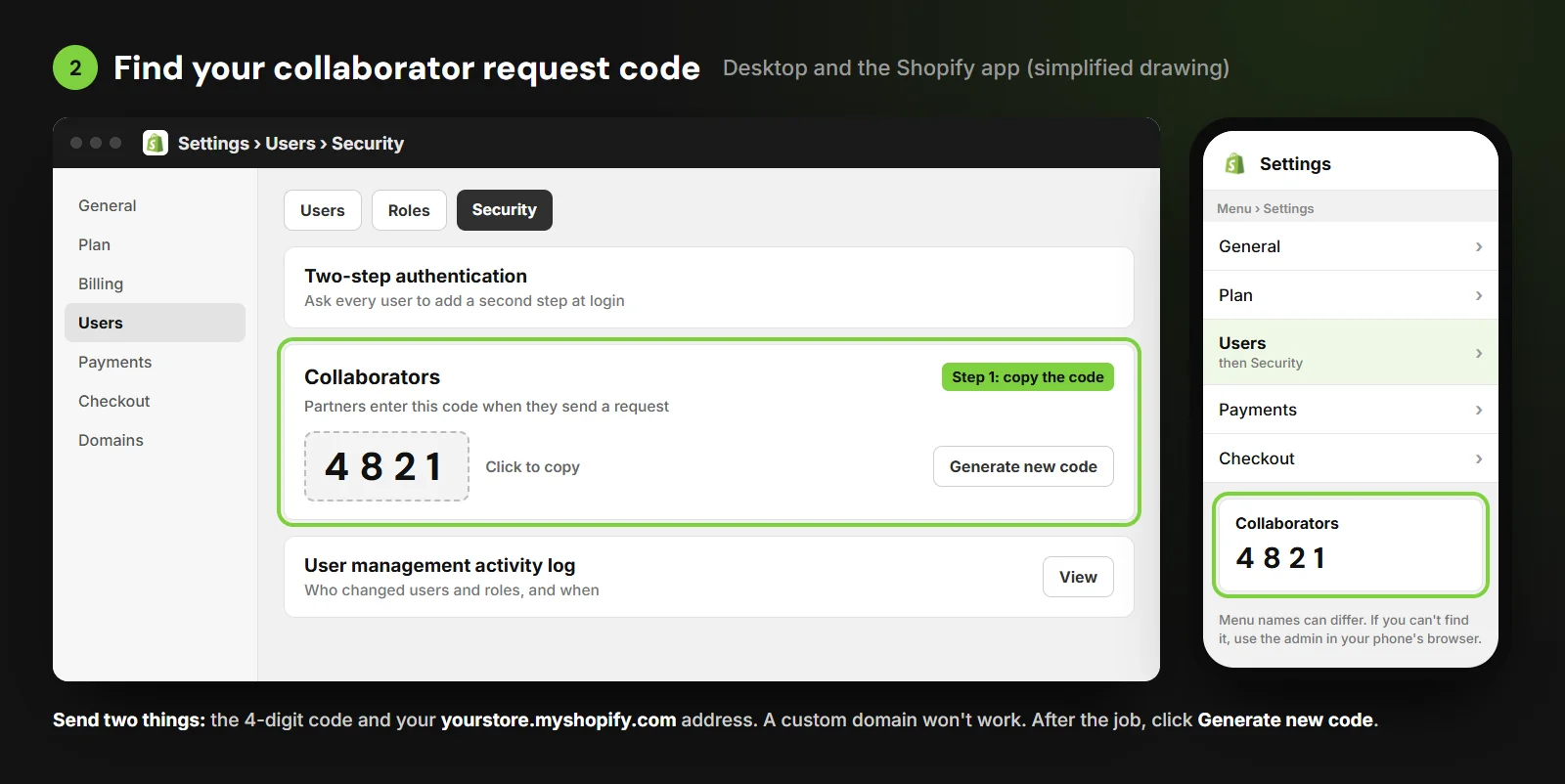
The collaborator request code is a 4-digit number that a Partner must enter before they can ask for access. Only people you give it to can send you a request. You find it in your Security settings.
On desktop
- In your Shopify admin, go to Settings, then Users.
- If your store is part of an organization, click Users. If not, click Users & permissions.
- Click Security.
- In the Collaborators section, click the 4-digit collaborator request code to copy it.
- Send the code to your developer, together with your store’s myshopify.com address.
Why the myshopify.com address? Shopify’s developer docs say Partners must enter the permanent myshopify.com URL. Your own custom domain won’t work. You can see it under Settings, then Domains.
On your phone
- Open the Shopify app and tap the Menu icon.
- Tap Settings, then Users.
- Open Security and copy the collaborator request code from the Collaborators section.
Shopify’s Help Center only lists the desktop steps for this task. The phone menu can look a little different. If you can’t find Security, open your admin in the phone’s browser and use the desktop steps.
What happens next
Your developer opens the Stores page of their Dev Dashboard, clicks Request store access, and enters your URL and code. Then they pick the permissions they need and send the request. You get an email and a note on your Shopify Home.
One detail surprised me in the docs. If the Partner’s company already has one of its apps on your store, it can ask for access without your collaborator request code. So the code is not the only gate. Your approval is.
How to approve a collaborator request safely
A request for a Shopify collaborator account does nothing until you accept it. Before you click anything, check who sent it and what they asked for. This is the step most guides skip.
Check the partner details first
Shopify may show some facts about the Partner on the request:
- Partner since: the month and year their Partner account was made.
- Active collaborations: a rough range of how many merchants they work with.
- Signed up from and Request sent from: the countries involved.
- (possible VPN): shown when the request came through a VPN or similar service.
A VPN is not proof of fraud. Partners use them for normal reasons, like a company network. But if the name, country or timing doesn’t match the person you hired, message them before you accept. Shopify says it clearly: these details don’t guarantee identity, quality or intent.
Accept or reject the request
- Go to Settings, then Users.
- Click the Requests status to see open requests.
- Click the request you want to review.
- In the Roles section, look at the auto-generated role. It is named like Partner name x Store name and holds the permissions they asked for. Untick anything the job doesn’t need, or assign a role you already made.
- Click Accept request. Or click Reject request if you don’t know the sender.
Rejected someone by mistake? You can’t undo it from your side. The Partner has to contact Partner Support, which can reset things so they can send a new request.

Which permissions to tick for each job
Give the smallest set of permissions that lets the person finish the job. Shopify gives the same advice: if a freelancer asks for something you don’t understand, ask why they need it. A good developer will explain it in one sentence.
These are the names as they appear in Shopify’s list of store permissions:
| Job | Tick these | Usually leave off |
|---|---|---|
| Theme design or fixes | Online store: Themes, Edit code. Files | Customers, Finance |
| Product uploads | Products: View, Create and edit. Files | Products: Delete |
| Prices and costs | Products: Edit price, Edit cost | Finance |
| App setup | Apps: Manage and install apps and channels | Approve app charges |
| Tracking pixels | Store settings: View customer events, Manage and add custom pixels | Payments settings |
| Blog or SEO content | Online store: Blog posts and pages. Files | Orders, Customers |
A few rules from the docs change what you should tick:
- Themes lets someone change and publish themes and use Shopify CLI. Edit code adds the code editor. Most theme jobs need both.
- Create and edit on Products does not include price or cost. Those are separate ticks, so you can let someone write products without changing your prices.
- Approve app charges lets the person install paid apps and themes. Leave it off and install paid apps yourself, so no bill arrives that you didn’t agree to.
- You can tick specific apps instead of all apps. The person then can’t install or delete apps at all.

Permissions to keep for yourself
Shopify marks some as sensitive because they show private data. Unless the job needs them, keep these off: Customers > Request data, the billing and payments settings, and View tax documents. Also, only the store owner can manage Shopify Payments or transfer the store, whatever permissions others have.
How to remove access after the job
When the work is approved and paid, remove the Shopify collaborator account. Shopify’s FAQ says to do this once you no longer need their help. It takes under a minute.
- Go to Settings, then Users (or Users & permissions).
- Click the person’s name. Tip: filter by User type > Collaborators to see them all.
- If your store is part of an organization, click Actions > Remove. If not, click Remove in the Remove collaborator account section.
- Confirm with Remove.
Removal is permanent. If you want the same person back later, they send a new request. Their name and actions stay in your store activity log and order timelines. So you keep a record of what they did.
Three more checks after removal
- Generate a new code. In Security, under Collaborators, click Generate new code. Old codes stop working at once.
- Look at the user log. The User management activity log in Security shows role and user changes.
- Remove unused staff too. For a Shopify staff account, use Actions > Suspend for a pause, or Remove to delete it.
Forgot to remove someone? The access ends on its own if nobody logs in for 90 days. That is a safety net, not a plan. You can bring an expired login back with Actions > Reactivate user.
Never share your password
Shopify’s Partner rules say asking for a merchant’s password, or logging in with it, is prohibited. If a “developer” asks for yours, that is the clearest warning sign you will get. Find someone else.
Your owner login can do things no helper can: change payouts, close the store, transfer ownership. With a shared password, you also can’t tell who changed what. If you think it already happened, follow my Shopify store hacked recovery guide. Then turn on two-step authentication for your own login.
Common mistakes to avoid
- Accepting a request you didn’t expect. If you don’t know the sender, reject it. The person you hired should tell you to expect it.
- Accepting every permission they asked for. The auto-generated role is a suggestion. Trim it.
- Posting your collaborator request code in public. Send it only in a private message. If it leaks, generate a new one.
- Sending your custom domain. Partners need the myshopify.com address.
- Paying for a plan upgrade to add a developer. On the Basic plan, a collaborator works fine. You only need Grow when you want a Shopify staff account.
- Leaving old collaborators active. Remove them when the job ends, and review your user list every few months.
Which way should you use?
For any freelancer or agency, use a Shopify collaborator account. It is free, it works on every plan, and you control it. Use a Shopify staff account only for people inside your business, or when someone needs POS. Never give out your own password instead.
Short version: you share a code, the developer sends a request, you trim the permissions and accept. When the job is done, you remove them and make a new code.
Frequently asked questions
Is a Shopify collaborator account free?
Yes. It costs you nothing, and it doesn’t count toward your user limit. Shopify’s pricing page lists “Invite third-party collaborators” on every plan, including Basic.
Why is my collaborator request code invalid?
Usually the code was changed. Once you click Generate new code, every old code stops working. Copy the current code again from Security, and check that the developer used your myshopify.com address, not your custom domain.
Can I add a Shopify staff account on the Basic plan?
No. As of November 2026, Basic and Starter allow 0 staff accounts. Grow allows 5 and Advanced allows 15. Collaborators and POS-only staff don’t count toward these limits.
How long does collaborator access last?
Until you remove it, or until 90 days pass without a login. After 90 days the access expires on its own. You or the Partner can restart it later.
What can Shopify collaborators do?
Only what you tick. Shopify says they can be given any permission in your store, so the limit is your choice. They can never use Shopify POS, become an Administrator, or take ownership of your store.
Can I change a collaborator’s permissions later?
Yes. Open the person in Settings, then Users, and change their role like you would for any user. This is handy when a theme job grows into a product job.
This is the safe default for any outside help, and it takes five minutes to set up right. Need a Shopify Partner for a theme, speed or setup job? You can hire me here. I will send a request with only the permissions the job needs. Message me on WhatsApp with your store link.



