


Good Shopify footer design is quiet work. Most shoppers scroll to the footer when they have a question: How do I contact you? What is your return policy? Do you ship to my country? If the answer sits right there, they keep shopping. If the footer is empty or messy, the store feels less real.
The good news: you don’t need an app or code. Shopify’s two free themes, Dawn and Horizon, have everything built in. I have set up footers on many client stores, and in this Shopify footer design guide I show you what to put in yours and how to build it.
Here is what you will learn:
- What a good Shopify footer needs (a simple checklist)
- How to edit the footer in Dawn, step by step
- How the Horizon footer works, and its menu accordion for phones
- 6 footer ideas you can copy, drawn as simple layouts
- How to fix social icons, payment icons and menus that don’t show
Shopify footer design checklist: what to put in your footer
Good Shopify footer design starts with one idea: a footer is a help desk, not a shop window. It answers the questions people have before they buy, and it holds the links they look for on every page.
These are the parts I add to almost every store, and where each one lives in Dawn and Horizon.
| Footer part | Why it helps | Dawn | Horizon |
|---|---|---|---|
| Menus | Help pages in one place | Menu block | Menu block |
| Contact info | Shows a real business | Text block | Text block |
| Email signup | Grows your list | Email signup setting | Email signup block |
| Social icons | Proof you are active | Social media icons setting | Social media links block |
| Payment icons | “I can pay my way” | Payment method icons setting | Payment icons block |
| Policy links | Returns and privacy | Policy links setting | Policy links block |
| Copyright | Store name and year | Always on | Copyright block |
You don’t need all of them. A small store does well with two menus, an email address, payment icons and policy links. Add more only when it answers a real question.
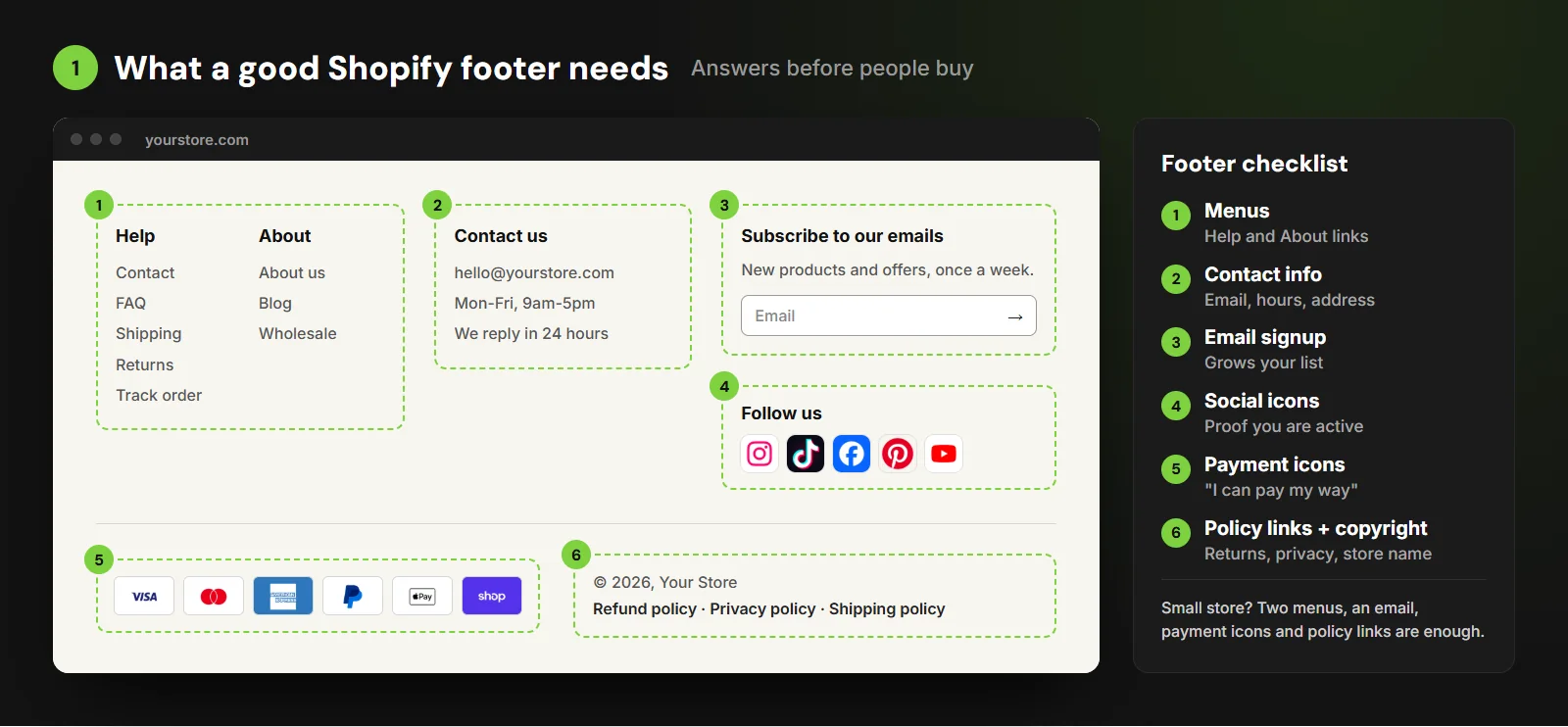
What should go in your Shopify footer menu?
Plan two short menus. The first is for help: Contact, FAQ, Shipping, Returns and Track your order. The second is about you: About us, Blog and maybe Wholesale. Five or six links per menu is plenty. Your policies don’t need a menu, because both themes can list them by themselves.
Before you start: set up your Shopify footer menu
Every Shopify footer menu is built in your admin first, then picked in the theme editor. Your store already has one called Footer menu.
- In your Shopify admin, go to Content, then Menus.
- Click Footer menu, or click Add menu to make a second one, such as “About”.
- Click Add menu item, type a name, and pick a page, policy or link.
- Drag the items into order, then click Save menu.
Need a FAQ page to link to? See my guide to the Shopify FAQ page.
How to edit the footer in the Dawn theme
In Dawn, your Shopify footer design lives in one section, with blocks on top and checkboxes below.
- Go to Online Store, then Themes, and click Edit theme.
- In the left sidebar, scroll to the bottom and click the Footer section.
- Click Add block under it to add columns.
Step 1: Add your blocks (the columns)
Dawn gives you four footer blocks. Each block becomes one column on a computer.
- Menu: pick a menu in Menu and type a Heading. The default heading is “Quick links”.
- Brand information: your logo, a headline and a short description. You fill these in under Theme settings, then Brand information.
- Text: a Heading and a Subtext box. This is the best place for your email, phone, hours or address.
- Image: one image with a Width from 50 to 550 px and an Alignment setting.
Two to four columns look best.
Step 2: Turn on the footer settings
Click the Footer section itself to see its settings. Most of these checkboxes are on by default.
- Email signup, with its own Heading (“Subscribe to our emails” by default). Each signup becomes a customer in your admin with the tag “newsletter”.
- Follow on Shop: a follow button for the Shop app.
 Shop Pay must be turned on for it to show.
- Social media icons, Country/region selector and Language selector.
- Payment method icons and Policy links.
 Shop Pay must be turned on for it to show.
Use the Color scheme setting at the top to change the footer colors, then click Save.
Step 3: Add your social links
Dawn keeps social links outside the footer. Click the Theme settings icon, open Social media, and paste your full profile links, such as your  Instagram or
 TikTok profile address, not just your username. There are also fields for
 Facebook,
 Pinterest,
 YouTube, X and more. Shopify explains this in its help page on theme settings.

How to edit the footer in the Horizon theme
Horizon splits your Shopify footer design into two sections. Scroll to the bottom of the theme editor sidebar and you will see both:
- Footer: the main area. By default it has a Group with “Join our email list” and an Email signup block, plus two Menu blocks.
- Policies and links: the thin bottom row. It holds up to three blocks: Copyright, Policy links and Social media links.
Step 1: Build the main Footer section
- Click the Footer section, then Add block.
- Choose what you need: Menu, Text, Logo, Image, Email signup, Payment icons, Social media links, Follow on Shop, or a Group to stack several blocks in one column.
- Each top-level block becomes one column on a computer, up to four in a row. A fifth block starts a new row.
- Set the Gap and the Background color in the section settings, then click Save.
Horizon’s default footer has no payment icons, so add the Payment icons block yourself.
Step 2: Set up Policies and links
- Copyright: shows the year and your store name. The Show “Powered by Shopify” checkbox turns that link on or off.
- Policy links: lists the policies you wrote in Settings, then Policies.
- Social media links: paste your links right in the block, under Links. Horizon has no social settings in Theme settings.
Step 3: Turn on the Shopify footer menu accordion
Click each Menu block and tick Show as accordion on mobile. Then pick the Icon (Caret or Plus) and, if you like, tick Dividers. On a phone, each menu now shows only its heading until a shopper taps it. On a computer, the links stay open.

Shopify footer design on phones
Check your footer layout on a phone first, because the two themes behave differently.
- Dawn stacks every block in one column. Menus are always open, and there is no accordion setting. Three long menus make a very long scroll.
- Horizon also stacks blocks in one column, but each Menu block can fold into an accordion. This keeps the footer short.
In Dawn, the fix is simple: keep menus short. To preview, click the phone icon at the top of the theme editor.
6 Shopify footer design ideas (with layout examples)
Here are six footer ideas I use again and again. Each footer layout is drawn as a simple wireframe, so you can copy the structure, not someone else’s brand.

1. Classic columns
Three columns: a help menu, an about menu and a contact block. Payment icons and policies sit in the bottom row. This fits almost any store, and you build it the same way in both themes: two Menu blocks and a Text block.
2. Newsletter first
A wide signup area with one short line, such as “Get 10% off your first order”, and two small menus beside it. Good for stores that send emails often. Only promise a discount you really give.
3. Brand story
Your logo, two lines about who you are, and your social icons in the first column. In Dawn, use the Brand information block. In Horizon, use a Group with a Logo, a Text and a Social media links block.
4. Support first
Put contact details up front: email, phone or chat hours, and a line like “We reply within 24 hours”. Add a menu with Shipping, Returns, FAQ and Track your order. This is my top pick for dropshipping and new stores, because trust is their main hurdle.
5. Big menu for large stores
Four menus side by side: Shop, Help, About and Legal. This helps stores with many collections. Keep each Shopify footer menu to five or six links, and in Horizon turn on the accordion so phones stay tidy.
6. Minimal one row
Just the copyright, the policy links and the social icons in one thin row. It suits one-product stores. In Horizon, remove the blocks in the Footer section and keep Policies and links. Horizon’s Jumbo text block can add your brand name in very large letters above it.
Which footer layout should you use?
Match the footer layout to the size of your store and to what your shoppers worry about most.
| Your store | Best layout | Must have |
|---|---|---|
| New or dropshipping store | Support first | Email, returns, tracking |
| Small brand | Brand story | Logo, social icons |
| Store that sends emails | Newsletter first | Signup, honest offer |
| Large catalog | Big menu | Short menus, accordion |
| One-product store | Minimal one row | Policies, contact link |
| Not sure | Classic columns | Two menus, contact |
All of these footer ideas are free in Dawn and Horizon. A footer app only makes sense for something the theme can’t do, and it adds code to every page. If you are still choosing a theme, my Dawn vs Horizon comparison can help.
Common footer problems and fixes
Social icons are not showing
In Dawn, paste your links in Theme settings, then Social media, and tick Social media icons in the Footer section. Tip: the Brand information block has its own Social media icons checkbox. With both ticked, the icons show twice, so untick one.
In Horizon, check the links inside the Social media links block. The default links point to homepages like facebook.com, and Horizon hides any icon that links only to a homepage. Paste your full profile link instead.
Payment icons are not showing
In Dawn, tick Payment method icons. In Horizon, add a Payment icons block. Then go to Settings, then Payments, and check that at least one payment method is active. The icons follow your real payment settings, so you can’t show a method you don’t accept. For more icons and badges, see my guide to Shopify trust badges.
The Shopify footer menu is not showing
Click the Menu block and check that a menu is picked in Menu. Then open Content, then Menus, and check that the menu has items. An empty menu shows nothing, or only a heading.
The country selector is missing
Dawn shows the Country/region selector only when your store sells to more than one country, and the Language selector only with more than one published language. In Horizon, these selectors are not in the footer. They live in the Header section, under Localization.
You want to change “Powered by Shopify” or the copyright
Horizon has a checkbox in the Copyright block. Dawn needs a small text change. My guide on how to remove Powered by Shopify shows both, plus how to change the copyright line.
Shopify footer design mistakes to avoid
- Too many links. Thirty links hide the five that matter. Cut what nobody clicks.
- Fake badges. A made-up “100% secure” seal does more harm than good. Show real payment icons instead.
- Missing policies. Write your refund, privacy and shipping policies, then turn on the policy links.
- Low contrast. Light grey text on white is hard to read. Pick colors with strong contrast.
Frequently asked questions
How do I edit the footer in Shopify?
Go to Online Store, then Themes, and click Edit theme. Scroll to the bottom of the left sidebar and click Footer. In Horizon, you will also see a Policies and links section below it.
How do I add a menu to the footer in Shopify?
Create the menu in Content, then Menus. Then, in the theme editor, click the Footer section, click Add block, choose Menu and pick your menu. This works in Dawn and Horizon.
How do I add payment icons to my Shopify footer?
In Dawn, tick Payment method icons in the Footer section. In Horizon, add a Payment icons block to the Footer section. The icons match the payment methods active in your store.
How do I add social media links to my Shopify footer?
In Dawn, paste your profile links in Theme settings, then Social media, and tick Social media icons in the footer. In Horizon, paste them in the Social media links block in Policies and links.
How do I add my address or contact info to the Shopify footer?
Add a Text block to the Footer section and type your email, phone, hours or address. Use the same details as on your contact page.
How do I change the footer color in Shopify?
In Dawn, choose a Color scheme in the Footer section settings. In Horizon, change the Background color of the Footer section and of Policies and links.
A clear, honest Shopify footer design is one of the easiest ways to make a new store feel trustworthy. For more step-by-step guides, see my Shopify tips. If you would like your footer, or your whole store, designed for you, take a look at my Shopify store redesign service. Message me on WhatsApp and I will take a look.



