

You wrote a Shopify collection description, clicked Save, and the collection page still shows only a title and products. The text is almost never lost. It is saved in your admin, and the theme is simply not printing it.
In this guide I show you where the text lives, why it stays hidden, and how to fix it in Shopify’s free themes, Dawn and Horizon. I have fixed this on many client stores, and every setting name below comes from the theme code and Shopify’s help pages, checked in November 2026.
Here is what you will learn:
- Where to write and edit a collection description
- 9 reasons the text does not show, with a fix for each
- How to turn on the collection banner image in Dawn and Horizon
- How to move the text below the products, with tested code
- How to add a “Show more” button to a long description
Where to edit a Shopify collection description
A Shopify collection description is the text you write for a collection in your admin. Your theme decides if and where it shows on the collection page. Shopify explains the admin side in its guide to editing collection details and layout.
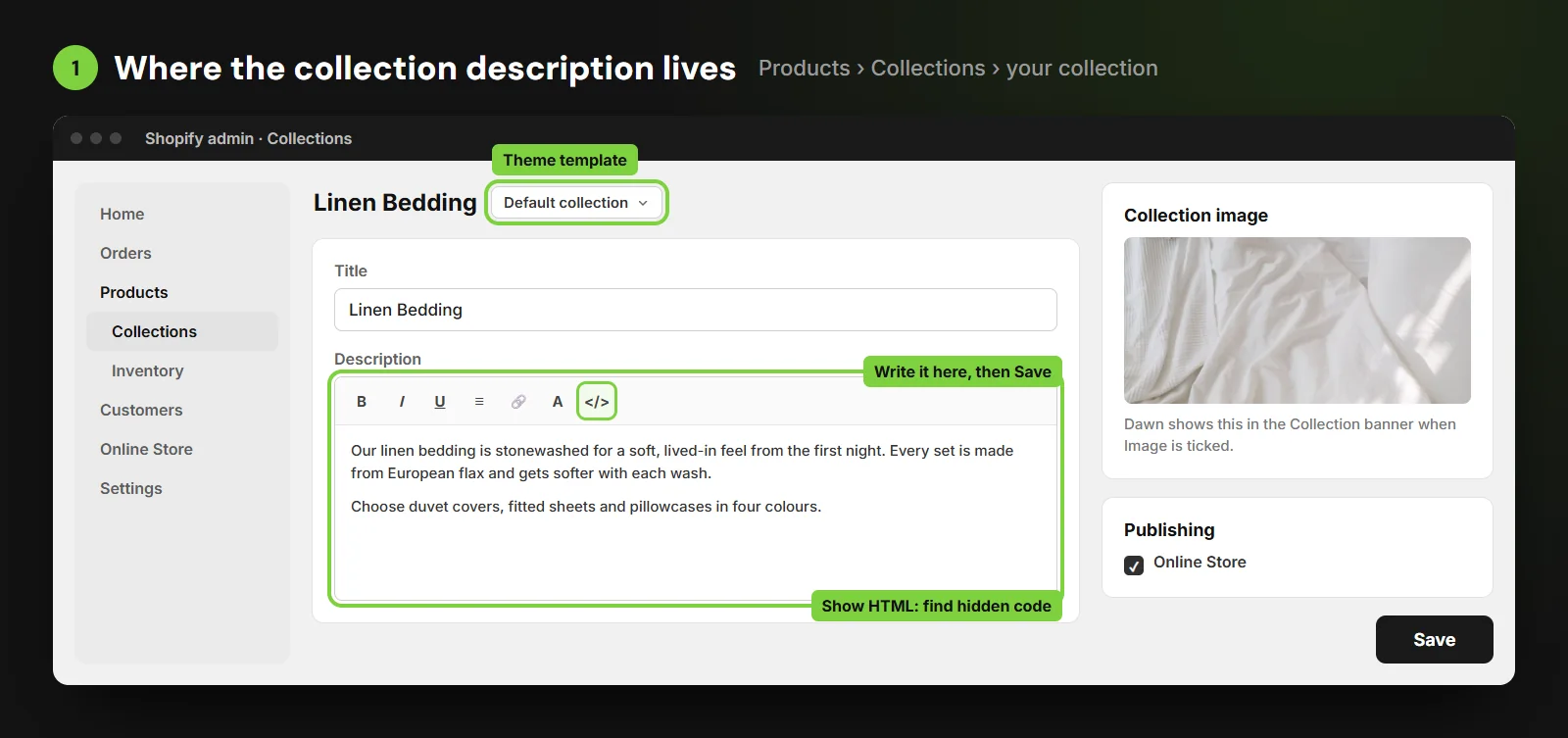
- In your Shopify admin, go to Products, then Collections.
- Click the collection you want to edit.
- Click into the Description box and write your text. Use the toolbar to format it.
- Click Save.
On the same page, look at the theme template name shown with the collection title, such as Default collection. Remember it. It matters for cause 5 below.
Collection description not showing? 9 causes and fixes
If your Shopify collection description is still hidden, work through these causes in order. Open the collection in a private window first, so you don’t see an old cached page.
1. You are looking at a different collection
A menu link can point to a similar collection, like “Summer” instead of “Summer Sale”. Check that the part after /collections/ in the address bar matches the collection you edited, and that the text is saved.
2. Dawn: the Description box is unticked
In Dawn, the title and text sit in a section called Collection banner. It has a checkbox that shows or hides the text.
- Go to Online Store, then Themes, and click Customize.
- In the page selector at the top, choose Collections, then Default collection.
- Click the Collection banner section in the left sidebar.
- Tick Description and click Save.
Dawn ticks this box by default. If it is off, someone turned it off. Dawn versions before 15.3 call the same box Show collection description.
3. Horizon: the Description block is hidden or deleted
Horizon has no checkbox for this. Its collection template starts with a section named Heading, which holds two text blocks: Title and Description. The Description block is linked to your collection text with a dynamic source.
- Hidden: hover over the Description block and click the eye icon to show it again.
- Deleted: in the Heading section, click Add block and choose Text. In the block’s Text field, click the dynamic source icon (a small database symbol) and choose the collection’s Description.
- Overwritten: if the block shows the same fixed sentence on every collection, someone typed over the dynamic source. Clear the field and connect Description again.
4. The banner section was hidden or removed
If the collection title is gone too, the whole section is the problem. In the theme editor, a hidden section shows a crossed-out eye icon. Click it to show the section again.
If it was deleted, the fix depends on the theme. In Horizon, click Add section, choose Custom section, and rebuild the two text blocks as in cause 3. Dawn’s banner section has no preset in its code, so it is not in the Add section list. To restore it, compare templates/collection.json in the code editor with the same file in a fresh copy of Dawn, and copy the banner part back. If code is not your thing, ask a developer.
5. The collection uses a different template
Templates are set per collection. If your collection uses a template like collection.sale, your changes to Default collection don’t reach it. Open the theme editor, pick that template from the page selector, and turn the description on there. Or switch the collection back: click the template name next to the collection title in your admin and choose Default collection.
6. You edited a theme that is not live
The theme editor works on any theme in your library. If you fixed the setting in a draft copy, your live store won’t change. Your published theme sits at the top of the Themes page, and copies are listed under Draft themes. Edit the published one, or publish the copy when it is ready. My guide on how to change your Shopify theme explains drafts and publishing.
7. Hidden HTML in the text
Text pasted from a word processor or another website can carry hidden code. Click the Show HTML button in the editor toolbar and look for these:
- Text inside <!– and –>. Shopify treats that as a hidden internal note.
- A style=”display: none” attribute on a paragraph.
- White text on a white background.
The fastest fix is to select the text and click Clear formatting, then add your bold text and links again.
8. An app or custom code took over the page
Some filter and search apps replace the theme’s collection page with their own layout. Custom code from a past developer can do the same. To test, preview the collection in a fresh copy of Dawn or Horizon. If the text shows there, the cause is the app or the code. Check the app’s settings, or turn off its embed under App embeds and test again.
9. Collection description not showing on mobile
Dawn and Horizon show the description on every screen size. Neither theme has a “hide on mobile” setting for it. So if the text is missing only on phones, custom CSS is hiding it. Look in the section’s Custom CSS field for a rule with display: none inside a @media query, and remove it. In Dawn, also check the code for the class small-hide, which hides content on small screens.

Collection description not showing: fixes at a glance
Match what you see with the most likely fix.
| What you see | Likely cause | Fix |
|---|---|---|
| Title shows, text doesn’t (Dawn) | Description unticked | Collection banner |
| Title shows, text doesn’t (Horizon) | Block hidden or deleted | Heading section |
| Title and text both gone | Section hidden | Eye icon |
| Only one collection affected | Other template | Edit that template |
| Editor fine, store wrong | Draft theme | Edit the live theme |
| Text saved, page blank | Hidden HTML | Clear formatting |
| Fresh theme works | App or code | App embeds |
| Missing on phones only | Custom CSS | Remove the rule |
How to show the collection banner image
Many people say “collection banner” when they mean the image at the top of a collection page. The two themes handle it differently.
- Dawn: open the Collection banner section and tick Image. Dawn then shows each collection’s own image, which you set on the collection page in your admin. On desktop the image sits next to the title. On phones it moves below the text.
- Horizon: the Heading section has a Background media setting. Choose Image and pick a picture. That picture applies to every collection that uses the template, so make a separate template for any collection that needs its own banner.
If the collection banner image looks blurry or badly cropped, check the size first. My Shopify image sizes cheat sheet lists the sizes I use.
How to move the Shopify collection description below the products
A long text above the products pushes them down, especially on phones. Many stores keep one short line at the top and put the rest below the product grid. The text stays in the page’s HTML, so search engines can still read it.
Both themes need the same two steps: hide the text at the top, then print it again below the products with a Custom Liquid section.
In the Dawn theme
- Open the Default collection template in the theme editor.
- Click Collection banner and untick Description.
- Below the Product grid section, click Add section and choose Custom Liquid.
- Paste the code below into the Liquid code box and click Save.
In the Horizon theme
- Open the Default collection template in the theme editor.
- In the Heading section, hide the Description block with the eye icon.
- Below the Collection section, click Add section and choose Custom Liquid.
- Paste the same code into Liquid code and click Save.
{%- if collection.description != blank -%}
<div class="page-width collection-seo-text">
  <h2>About {{ collection.title | escape }}</h2>
  <div class="rte">{{ collection.description }}</div>
</div>
<style>
  .collection-seo-text { overflow-wrap: break-word; }
  .collection-seo-text img,
  .collection-seo-text iframe { max-width: 100%; height: auto; }
  .collection-seo-text table { display: block; max-width: 100%; overflow-x: auto; }
</style>
{%- endif -%}
The code prints nothing when a collection has no text. Long links wrap, and wide tables scroll inside their box, so nothing breaks on a phone. I tested it in Dawn and Horizon at 360, 390 and 1280 pixels wide.

Add a “Show more” button to a long description
Want your Shopify collection description at the top, but not as a wall of words? Show the first lines and hide the rest behind a button.
Horizon: no code needed
- In the Heading section, hide the Description block.
- Click Add block and choose Accordion. Inside it, open the Accordion row and set its Heading to something like “Read more”.
- Inside the row, add a Text block and connect its Text field to the collection’s Description.
- Click Save.
It is the same Accordion block I use for product page tabs.
Dawn and Horizon: a Show more button
This version shows about four lines with a fade, then a Show more button. Hide the original description first, as in the steps above. Then add a Custom Liquid section, drag it above the products, and paste this code.
{%- if collection.description != blank -%}
<div class="page-width">
  <div class="collection-more" id="collection-more">
    <div class="collection-more__text rte">{{ collection.description }}</div>
    <button type="button" class="collection-more__button" aria-expanded="false" hidden>Show more</button>
  </div>
</div>
<style>
  .collection-more__text { overflow-wrap: break-word; }
  .collection-more__text img,
  .collection-more__text iframe { max-width: 100%; height: auto; }
  .collection-more.is-closed .collection-more__text {
    max-height: 7.5em;
    overflow: hidden;
    -webkit-mask-image: linear-gradient(#000 55%, transparent);
    mask-image: linear-gradient(#000 55%, transparent);
  }
  .collection-more__button {
    margin-top: 12px;
    min-height: 44px;
    padding: 0 20px;
    border: 1px solid currentColor;
    border-radius: 4px;
    background: none;
    color: inherit;
    font: inherit;
    cursor: pointer;
  }
</style>
<script>
  (function () {
    var box = document.getElementById('collection-more');
    if (!box) return;
    var text = box.querySelector('.collection-more__text');
    var button = box.querySelector('.collection-more__button');
    box.classList.add('is-closed');
    if (text.scrollHeight <= text.clientHeight + 4) {
      box.classList.remove('is-closed');
      return;
    }
    button.hidden = false;
    button.addEventListener('click', function () {
      var open = box.classList.toggle('is-closed') === false;
      button.setAttribute('aria-expanded', open ? 'true' : 'false');
      button.textContent = open ? 'Show less' : 'Show more';
    });
  })();
</script>
{%- endif -%}
Short texts get no button. Screen readers hear if the text is open or closed, and the button is 44 pixels tall, so it is easy to tap. If the script fails, the full text simply shows. Use this code once per page, because it looks for one fixed ID.
Is hidden text bad for SEO?  Google’s mobile-first indexing guide says you can move content into accordions or tabs on mobile. The full text is still in the HTML.

What to write in a collection description
A good Shopify collection description answers what a shopper wonders before they scroll:
- What is in this collection? One clear line, using the words shoppers search for.
- Who is it for? “Linen bedding for hot sleepers” says more than “Our bedding range”.
- How do I choose? A short tip on sizes, materials or fit.
- Why buy here? Delivery, returns or a guarantee, in one sentence.
Keep the top part to two or three sentences. For writing tips, see my guide to Shopify product descriptions, since the same rules apply. My free product description generator can help you with a first draft.
Which way should you use?
- Short text, one or two lines: keep it at the top. Just make sure it is turned on.
- Long text for SEO: one line at the top, the rest below the products with the first code snippet.
- Long text that must stay at the top: the Accordion in Horizon, or the Show more code in Dawn.
- Different layouts per collection: make extra collection templates and assign them in the admin.
Not sure which theme handles this better? My Dawn vs Horizon comparison covers how the two themes differ.
Common mistakes
- Fixing only the default template. Every extra collection template needs the same change.
- Showing the text twice. If you add code below the products, hide the text at the top.
- Pasting from a word processor. Hidden styles can hide the text or break the layout. Paste as plain text.
- Testing only in the theme editor. Check the live collection in a private window and on your phone.
- Copying one Shopify collection description everywhere. Write each one for its own products.
Frequently asked questions
Why is my Shopify collection description not showing?
Usually a theme setting hides it. In Dawn, tick Description in the banner section. In Horizon, show or rebuild the Description block in the Heading section. Also check the collection’s template and that you edited the live theme.
How do I show the collection description in the Dawn theme?
Go to Online Store, then Themes, then Customize. Open Collections, then Default collection, click Collection banner, tick Description and save.
How do I add a Shopify collection description?
Go to Products, then Collections, click the collection, write your text in the Description box and click Save. The text then shows on the collection page if your theme has it turned on.
How do I move the collection description to the bottom in Shopify?
Hide the text at the top, then add a Custom Liquid section below the products with a short code that prints collection.description. The code is in this guide and works in Dawn and Horizon.
Can each collection have its own banner image?
Yes. In Dawn, tick Image in the Collection banner section, and each collection shows the image set in its admin page. In Horizon, use a separate template with its own background image.
Does a Shopify collection description help SEO?
It gives search engines and shoppers words that explain the page. Unique text for each collection helps more than one copied paragraph.
A hidden Shopify collection description usually comes back with one checkbox or one block, so start there. For more practical guides, see my Shopify tips and my free Shopify tools. If you would rather have your collection pages planned and built for you, I do this as part of my Shopify store redesign service. Message me on WhatsApp and I will take a look.



