


Shopify search not working is a quiet problem. A shopper types a product name, sees “No results”, and leaves. You never hear about it, but you lose the sale. The cause is almost always a setting or a product detail, not a broken store.
In this guide I show you how Shopify’s built-in search works, why it misses products, and how to fix it in Dawn and Horizon. I have fixed search on many client stores, and these are the checks I run first. Every rule here comes from Shopify’s help pages and theme code, checked in November 2026.
Here is what you will learn:
- How predictive search and the search results page work
- 10 reasons search finds nothing, with a fix for each
- What to do when the search bar is missing on mobile
- How the free
 Search & Discovery app helps, and when a paid app makes sense
 Search & Discovery app helps, and when a paid app makes sense
How Shopify search works
Shopify search is built into every online store and needs no setup. It comes in two kinds, and they can show different results:
- Predictive search shows suggestions while the shopper types. By default it returns up to 10 results in total.
- The search results page opens when the shopper presses Enter. It shows the full list, with filters if your theme has them.
Search reads these product fields: title, description, product type, tags, vendor, variant title, variant SKU and variant barcode. It does not read metafields. Only the first 10,000 characters of a description count, including the HTML.
Shopify explains the details in its guide to search behavior in your online store. Search forgives small typos, such as one wrong letter or two swapped letters. It matches singular and plural forms. It also links related words, using your title, description, product type, category and tags.

Shopify search not working? Run this 3-minute test first
Before you change anything, find out which part is failing: the product, the theme or an app.
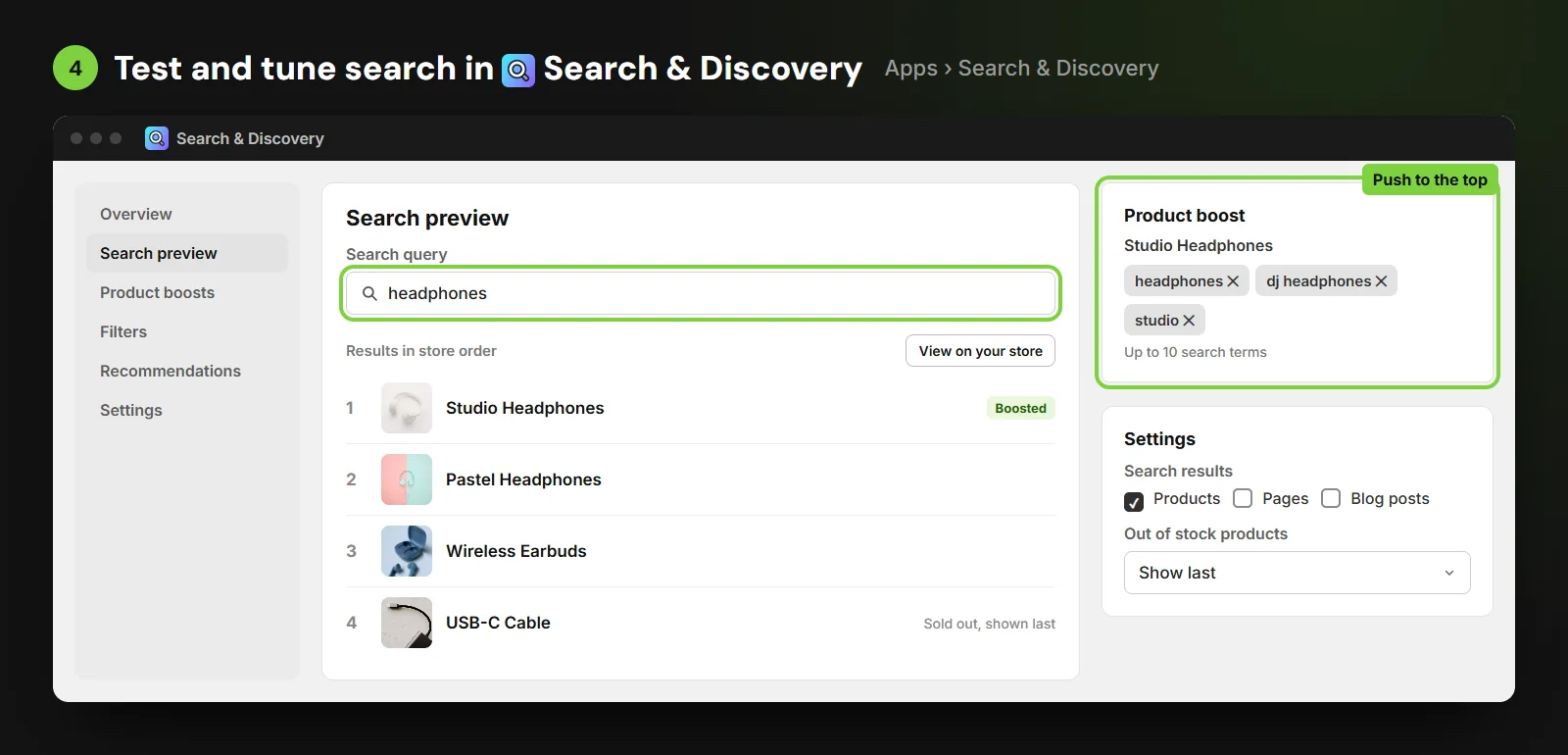
- In your Shopify admin, go to Apps, then Search & Discovery, and click Search preview.
- Type the shopper’s exact word into the Search query field.
- Click View on your store to run the same search on your live store. Use a private window, so cache and extensions don’t get in the way.
If the product is missing in the Search & Discovery preview too, the cause is the product or its data. If the preview finds it but your store doesn’t, a search app or a theme edit is changing your results. Don’t have the app yet? It is free from Shopify in the Shopify App Store.
Why Shopify search is not working: 10 causes and fixes
Most cases of Shopify search not working come from one of these ten causes. Work through them in order. The first four hide a product from search completely.
1. The product is not on the Online Store channel
Search only shows products published to your Online Store. Open the product and look at the Publishing section. If Online Store is missing, click the adjust icon, select Online Store, click Done, then Save. The same section lists your markets, so check the shopper’s market too.
2. The status is Draft, Archived or Unlisted
Only Active products show in search. This often catches people after they duplicate a product, because Shopify sets copies to Draft by default.
The Unlisted status arrived in October 2025. An unlisted product can still be bought from its direct link, but it is hidden from search, collections and recommendations. Change the status to Active and save.
3. A hidden “seo.hidden” metafield
Some SEO apps hide products with a metafield called seo.hidden. When its value is 1, the product is hidden from search engines and from your own store search. Open the product in your admin and add /metafields.json to the end of the page address. If you see namespace seo, key hidden and value 1, change the value to 0.
4. Out-of-stock products are set to hide
By default, sold-out products show at the end of the results. In Search & Discovery, open Settings and look at Out of stock products. If it says hide, choose to show them last instead.
5. You just made a bulk edit
Shopify says a single product update usually shows within seconds. Bulk actions, such as a big CSV edit, can take several hours. If your store was paused for billing and then reopened, it can take up to 36 hours. A big bulk update is a common reason for Shopify search not working for a few hours, so wait before you start fixing things.
6. The shopper’s word is not in a searched field
This is the most common cause of Shopify search not working that I see. The shopper searches “hoodie”, but your product is called “Fleece Pullover”. Or “waterproof” only sits in a metafield, which search can’t read.
Use your shoppers’ words. Put the main term in the title, add other names as tags, and mention key features early in the description. My guide to Shopify product descriptions shows how to write text that reads well and holds those words.
7. Shoppers search part of a SKU
Shoppers can search a full SKU, or its first 3 to 15 characters. Characters from the middle don’t match, unless a hyphen, slash or space splits them off. So “888” finds “abc1-888-xl”, but not “abc1888xl”. If buyers search part numbers, add them as tags.
8. Stopwords and search syntax
Common words like “the” are ignored, so a search made only of them returns all products. Quotes, a minus sign, “OR” or a field name such as title: also switch off typo fixes, related-word matching and product boosts.
9. Search shows pages instead of products
Search can return products, pages and blog posts. If old pages keep showing up, open Search & Discovery, then Settings, and change the result types for Search results and Predictive search results. The two lists are set separately, which is why the drop-down and the results page can disagree. If your theme sets its own result types in code, it overrides the app.
10. An app or theme edit has taken over
If you use a third-party search app, that app runs your search, not Shopify. Its results and its handling of Unlisted products can differ. Turn off the app’s theme embed and test again. Or preview a fresh copy of Dawn or Horizon, as I explain in how to change your Shopify theme. If search works there, the problem is in your theme code or the app.

Search bar missing or suggestions not showing
A missing search bar is usually a theme setting, not a bug. Dawn and Horizon both show a magnifying glass icon, not an open bar. Tapping it opens the search box. On a phone, the icon can sit on the left, next to the menu.
In the Dawn theme
Dawn always shows the search icon in the header, and there is no setting to hide it. If the search bar icon is gone, custom code or a header app removed it. Undo the last code change, or compare with a fresh copy of Dawn.
No drop-down while typing? Turn predictive search back on:
- Go to Online Store, then Themes, and click Customize.
- Open Theme settings in the left sidebar and click Search behavior.
- Check Search suggestions. You can also show Product vendor and Product price.
- Click Save.
In the Horizon theme
Horizon has a switch for the icon itself. In the theme editor, click the Header section. Under Search, check Search icon. You can also set its Position and Row. If the box is unchecked, your Shopify search bar is gone on every screen size.
Predictive search in Horizon is always on. Under Theme settings, then Search, you can pick an Empty state collection to show in the search pop-up before the shopper types. My Dawn vs Horizon comparison covers more of these differences.

Using an older or paid theme? Predictive search only works if your published theme supports it, so check its docs.
Shopify search not working: fixes at a glance
Match what you see with the most likely fix.
| What you see | Likely cause | Fix |
|---|---|---|
| One product never shows | Not on Online Store | Publishing section |
| Copied product missing | Status is Draft | Set to Active |
| Opens by link only | Status is Unlisted | Set to Active |
| Sold-out items gone | Hidden in app | Show them last |
| Bulk edits missing | Index delay | Wait a few hours |
| Feature words find nothing | Word in a metafield | Add to tags or text |
| Only pages show | Result types | App settings |
| No drop-down (Dawn) | Suggestions off | Search behavior |
| No icon (Horizon) | Search icon off | Header section |
| Preview fine, store wrong | App or theme code | Test a fresh theme |
Make search smarter with Search & Discovery
Once search finds your products, Search & Discovery controls what shows first. It is made by Shopify and free as of November 2026. It also runs the complementary products on your product pages.
Find what shoppers can’t find
Search & Discovery has a Searches with no results report and a Searches with no clicks report. Both cover the last 30 days of the results page, not predictive search. Check them monthly. Each empty search is a word to add to a title, tag or description.
Push the right product to the top
- In Search & Discovery, click Product boosts.
- Click Create product boost and select the product.
- Type a search term and click Add. You can add up to 10 terms.
- Click Save, then check the term again in Search preview.
Boosts only lift products that are for sale. Keep them few, or other good matches drop down.
Add filters to the results page
In Search & Discovery, click Filters, then Add filter, and pick a Source, such as Price, Product type, Tags or Vendor. Product options and some metafields work too. A store can have up to 25 filters. Your theme must show them: in Dawn, check Filters in the Search results section of the search template. In Horizon, use the Filters box in the Filtering and sorting block.
What happened to synonyms?
The app used to offer synonym groups, such as “sofa” and “couch”. As of November 2026, Shopify’s help page on changing search no longer lists them, and merchants on Shopify’s developer forum reported in September 2026 that the option was gone. If you can’t find it in your app, add the other word as a tag.
When a search app is worth it
An app is rarely the fix for Shopify search not working on its own. For most stores, free Shopify search is enough once the product data is clean. A paid app replaces Shopify’s search, so it is a bigger change than it looks. Consider one when:
- You sell thousands of products, and shoppers search specs that live in metafields.
- You need synonyms, redirects or rules the free app doesn’t offer.
- Your store language is not one of the 33 that Shopify search supports. Estonian and Latvian, for example, are not on the list.
- Your no-results report stays long after you fix titles and tags.
Before you pay, test the app on your top searches. Check that it respects Unlisted products and doesn’t slow your store speed.
Common mistakes
- Fixing the theme first. Most problems are status, channel or wording.
- Testing only in the admin. Test the search bar on the live store, in a private window and on a phone.
- Key words only in metafields. Great for filters, but search can’t read them.
- Keeping old search app code. It can stay in your theme after you remove the app.
- Boosting half the catalog. Boost one or two products per term.
Want a second pair of eyes? My free Shopify store audit tool checks your storefront for common problems, and my free Shopify tools page has more.
Frequently asked questions
Why is my Shopify search bar not working?
Check that the product is Active and published to the Online Store, then test in a private window. If search works in a fresh copy of Dawn or Horizon, a search app or theme code change is the cause.
Why is my product not showing in Shopify search?
The usual reasons are a Draft or Unlisted status, a missing Online Store channel, a seo.hidden metafield set to 1, or sold-out products set to hide. After a bulk edit, wait a few hours.
Why is Shopify Search & Discovery not working?
Its boosts and filters only work with Shopify’s own search. If a third-party search app runs your store search, or your theme doesn’t support filters, the app’s changes won’t show.
How do I add a search bar in the Dawn theme header?
Dawn shows a search icon in the header by default, with no setting to remove it. If you can’t see it, a code edit or app hid it. For the drop-down, turn on Search suggestions under Theme settings, then Search behavior.
Does Shopify search metafields?
No. Shopify’s list of searchable fields doesn’t include metafields. Use metafields for filters, and copy key words into tags or the description so search finds them.
Can Shopify search by SKU?
Yes. Shoppers can search the full SKU or barcode, or the first 3 to 15 characters of a SKU. Middle parts only match when a hyphen, slash or space splits them.
Good search is often the fastest win on a store that already gets traffic. For more practical guides, see my Shopify tips. If you would rather have your store’s search, navigation and product pages planned and built for you, I do this as part of my Shopify store redesign service. Message me on WhatsApp and I will take a look.



