

Scroll to the bottom of a new Shopify store and you will see a small line: “Powered by Shopify”. It does no harm, but most brands want a clean footer that only shows their own name. The good news: you can remove Powered by Shopify in about two minutes, for free, without an app and without touching code.
In this guide I show you the exact steps for Shopify’s free themes, Dawn and Horizon. I have cleaned up the footer on many client stores, and these are the methods I use. Here is what you will learn:
- Is it allowed to remove the line? (Short answer: yes.)
- Way 1: remove Powered by Shopify with Edit default theme content (any theme)
- Way 2: the built-in checkbox in the Horizon theme
- Way 3: delete one line of theme code, as a backup
- How to remove it from the password page too
- How to change the Shopify footer copyright line
Can you remove Powered by Shopify?
Yes. Shopify allows it and even explains how in its own help center. You do not need a paid app or a special plan for it. If you use a free Shopify theme, Shopify Support may even help you with it.
The line is a small link to shopify.com. It is marked nofollow, which means it adds no search value to your store. When you remove Powered by Shopify, nothing changes for your rankings, your checkout or your plan. It only changes what shoppers see at the bottom of the page.
Why do store owners remove Powered by Shopify? A clean footer looks more like a real brand. Some shoppers notice the line, and it can make a store feel like a template.
Where the “Powered by Shopify” text comes from
Before you remove Powered by Shopify, it helps to know where the text lives. It is not one setting. Your store can show it in two places: the main footer and the password page.
| Where you see it | Dawn theme | Horizon theme |
|---|---|---|
| Footer of every page | “Powered by Shopify” link next to the copyright line | “Powered by Shopify” after the store name in the Copyright block |
| Password page (store not open yet) | “This shop will be powered by” plus the Shopify logo | “This shop will be powered by” plus the Shopify logo |
| File in the theme code | sections/footer.liquid | blocks/footer-copyright.liquid |
| No-code switch | Theme content only | Checkbox in the Copyright block |
Many paid themes use the same built-in Shopify link as Dawn, so Way 1 below usually works for them too.
Way 1: Remove Powered by Shopify with Edit default theme content
This is the way Shopify itself recommends to remove Powered by Shopify. It works in Dawn, Horizon and almost every other theme. You only change a piece of text, so nothing can break.
Step by step
- In your Shopify admin, go to Online Store.
- Find the theme you want to change. Click the … button next to it, then click Edit default theme content.
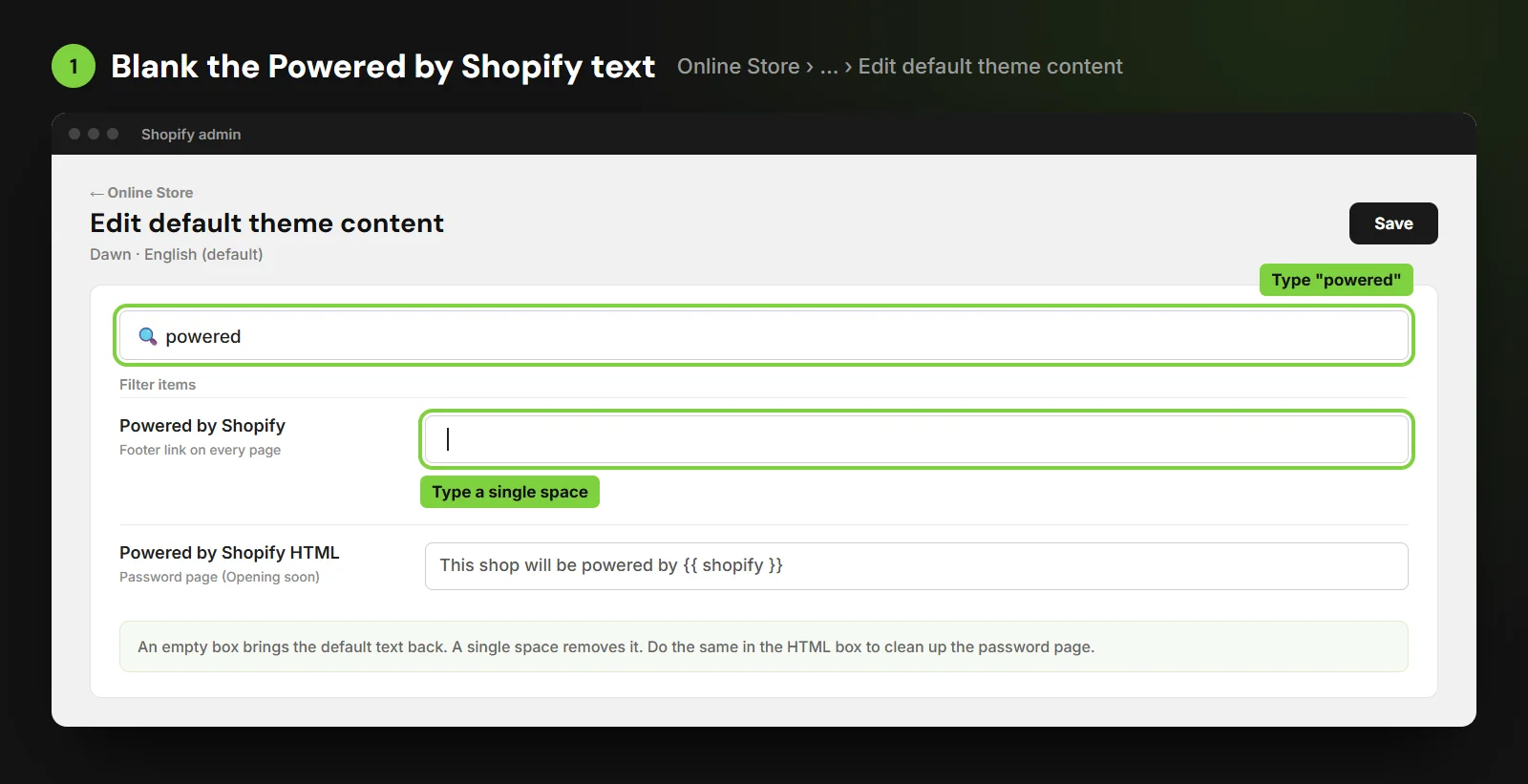
- In the Filter items search box, type powered.
- Find the box called Powered by Shopify. Click inside it and type a single space.
- Click Save.
Why a space and not an empty box?
An empty box does not remove the text. When a box is empty, Shopify falls back to the default wording, and the line comes back. A single space replaces the text with nothing you can see.
Check the result
Open your store in a new tab and scroll to the bottom. The Powered by Shopify footer link should be gone. If it is still there, refresh the page once. Then check that you edited your live theme and not a draft copy.

You could type your own words in the box instead of a space. But the theme wraps this text in Shopify’s link, so your words would still point to shopify.com. For your own line, change the copyright text instead, as I show further down.
One more tip: you can do the same steps in the Shopify mobile app. Tap Online Store, then Manage all themes, then the … button next to your theme, and choose Edit default theme content.
Way 2: Use the Horizon footer checkbox
Horizon, Shopify’s newer free theme, has a real setting to remove Powered by Shopify. You do not need the text trick at all.
- Go to Online Store and click Edit theme on your Horizon theme.
- In the left sidebar, scroll down to the footer area. Open the Policies and links section.
- Click the Copyright block inside it.
- Untick Show “Powered by Shopify”.
- Click Save.
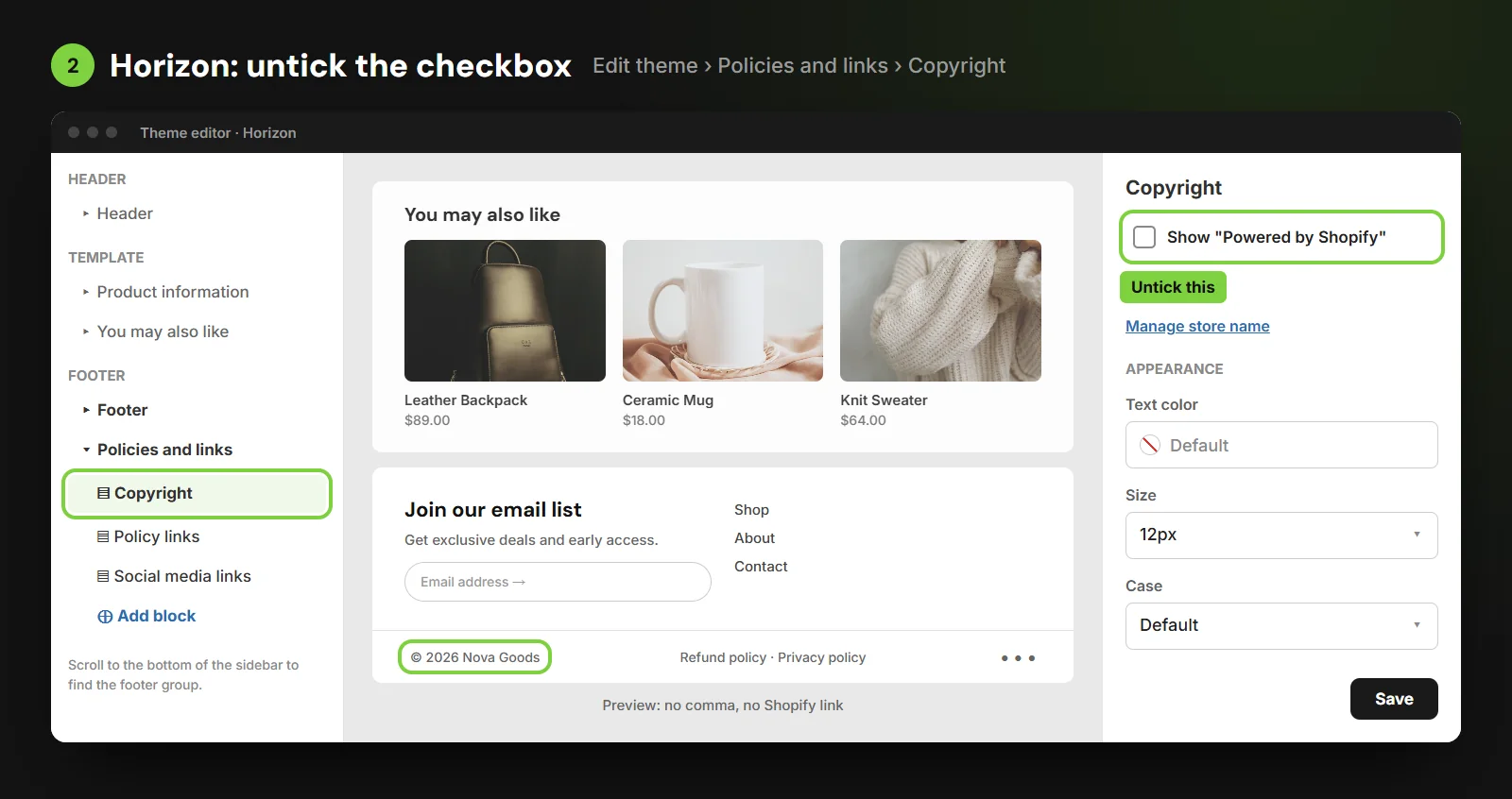
This is the cleanest way to hide the Powered by Shopify footer link in Horizon. The theme removes the link and the comma in front of it, so the line simply reads “© 2026 Your Store”.
Use the checkbox in Horizon, not the space trick from Way 1. In Horizon, the comma sits in the theme code before the Shopify link. If you only blank the text, the link disappears but the comma stays, and your footer ends with “Your Store,”. It looks like a typo.
Using a different theme? Click the copyright area of your footer in the theme editor and look for a similar setting before you try anything else. If there is none, go back to Way 1.
Way 3: Remove the line in the theme code
Use code to remove Powered by Shopify only if Ways 1 and 2 did not work. That can happen with some paid themes that write the text by hand instead of using Shopify’s built-in link. Always make a copy of your theme first: click … next to the theme and choose Duplicate.
In the Dawn theme
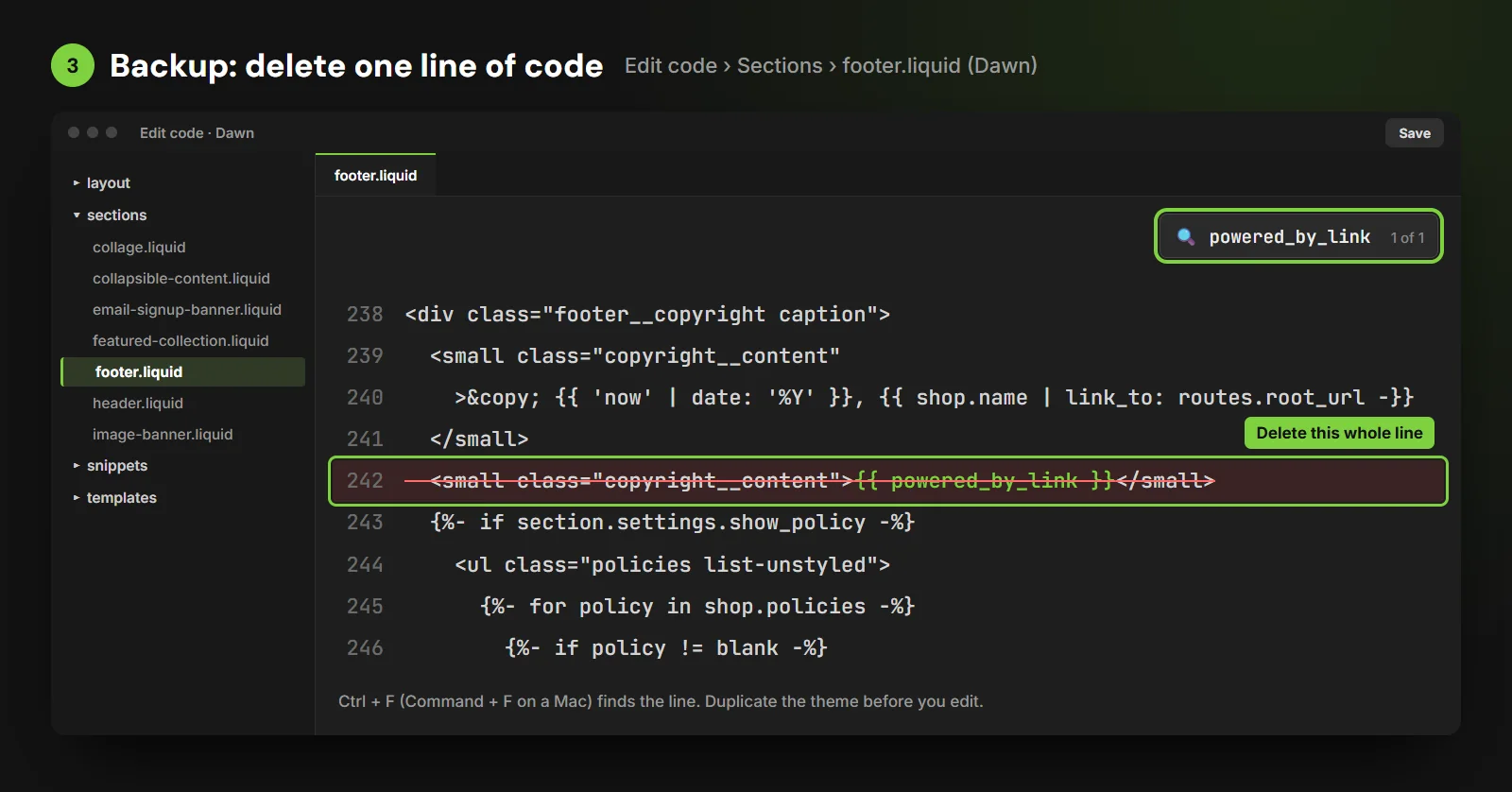
- Go to Online Store. Click … next to your theme, then Edit code.
- In the Sections folder, open footer.liquid.
- Press Ctrl + F (or Command + F on a Mac) and search for powered_by_link.
- Delete this whole line:
<small class="copyright__content">{{ powered_by_link }}</small>Then click Save. Delete the whole line, including the small tags around it, so no empty tag is left behind.
In the Horizon theme
You do not need code in Horizon, because the checkbox does the job. If you still want it gone for good, open blocks/footer-copyright.liquid and delete these three lines:
{%- if block_settings.show_powered_by -%}
  , {{ powered_by_link }}
{%- endif -%}
In other themes
Search the footer.liquid file for powered_by_link. If it is not there, check the Snippets folder for a file with “footer” or “copyright” in its name. If you find the plain words “Powered by Shopify” typed in the code, delete that text instead.
A word of warning about code edits. When you update your theme to a new version, Shopify tries to carry your code changes over. If they clash with the update, they are left out, and the line comes back. Text you changed in Edit default theme content is always copied to the updated theme. That is one more reason to try Way 1 first.
Remove Powered by Shopify from the password page
Before your store opens, visitors see a password page with “This shop will be powered by” and the Shopify logo at the bottom. You can remove that too.
Dawn and most themes
- Open Edit default theme content as in Way 1.
- Type powered in Filter items.
- Find the box called Powered by Shopify HTML. Type a single space in it.
- Click Save.
In Dawn, this one box holds both the words and the Shopify logo, so both disappear.
Horizon
In Horizon, the words and the logo are separate. The filter shows a box with the text “This shop will be powered by”. A space in that box removes the words, but the small Shopify logo stays, because the theme adds it in code. To remove both, open sections/password-footer.liquid in Edit code and delete the paragraph that starts like this, down to its closing </p> tag:
<p class="password-footer__powered-by">
  {{ 'content.powered_by' | t }}
Do not hide the whole password footer in Horizon. The Enter using password button lives in that footer, and without it nobody can get past the page.
Remember that the password page disappears when you open your store. If you are about to launch, this step is optional.
How to change the Shopify footer copyright line
Next to the Powered by Shopify footer link sits the Shopify footer copyright line, such as “© 2026, Nova Goods”. The year updates by itself every January, so you never need to change it by hand. The name comes from your store settings, not from the theme.
Change the store name (no code)
- Go to Settings, then General.
- In Store contact details, click your store name.
- Edit the Store name field and click Save.
In Horizon, the Copyright block has a Manage store name link that takes you to the same place. Keep in mind that the store name shows in more places than the footer, such as your emails, so pick a name you want everywhere.
Write your own Shopify footer copyright text
Want “All rights reserved” or a company name that differs from your store name? In Horizon, you can do it without code: hide the Copyright block, then add a Text block to the Footer section and type your own line. It will sit in the main footer area, above the bottom bar.
In Dawn, you need a small code edit. Duplicate your theme first, so you can always get the old line back. Then, in sections/footer.liquid, find this code:
<small class="copyright__content"
>© {{ 'now' | date: '%Y' }}, {{ shop.name | link_to: routes.root_url -}}
</small>Replace it with your own line. This version keeps the automatic year:
<small class="copyright__content">© {{ 'now' | date: '%Y' }} {{ shop.name }}. All rights reserved.</small>Click Save and check the footer on your phone.
Which way should you use?
| Method | Works in | Code? | Kept after theme update | Best for |
|---|---|---|---|---|
| Edit default theme content | Almost every theme | No | Yes | Dawn and most themes |
| Copyright block checkbox | Horizon | No | Yes | Horizon |
| Delete the code line | Any theme | Yes | Only if no clash | Themes where the text is typed in code |
My advice is simple. On Horizon, use the checkbox to remove Powered by Shopify. On Dawn and most other themes, use Edit default theme content. Keep the code way as a backup for the rare theme where nothing else works.
Common problems and fixes
The Powered by Shopify footer text still shows
Refresh the page with your browser’s cache cleared, or open it in a private window. Then check which theme you edited. Each theme has its own text, so changes to a draft theme do not show on your live store.
It came back after I changed themes
Theme content belongs to one theme. A new theme starts with the default text again, so repeat the steps on the new theme before you publish it.
My footer ends with a comma
This happens in Horizon when you use the space trick. Untick Show “Powered by Shopify” in the Copyright block instead. That removes the comma and the link together.
The filter finds nothing
Check the spelling and type only powered. Some third-party themes write the text straight into the code. In that case, use Way 3 and search the footer file.
Mistakes to avoid
- Leaving the box empty. An empty box brings the default text back. Type a single space.
- Editing code without a backup. Duplicate the theme first.
- Hiding the line with CSS. It hides the text on screen, but the link stays in your page code. Removing it properly is just as quick.
- Forgetting the password page. If your store is not open yet, the Shopify line still shows there.
- Removing the policy links by accident. In Dawn, the footer has a Policy links setting near the copyright line. Leave it on, because shoppers look for your refund and privacy policies there.
A clean footer is a small part of a store that looks finished. While you are at it, make sure your logo and banners are sharp with my Shopify image sizes guide. If you sell clothing, my guide to adding a size chart in Shopify is another quick win. For the official steps, see Shopify’s help page on removing Powered by Shopify.
Frequently asked questions
Can I remove Powered by Shopify from my website?
Yes. Shopify allows it and explains the steps in its help center. Go to Edit default theme content, search for “powered” and type a single space in the Powered by Shopify box.
How do I remove Powered by Shopify in the Dawn theme?
Use Edit default theme content and put a space in the Powered by Shopify box. If that does not work, delete the line with powered_by_link in sections/footer.liquid.
How do I remove Powered by Shopify in the Horizon theme?
Open the theme editor, click the Copyright block in the Policies and links section, and untick Show “Powered by Shopify”. Then save.
How do I remove Powered by Shopify on the password page?
In Edit default theme content, type a space in the Powered by Shopify HTML box. In Horizon, the text box only removes the words; the logo needs a small code edit in sections/password-footer.liquid.
How do I change the copyright in the Shopify footer?
The Shopify footer copyright line shows your store name, which you change in Settings under General. For your own wording, use a Text block in Horizon or edit footer.liquid in Dawn.
How do I change Powered by Shopify in the footer?
You can type your own words in the Powered by Shopify box, but they stay a link to shopify.com. It is cleaner to remove the line and edit your copyright text instead.
It is a two-minute change, and your footer will look like your own brand from then on. For more short guides like this, see my Shopify tips. If you would rather have it done for you, small fixes like this are part of my Shopify store management service. Message me on WhatsApp and I will take a look.



