


Shopify product schema is the structured data on your product pages that tells  Google each product’s name, price, stock and reviews in a format it can read. It is what can turn a plain blue link into a result with a price, an “In stock” label and review stars. People call those extras rich snippets.
The good news: if your store runs on Dawn or Horizon, most of this structured data is already there. I read the theme code and checked the live demo stores on November 28, 2026, so this guide shows what your theme really outputs and what it leaves out. I have fixed Shopify product schema on many client stores, and these are the steps I follow.
Here is what you will learn:
- What Dawn and Horizon already add to every product page
- Which product details Google can show, and what each one needs
- How to test your pages with free Google tools
- How review apps add stars, and how to add shipping and return details
- The common errors: duplicate markup, missing GTINs and price mismatches
What is Shopify product schema?
Shopify product schema is a block of code, written in the schema.org vocabulary, that describes a product to search engines. Shoppers never see it. It sits in the page’s HTML as JSON-LD, the format Google recommends.
Google reads it to understand the page. Then it may show extra details in search, Google Images and Shopping. Google says it shows these extras at its own discretion, and they can change over time. Good structured data makes you eligible for rich snippets. It never guarantees them.
What Dawn and Horizon already output
Both free themes print Shopify product schema with one line of Liquid: product | structured_data. In Dawn it sits in the main product section file. In Horizon it sits at the top of the product information section. Shopify’s developer docs say a product with no variants becomes a schema.org Product. A product with variants becomes a ProductGroup, with one Product inside it for each variant.
I opened a product on each demo store and read the structured data. Here is where each value comes from:
| Markup field | Comes from | Dawn and Horizon |
|---|---|---|
| name, description, image | Product title, description, media | Yes |
| brand | Vendor field | Yes |
| sku | Variant SKU | Yes, if filled in |
| gtin | Variant barcode | Yes, if filled in |
| price, currency, availability | Variant price and inventory | Yes |
| Review rating | A review app | No |
| Shipping and returns | Not in the theme | No |
On the Dawn demo, one variant had a barcode and one didn’t, and only the first got a gtin field. On the Horizon demo, the brand showed as “Horizon (Default)” because that was the vendor name. So your Shopify product schema is only as good as your product data.
Both themes also add Organization markup with your store name, and Dawn adds WebSite markup on the homepage. Neither theme adds breadcrumb markup. If you want that, see my guide to Shopify breadcrumbs.

What Google can show from structured data
Google splits product structured data into two types. Merchant listings are for pages where people can buy the product from you. Product snippets are for pages about a product where people can’t buy it, such as review sites. Shopify product pages are merchant listing pages, and Google says those fields also make a page eligible for product snippets.
Here are the rich snippets Google lists, and what each one needs on Shopify:
| Extra in search | What it needs | Where it comes from |
|---|---|---|
| Price | price and currency | Your theme |
| In stock or out of stock | availability | Your theme |
| Review stars | rating and review count | A review app |
| Shipping cost | A shipping policy | Search Console, Merchant Center or code |
| Return window | A return policy | Search Console, Merchant Center or code |
| Price drop | Nothing extra | Google works it out |
Google also says a merchant listing needs a price above zero. A free sample product won’t qualify.
FAQ rich results are gone. Google’s Search Central changelog says FAQ results stopped appearing in Google Search on May 7, 2026, and Google removed the documentation in June 2026. If an app sells you “FAQ schema” for search results, it won’t bring those back. A clear Shopify FAQ page still helps shoppers, so keep the content.
How to test your Shopify product schema
You can test any product page for free. Do it after you install a review or SEO app, change themes, or edit theme code.
Use the Rich Results Test
- Open Google’s Rich Results Test at search.google.com/test/rich-results.
- Paste the full URL of one product page and click Test URL.
- Look for Merchant listings and Product snippets in the results.
- Open each item and read the errors and warnings.
Errors stop a page from being eligible, so fix those first. Warnings are optional fields. Google says fixing them can help, but it isn’t required for rich snippets. Expect a warning about reviews if you have no review app yet.
Check the reports in Search Console
Google Search Console shows the same checks across your whole store. Look at two reports: Merchant listings and Product snippets. After a fix, use the URL Inspection tool on a live product page, then request validation in the report. Google crawls pages again over time, so changes can take days to show.

Add review stars with a review app
Your theme can’t give you review stars on its own. Both themes show a note in the editor: “An app is required for product ratings.” The stars need two things: reviews collected by an app, and rating structured data on the product page.
Show stars on your product page
- Dawn: in Product information, click Add block and choose Product rating.
- Horizon: click Add block and choose Review stars. You can turn Review count on or off.
These blocks read the rating that your review app saves on each product. Without an app, they stay empty.
Turn on the app’s markup
 Judge.me documents this setup well, so I use it as the example. Its help center says rating markup is on by default. A product needs at least one published review, and the review widget must be on the product page. To check the setting:
- In the Judge.me admin, go to Settings, then Google, SEO and AI, then SEO Rich Snippets.
- Make sure Add JSON-LD snippets (Default) is checked.
- Leave Add microdata snippets unchecked, because Dawn and Horizon use JSON-LD.
- Click Save.
Judge.me says stars can take up to 30 days to appear after the markup is right. Pushing full review text, not only the average, needs its paid Awesome plan. Other review apps have similar settings. My Judge.me vs Loox comparison covers the differences.
Store reviews don’t earn stars
Google’s review snippet guidelines say a business can’t get stars for reviews about itself on its own site. They even name an embedded Google Business reviews widget as an example. So product reviews on product pages can earn stars. A store review widget on your homepage can’t. My guide to Shopify Google reviews explains the different kinds.
Add your shipping and return policy
Shipping and return details can show next to your products in Google. Your Shopify product schema doesn’t include them, but you have three ways to give them to Google. Start with the no-code ones.
No code: Search Console
You need to be an owner or full user of the Search Console property.
- Open Search Console and go to Settings.
- Under Shopping, choose Shipping and returns.
- On the Shipping tab, click Add shipping policy. Pick a country, add delivery times and costs, and click Submit.
- On the Returns tab, click Add return policy. Pick a country, enter your return policy URL, the return window and the return cost, and click Submit.
- Repeat for each country you ship to, such as the US, the UK or Germany.
No code: Merchant Center
If you use the  Google & YouTube app, Google’s help for Shopify users asks you to set returns in two places. First, in Shopify, go to Settings, then Policies, and set your Return and cancellation rules. Then, in
 Merchant Center, open Shipping and returns, select the Return policies tab and click Add return policy.
Which source Google trusts most
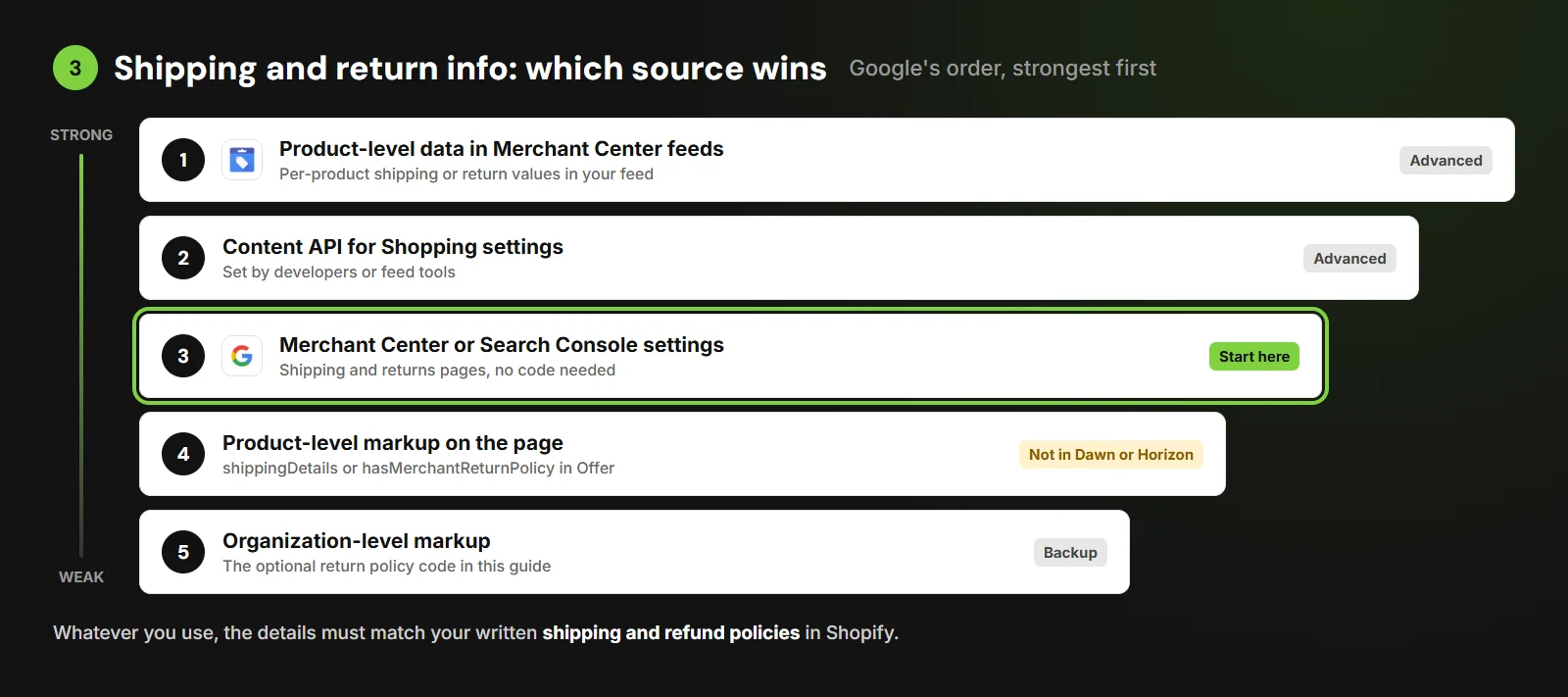
If you set a policy in more than one place, Google uses this order, strongest first:
- Product-level data in Merchant Center feeds
- Settings in the Content API for Shopping
- Settings in Merchant Center or Search Console
- Product-level markup on the page
- Organization-level markup
So for most Shopify stores, the Search Console or Merchant Center settings are enough. Structured data on the page is a backup.
Optional code: return policy markup
Prefer markup? You can add Organization-level return markup yourself. Google recommends putting it on one page that describes your return policy. It works the same in Dawn and Horizon.
- In the theme editor, open the template drop-down, choose Pages and click Create template. Name it returns.
- Click Add section, choose Custom Liquid, and paste the code below into Liquid code. Click Save.
- Go to Online Store, then Pages, and open or create your returns page. In the Template drop-down, pick returns and click Save.
<script type="application/ld+json">
{
  "@context": "https://schema.org",
  "@type": "OnlineStore",
  "name": {{ shop.name | json }},
  "url": {{ shop.url | json }},
  "hasMerchantReturnPolicy": {
    "@type": "MerchantReturnPolicy",
    "applicableCountry": ["US", "GB", "DE"],
    "returnPolicyCategory": "https://schema.org/MerchantReturnFiniteReturnWindow",
    "merchantReturnDays": 30,
    "returnMethod": "https://schema.org/ReturnByMail",
    "returnFees": "https://schema.org/FreeReturn"
  }
}
</script>
Change the countries, days and fee type to match your written policy. If customers pay for return postage, use ReturnFeesCustomerResponsibility instead of FreeReturn. The code adds nothing visible to the page, so it can’t break your layout on phones. I tested it on Dawn and Horizon page layouts at phone and desktop widths, then ran the output through a JSON check.
Common Shopify product schema errors and fixes
These are the problems I see most on client stores.
Duplicate markup from apps
Some SEO and review apps add their own product markup on top of the theme’s. The test then shows two or three product items for one page, sometimes with different prices. With Judge.me, a “Missing field itemReviewed” error usually means microdata is on while the theme uses JSON-LD. Keep one source of Shopify product schema. Turn off the extra one in the app, or ask the app’s support which to keep.
Missing GTIN
The theme turns your barcode into a gtin field, so an empty barcode means no GTIN. Shopify’s Google & YouTube channel goes further. If a product has a GTIN, you must add it before you can publish the product there. To add one, open the product. In the Inventory section, click the Barcodes field and enter the number. For variants, select them in the Variants section and choose Edit barcodes. Shopify’s help page on using barcodes for products has the full steps. Never invent a GTIN. If your product has none, Shopify says the channel needs an MPN and brand instead.
Price mismatch with Merchant Center
Google compares the price in your feed with the price on your page and in its structured data. Merchant Center help says mismatches count as critical errors that can lead to account suspension. Common causes are a sale that ended in only one place, a different currency on the page, or an app that changes the shown price. If you are already suspended, read my Merchant Center misrepresentation guide.
Wrong brand name
The brand comes from the Vendor field. If it shows your supplier, a test value or “Default”, fix the vendor on each product.
Missing structured data after a theme edit
On an old or heavily edited theme, the structured_data line may be gone. If the Rich Results Test finds no product item at all, a developer needs to check the product section.
Not sure what your store has now? Run my free Shopify store audit tool.
Which way should you use?
- You use Dawn or Horizon: don’t add a schema app for product basics. Fill in vendor, SKU and barcode on every variant, then test.
- You want review stars: install one review app, collect real reviews, and keep only one source of rating markup.
- You run Google Shopping: set shipping and returns in Merchant Center, and keep page prices in sync with the feed.
- You don’t use Merchant Center: add shipping and returns in Search Console. Use the code above only if you prefer markup.
- You use an older theme: run the test first, and fix missing markup before adding an app.
Still choosing a theme? See Dawn vs Horizon.
Frequently asked questions
Does Shopify add product schema automatically?
Yes, if your theme uses the structured_data filter, as Dawn and Horizon do. It covers name, images, brand, SKU, GTIN, price and stock. It doesn’t add review stars, shipping or returns.
How do I add product schema in Shopify?
On Dawn or Horizon you don’t need to add it. Fill in each product’s vendor, SKU and barcode, then test a product page in the Rich Results Test.
Do I need a Shopify schema markup app?
Usually not on a current free theme. An app can help an old theme without markup, but remove any duplicate markup it creates.
How do I add FAQ schema in Shopify?
You can, but as of November 2026 it won’t bring FAQ results in Google. Google stopped showing them on May 7, 2026. Write the FAQ for shoppers instead.
How do I add a GTIN in Shopify?
Open the product, click the Barcodes field in the Inventory section and enter the GTIN. For variants, use Edit barcodes in the Variants section.
How long do rich snippets take to show?
There is no fixed time, because Google has to crawl the page again. Judge.me says review stars can take up to 30 days.
Correct product data is the base of all rich snippets, so start with your vendor, SKU and barcode fields. For more guides, see my Shopify tips and free Shopify tools. If you want me to check your product markup, review app and Merchant Center setup, I do this in my Shopify store management service. Message me on WhatsApp and I will take a look.



