

When store owners ask me about Shopify Google reviews, they usually mean one of three different things. There are the public reviews on your  Google Business Profile, the free Google Customer Reviews program in Merchant Center, and outside review sites like
 Trustpilot that feed Google store ratings. Each one is collected in a different way, shows up in a different place, and follows its own rules.
In this guide I explain all three, show how to add each one to your store, and cover the review laws in the US, the EU and the UK. I have set up review tools on many client stores, and I checked every setting below against official help pages in November 2026.
Note: this guide is general information, not legal advice.
Here is what you will learn:
- The three kinds, and which ones an online-only store can use
- How to show Shopify Google reviews in Dawn and Horizon
- Why Google’s survey is tricky on Shopify right now
- How product stars reach Google search
- The FTC, EU and UK rules on fake reviews
The 3 kinds of Shopify Google reviews
Shopify Google reviews come from three main sources: your Business Profile, Google’s own buyer survey, and approved review partners such as Trustpilot. Google’s help page explains the key difference. Anyone with a Google account can write a Business Profile review, but only verified buyers can rate you through the survey.
| Kind | Who can review | Where it shows | Cost to start |
|---|---|---|---|
| Business Profile | Anyone with a Google account | Google Maps and Search | Free |
| Customer Reviews program | Buyers who opt in | Ads, Shopping, a badge | Free |
| Review partner sites | People with a real experience | Partner site, widgets, store ratings | Free plan or paid |
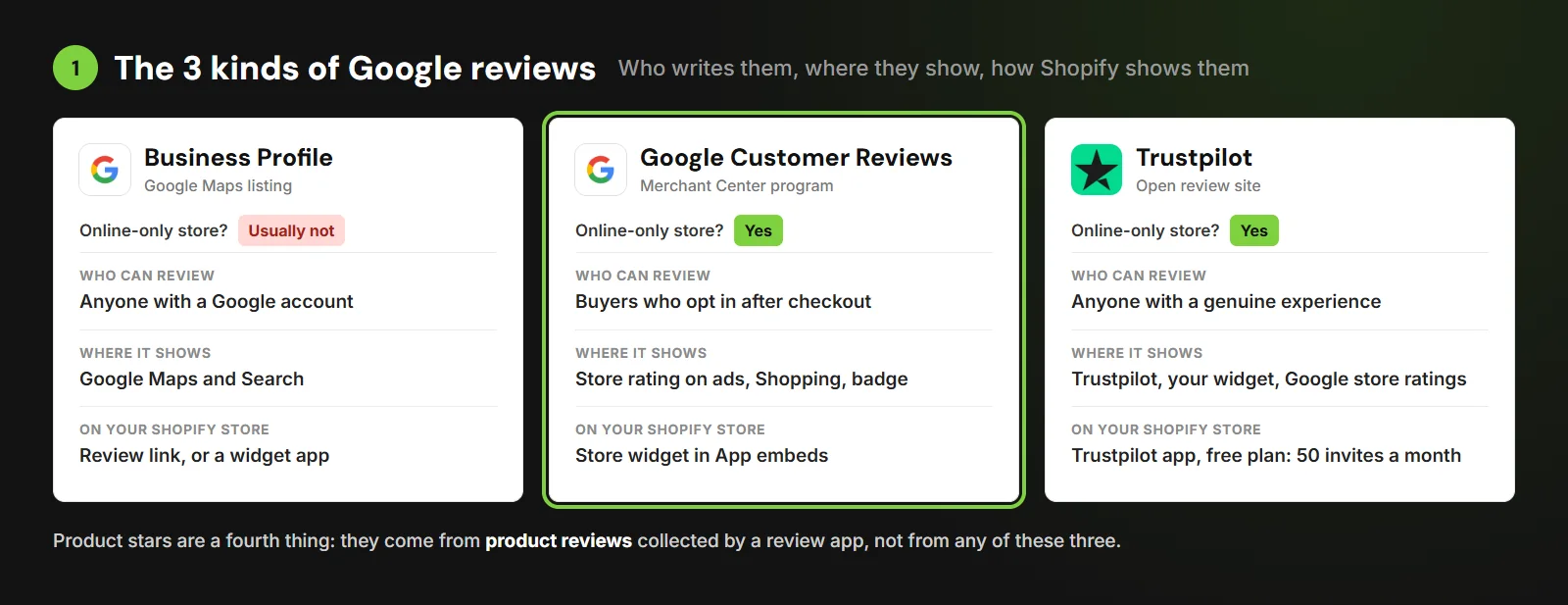
Product reviews are a fourth thing people mix in. A review app collects them on your store. They are not Google reviews, but they are what puts stars next to your products in Google.
Google Business Profile reviews on Shopify
A Business Profile is your listing on Google Maps. Google’s guidelines allow one only if customers can visit your location, or if you travel to them. A virtual office is not eligible. So for an online-only store, this kind of Shopify Google reviews is usually off the table. If you have a shop or showroom, it is worth collecting.
Get your review link
- Open your Business Profile on Google.
- Select Read reviews, then Get more reviews.
- Click Copy to copy the review link. You can also save the QR code (this works on a computer, not a phone).
Google suggests adding the link to receipts and thank-you emails. In Shopify, a follow-up email after delivery works well.
Show your Google reviews on your store
The Google help pages I checked offer a review link and a share link for single reviews, but no widget for your website. So you have two options:
- Free: add a button such as “Read our Google reviews” that links to your profile.
- With an app: install a Google reviews widget app from the Shopify App Store and add its block in the theme editor.
If the app gives you embed code instead of a block, use a Custom Liquid section. It works the same in Dawn and Horizon:
- Go to Online Store, then Themes, and click Customize.
- Choose the page, click Add section and pick Custom Liquid.
- Paste the code into the Liquid code box and click Save.
One warning: this widget will not give you stars in Google search. I explain why below.
Google Customer Reviews: the Merchant Center program
Google Customer Reviews is a free program in Merchant Center. After checkout, buyers see a small opt-in box. If they say yes, Google emails them a short survey after the estimated delivery date. Their answers build your store rating, which can show on your ads and on an optional site badge.
Turn it on in Merchant Center
- In Merchant Center, go to Add-ons under Settings.
- On the Discover tab, find the Google Customer Reviews card and select Add.
- Select Go to Google customer reviews.
- Review the agreement and select Sign agreement.
- Click Set up integration and follow the opt-in steps.
As of November 2026, the program covers the US, the UK and most of the EU. It is not on Google’s list for Bulgaria, Croatia, Cyprus, Estonia, Finland, Greece, Hungary, Latvia, Lithuania, Malta, Romania, Slovakia or Slovenia. Check the list before you plan around it.
The Shopify catch: the survey needs code on the Thank you page
Google’s setup asks you to paste a script on your order confirmation page. It sends Google the order ID, the customer’s email, the delivery country and an estimated delivery date.
On Shopify, that page is the Thank you page. Shopify has retired the old Additional scripts box there. Today, Shopify’s page on customization options for Thank you and Order status pages says changes there come from built-in features, app blocks and web pixels in the checkout and accounts editor. So the code from Google’s guide has nowhere to go.
What you can do, as of November 2026:
- In the checkout and accounts editor, open the Apps tab and look for a survey block from one of your apps.
- Install an app that adds the survey as a Thank you page block.
- Or use a review partner, which also counts toward store ratings.
I couldn’t find a Google or Shopify help page that documents an official Thank you page block for this survey. Some merchants report one in the  Google & YouTube app, so place a test order and check that the opt-in really appears.
Show your Google store rating
The badge part is easier. Google documents a store widget for the Google & YouTube app. It shows your store rating, or a “Top Quality Store” label if you qualify.
- Go to Online Store, then Themes, and click Customize.
- Click App embeds in the left panel.
- Turn on Store widget, set the position and margins, and click Save.
Don’t expect a rating right away. Google says most stores need about 100 eligible reviews in a country before a rating appears there. For ads, the average must also stay at 3.5 stars or higher.

Trustpilot on a Shopify store
Trustpilot is an open review site. Its guidelines say anyone with a genuine experience can review a business at any time, with or without an invitation. Google lists it as one of its store ratings partners, so its reviews can count toward the stars next to your ads.
The official app is in the Shopify App Store. When I checked on November 25, 2026, it listed these plans (billed in USD):
| Plan | Price | Invitations | Widgets |
|---|---|---|---|
| Free | $0 | 50 a month | 1 |
| Starter | $1,188 a year | 100 a month | 2 |
| Plus | $3,828 a year | 300 a month | 10 |
The listing had a 3.7 rating from 90 reviews that day. Setup follows the usual pattern: install the app, connect your account, and turn on invitations after each order. Then add the widget in the theme editor. With one free widget, the homepage or footer is the usual spot.
Note that Google’s partner list says sending Trustpilot product reviews to Google Shopping is a paid add-on.
Star ratings in Google search for your products
Stars next to your products in Google come from product reviews, not store reviews. You can earn them in two places:
- Shopping listings and ads: Google’s Product Ratings program. You need at least 50 product reviews, sent to Merchant Center through an approved app or an XML file.
 Judge.me is one approved app, and Google’s list notes it also needs 50 reviews.
- Normal search results: review stars from structured data on your product pages. Your review app usually adds this markup.
 Judge.me is one approved app, and Google’s list notes it also needs 50 reviews.
Show product stars on your theme
Both free themes have a stars block that reads the rating your review app saves on each product:
- Dawn: in Product information, add the Product rating block. Collection grids also have a Product rating checkbox.
- Horizon: add the Review stars block. You can pick the star style and turn Review count on or off.
Both themes tell you the same thing in the editor: “An app is required for product ratings.” Without an app, the block stays empty.
Google’s rule on self-serving reviews
Most store owners miss this rule. Google’s review snippet guidelines say a business can’t get review stars for reviews about itself on its own site. They name an embedded Google Business reviews widget as an example. So store reviews on your homepage, whether from Google or another site, won’t earn stars in search. Product reviews on product pages can, if the markup is right.
After you install a review app, test a product page with Google’s Rich Results Test. If it shows two sets of rating markup, ask the app’s support which to keep.

The rules for honest reviews in the US, EU and UK
Fake, bought or filtered reviews break the law in all three markets, not just Google’s rules. These rules apply to all Shopify Google reviews and to the reviews on your own pages.
USA: the FTC fake reviews rule
The FTC announced its rule on consumer reviews and testimonials in August 2024, and it has been in force since October 21, 2024. It bans:
- Fake reviews, including AI-written ones, and buying or selling them
- Rewards that depend on a review being positive or negative
- Reviews by owners or managers, and staff reviews without a clear disclosure
- Threats used to remove a negative review
- Claiming your page shows all reviews when you have hidden negative ones
Courts can impose civil penalties for knowing violations.
EU: the Omnibus review rules
Directive (EU) 2019/2161, the law behind the 30-day lowest price rule, also covers reviews. It has applied since 28 May 2022. If you show reviews, you must tell shoppers whether and how you check that they come from real buyers. Claiming they do without reasonable checks is banned. So is posting fake reviews or misrepresenting real ones.
UK: the CMA fake reviews guidance
The UK’s Digital Markets, Competition and Consumers Act 2024 bans fake reviews and hidden incentivised reviews. The CMA’s April 2025 guidance says stores that publish reviews need a public policy against fake reviews, regular risk checks, and a process to find and remove them.
What this means for your store
- Ask every customer in the same way, at the same point after delivery.
- Never offer a discount, gift or refund for a review. Google and Trustpilot both ban this.
- Don’t send happy customers to Google and unhappy ones to your inbox. Google calls this selectively soliciting positive reviews.
- Add a short “About our reviews” note: who can review, how you check, and that you publish negative reviews too.

Which way should you use?
The right mix of Shopify Google reviews depends on how you sell, not on which widget looks best.
- Online-only store, just starting: install a product review app first. It is the only path to product stars. My comparison of two popular review apps helps you choose.
- Running Google Shopping ads: work toward a store rating. Try the Merchant Center survey if your setup can show the opt-in. If not, use a store ratings partner.
- Shop, showroom or local service: collect Business Profile reviews with your review link, and link to them from your store.
- No physical shop and no ads yet: the free Trustpilot plan is an easy start.
For other trust signals, see my guide to Shopify trust badges.
Common mistakes with Shopify Google reviews
These are the mistakes I see most often on client stores.
- Following an old tutorial. Many guides still say to paste the survey code into Additional scripts. That box is gone.
- Expecting stars from a store widget. Store reviews on your own site don’t earn stars in search.
- Review gating. A “Happy? Review us on Google. Not happy? Email us.” message breaks Google’s and Trustpilot’s rules.
- Paying for reviews. A discount code for a review breaks platform rules and can break the law.
- Showing store reviews as product reviews. They rate your store, not the product, so mixing them misleads shoppers.
- Too many widgets. Each review app adds scripts. See my Shopify speed guide if your store feels slow.
Not sure what your store has now? Run my free Shopify store audit tool.
Frequently asked questions
Can you add Google reviews to Shopify?
Yes. Link to your Business Profile for free, show its reviews with a widget app, or show your store rating with the Google & YouTube store widget.
How do I add Google reviews to Shopify for free?
Copy the review link from your Business Profile and add a “Read our Google reviews” button. If you have a store rating, turn on the free store widget in App embeds.
Does Shopify integrate with Google Customer Reviews?
Partly. The store widget works through the Google & YouTube app. The survey opt-in needs a Thank you page block from an app, because pasted scripts no longer run there.
Is Trustpilot or Google reviews better?
Neither is better for every store. Google reviews need a Business Profile, which online-only stores often can’t have. Trustpilot works for any online store and counts toward Google store ratings.
What are Google seller ratings?
It’s another name for Google store ratings, the stars next to your ads and listings. Google builds them from its survey, partner sites and its own shopping research.
Can customers leave reviews on Shopify?
Not on a theme by default. You need a review app to collect and show product reviews. Dawn and Horizon then show the stars with their rating blocks.
Honest reviews in the right place beat any widget style. For more guides, see my Shopify tips and free Shopify tools. If you want help setting up reviews, the store widget or a review app, I do this in my Shopify store management service. Message me on WhatsApp and I will take a look.



