


A Shopify mega menu is a big drop down panel that shows many links at once, in columns, often with pictures. It helps shoppers find the right collection in one or two clicks, even when your store has dozens of them. The good news: both of Shopify’s free themes, Dawn and Horizon, have one built in.
I have set up menus like this on many client stores. In this guide I show you how to build a Shopify mega menu step by step, with no app, and how to add images. Every setting name below comes from the current Dawn and Horizon code, checked in November 2026.
Here is what you will learn:
- How to build a three-level menu in Content, then Menus
- How to turn on the mega menu in Dawn and in Horizon
- How to make a menu with images (built in for Horizon, a small tested code edit for Dawn)
- How the menu works on phones and for keyboard users
- When a mega menu app is worth paying for, and how to fix common problems
What is a Shopify mega menu?
A Shopify mega menu is a wide panel that opens under a main menu item and lists all of its sub-items at once. A normal drop down menu shows a narrow list, one link under the other. A mega menu uses the full width of the page, so it can show headings, links below each heading, and pictures.
You need one when your main menu has grown deep, like “Women”, “Men” and “Kids” with five or six collections each. A store with three collections does not. A simple drop down menu is easier to use there.
Step 1: Build a nested menu in Content > Menus
Every Shopify mega menu starts as a normal menu in your admin. The theme only decides how it looks. Shopify allows a top-level item with up to two levels of nested items below it, so three levels in total.
- Level 1: the item in the header, such as “Women”.
- Level 2: the column headings, such as “Dresses” or “Tops”.
- Level 3: the links under each heading, such as “Maxi dresses”.
How to nest the menu items
- In your Shopify admin, go to Content, then Menus, and click Main menu.
- Click Add menu item. Type a Name, pick a link in Search or paste a link, and click Add.
- Drag the item by its handle and drop it under its parent, so it moves in one step to the right.
- Repeat for every column heading and every link below it.
- Click Save menu.
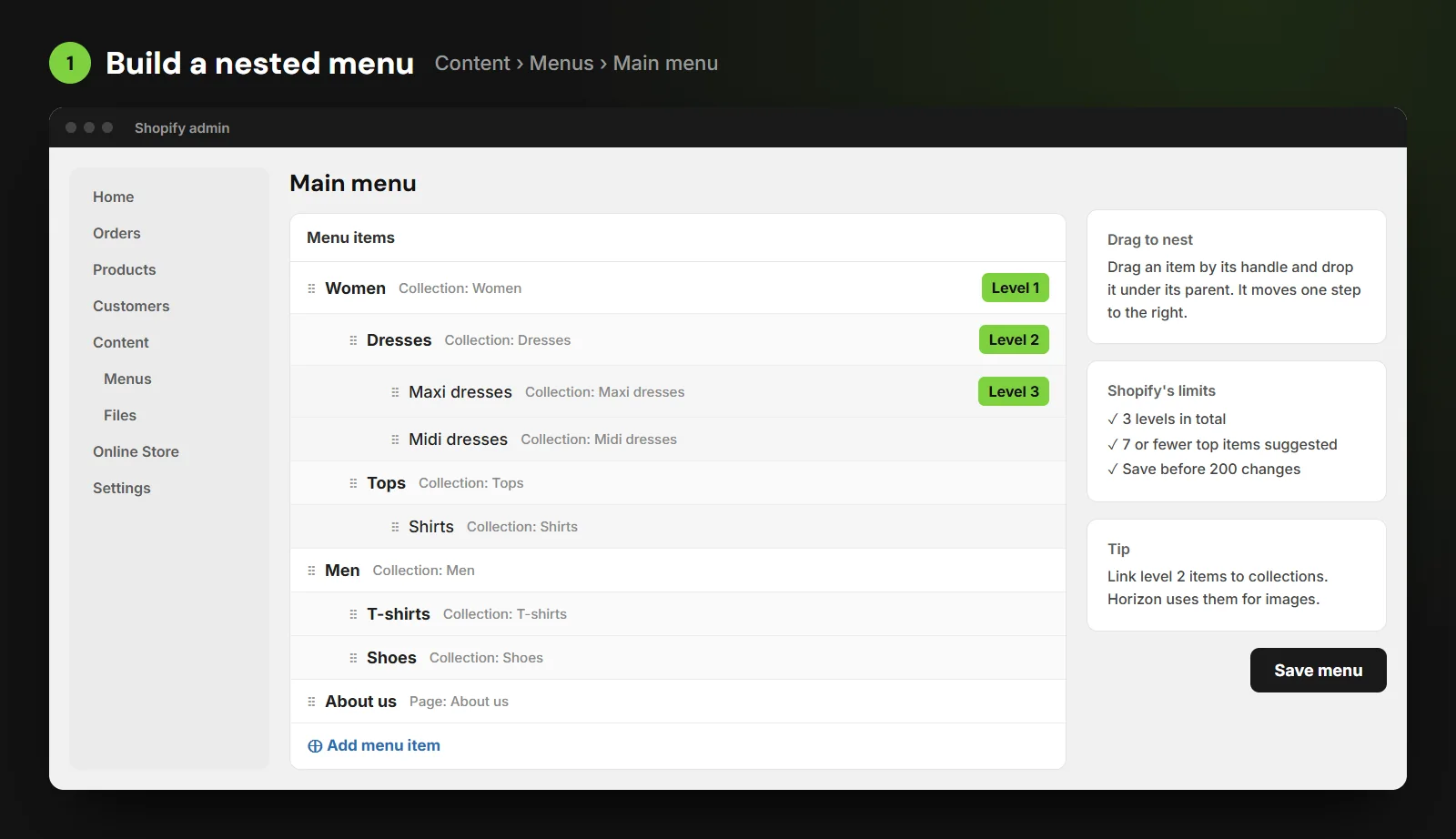
Link your column headings to collections, not to “#”. Horizon uses those collection links to pull in pictures, and shoppers can click the heading too. Use “#” only for a heading that has no page of its own.
Shopify suggests seven or fewer top-level items, and so do I. You can read the full rules in Shopify’s help page on drop-down menus. Save often: after 200 changes, the menu editor makes you save before you can do more.
Step 2: Turn on the Shopify mega menu in your theme
Dawn needs one setting. Horizon shows every menu with sub-items as a mega menu panel already, so there is nothing to switch on.
In the Dawn theme
- Go to Online Store, then Themes, and click Edit theme.
- In the left sidebar, click the Header section.
- Under Menu, choose Main menu.
- Set Menu type to Mega menu. The other choices are Dropdown, the default, and Drawer.
- Click Save.
Many older guides call this setting “Desktop menu type”. In the current Dawn code it is just Menu type. Dawn shows the panel on screens 990 px wide and up. Shoppers click a top item to open it. Level 2 items become bold headings, and level 3 links sit below them.
In the Horizon theme
- Open the theme editor and click the Header section.
- Click the Menu block inside it, and check that Menu is set to Main menu.
- Set the look under Typography: Top level size, Submenu size, Font and Case.
- Under Appearance, pick a Background color and Text color. These affect the submenus on desktop and the main menu on mobile.
- Click Save.
In Horizon, the panel opens when a shopper hovers over a top item or clicks the small arrow next to it. Items that don’t fit in one row move into a More item. In the Header section settings, you can also put the menu on the Top or Bottom row.

Step 3: Make a Shopify mega menu with images
A menu with images helps shoppers see the type of product before they click. This is where the two themes differ most.
Horizon: the Media type setting
Click the Menu block and find Submenu feature. The Media type setting has four choices:
| Media type | What shows | What it needs |
|---|---|---|
| None | Text links only | Nothing |
| Collection images | A picture above each level 2 link | Level 2 links to collections |
| Featured products | Up to 3 products beside the links | Top item links to a collection |
| Featured collections | Large collection cards | Top or level 2 collection links |
If your links don’t meet the rule in the last column, Horizon falls back to text. The two featured choices add an Image ratio setting, and every image choice adds Image corner radius (0 to 32 px).
The pictures come from your collections. Each one uses the collection image. If a collection has no image, Shopify uses the first product’s image instead. To set it, go to Products, then Collections, open the collection and add or change its image. My Shopify image sizes guide lists good sizes.

Dawn: add images with a small code edit
Dawn’s mega menu has no image setting. This edit adds the collection image above every level 2 link that points to a collection. Links to pages, or collections with no image at all, stay text only. I tested it on the current Dawn code at 990, 1024 and 1280 px. On phones, Dawn uses its drawer menu, so the edit changes nothing there.
- Go to Online Store, then Themes. Click the three dots next to Dawn and choose Duplicate. Make the edit on the copy first.
- On the copy, click the three dots again and choose Edit code.
- Open snippets/header-mega-menu.liquid. Find this line (it appears once):
{{ childlink.title | escape }}Paste this code on a new line directly above it:
{%- if childlink.type == 'collection_link' and childlink.object.featured_image -%}
  {{ childlink.object.featured_image | image_url: width: 400 | image_tag: loading: 'lazy', alt: '', class: 'mega-menu__image' }}
{%- endif -%}- Click Save. Then open assets/component-mega-menu.css, paste this at the very bottom, and save again:
.mega-menu__image {
  display: block;
  width: 100%;
  height: auto;
  aspect-ratio: 4 / 3;
  object-fit: cover;
  margin-bottom: 0.8rem;
}

.mega-menu .mega-menu__list--condensed:has(.mega-menu__image) {
  display: grid;
}
The second rule matters for two-level menus. Dawn shows those as one long list, and the rule turns them back into columns when images are present. The images load lazily, only when a shopper opens the menu. The empty alt text is on purpose: the collection name sits right below the picture, so a screen reader won’t read it twice.
Preview the copy, open each menu, and publish it when you are happy. Keep the old theme as a backup, and note what you changed, because a theme update can replace these files.
How a Shopify mega menu works on phones
Neither Dawn nor Horizon shows the wide panel on a phone. Both open a drawer from the menu icon instead, and your three levels still work there.
- Dawn: below 990 px, the mega menu or drop down menu becomes a drawer. Tapping an item slides in its sub-items, one level at a time, with no images.
- Horizon: the Menu block has a Mobile layout group. Accordion opens sub-items in place, Expand first group opens the first one for you, and Dividers adds lines between items. Navigation bar adds a scrolling row of your top items under the header. Horizon can also show your featured products or collection images inside the drawer.
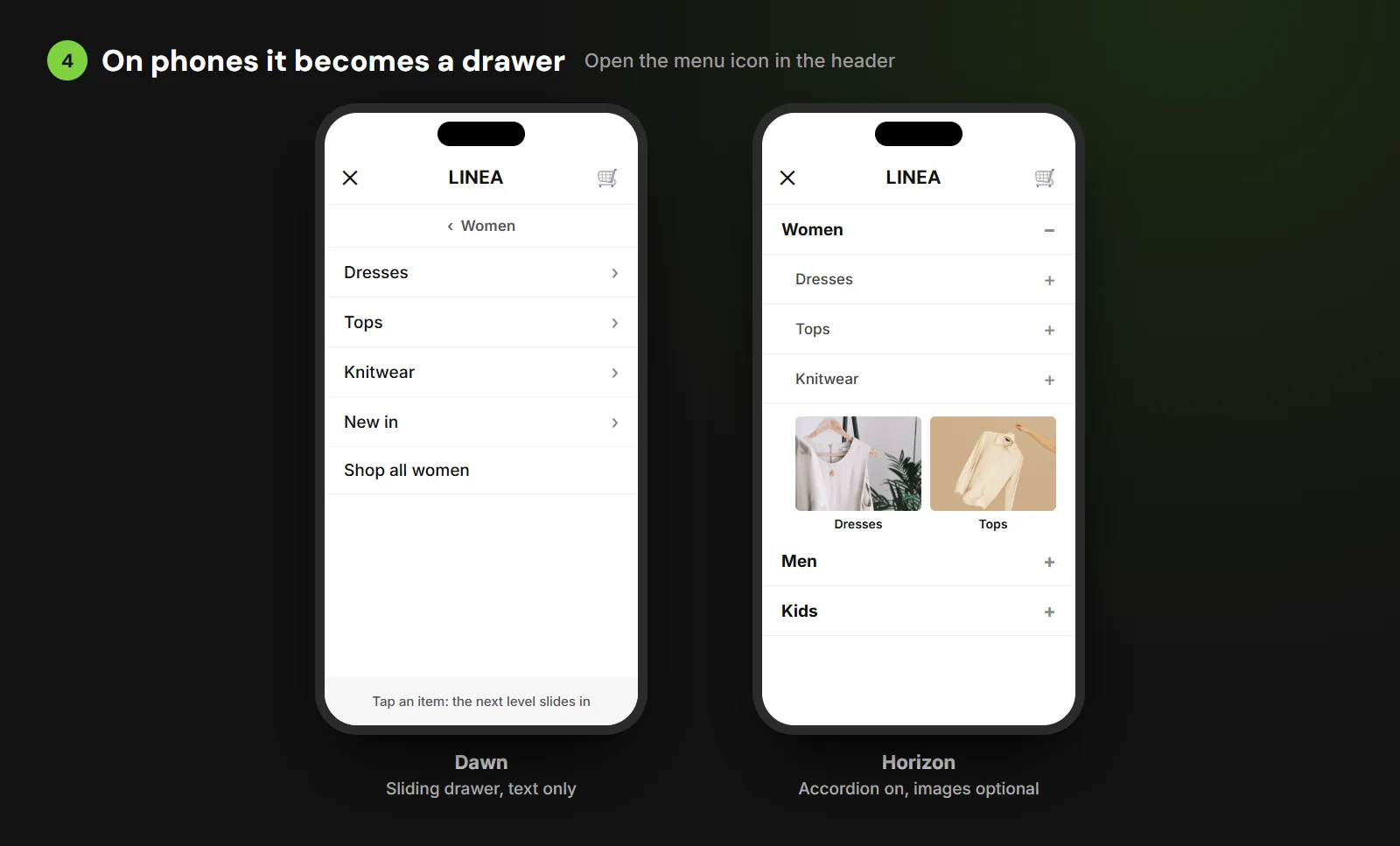
Test on a real phone and open every top item. Keep names short, so they don’t wrap onto two lines.
Make your Shopify mega menu accessible
A menu that only works with a mouse loses shoppers. Shopify’s own help notes that most themes treat a drop down heading as a button that opens the menu, not as a link. That is good for screen readers, but it has one side effect.
- Add a “Shop all” link. In Dawn, clicking “Women” only opens the panel. Make “Shop all women” the first level 2 item, so the main collection is still one click away. Horizon keeps the top item as a link and uses the arrow next to it as the button.
- Test with the keyboard. Press Tab to move through the header and Enter to open a menu. In both themes, the Escape key closes it again.
- Use clear names. “Dresses” beats “Collection 3”.
- Check the contrast. Grey text on a white panel can be hard to read. Pick a Text color with strong contrast.
For a full checklist, see my guide to Shopify accessibility.
Dawn vs Horizon: which Shopify mega menu is better?
Both are free and good enough for most stores. Here is how they differ.
| Feature | Dawn | Horizon |
|---|---|---|
| Turn it on | Menu type: Mega menu | Always on |
| Opens on | Click | Hover or arrow click |
| Images | Code edit | Media type setting |
| Phones | Sliding drawer | Drawer, optional accordion |
| Top item clickable | No, add “Shop all” | Yes |
If you already use Dawn and only want text columns, stay on Dawn. If you want a menu with images and no code, Horizon is the easier choice. My Dawn vs Horizon comparison covers the rest, and this guide explains how to change your Shopify theme safely.
Do you need a Shopify mega menu app?
Most stores don’t. An app makes sense when you want something the free themes can’t do:
- A promo banner or a custom picture inside the panel, not tied to a collection
- Icons, tabs or a different layout for each top item
- Pictures in Dawn’s mega menu without touching code
Many apps charge a monthly fee, and they add their own scripts to your pages. Before you pick one, test it on your theme, on a phone and with the keyboard. Then check your speed with my Shopify speed optimization guide. If you remove the app later, check that your header still works.
Common Shopify mega menu problems and fixes
It still shows as a narrow drop down menu
In Dawn, check that Menu type is Mega menu and that you edited the published theme. Items with no sub-items stay plain links.
The images don’t show
In Horizon, check Media type and the rules in the table above. Level 2 links must point to collections, not to pages or “#”. Then check that those collections have an image or at least one product with a photo.
The third level is missing
Open Content, then Menus, and check that each link is dragged fully under its parent and indented. Shopify menus stop at three levels in total.
“Menu cannot contain nested menus”
Shopify says some stores created before 2018 see this error and need nested menus turned on. Contact Shopify Support to fix it.
A menu item disappeared
If you delete a collection or page, Shopify also deletes every menu item that linked to it. Add the item again with a new link.
Shopify mega menu mistakes to avoid
- Too many top items. Shopify suggests seven or fewer. In Horizon, items that don’t fit in one row move into More, where shoppers may miss them.
- Hiding key pages. Don’t bury “Sale” or “New in” three levels deep. Keep them on the top level.
- Mixed image shapes. A tall photo next to a wide one looks messy. Crop all collection images to one ratio.
- Testing on desktop only. Most shoppers will see the drawer, not the mega menu. Check it on a phone every time.
Your footer can hold the second-tier links, like help and policies. My guide to Shopify footer design shows how.
Frequently asked questions
How do I create a mega menu in Shopify?
Build a three-level main menu in Content, then Menus. In Dawn, open the Header section and set Menu type to Mega menu. In Horizon, menus with sub-items open as a mega menu panel by default.
Does the Shopify Dawn theme have a mega menu?
Yes. Open the Header section in the theme editor and set Menu type to Mega menu. It shows text columns only. Images need a small code edit, like the one in this guide.
How do I add images to a mega menu in Shopify?
In Horizon, click the Menu block in the Header and set Media type to Collection images, Featured products or Featured collections. In Dawn, add the code snippet above, then give each collection an image.
How do I create a drop down menu in Shopify?
In Content, then Menus, open your main menu and drag menu items under a top-level item. Save the menu. Your theme shows the nested items as a drop down menu from the main menu.
How many levels can a Shopify menu have?
Three in total: a top-level item with up to two levels of nested items below it. Dawn and Horizon both show all three levels.
Is there a free Shopify mega menu?
Yes. Dawn and Horizon are free themes, and both include a mega menu at no cost. You only need an app for extras such as promo banners, icons or tabs.
A clear Shopify mega menu is one of the simplest ways to help shoppers find what they came for. For more guides like this, see my Shopify tips and the free Shopify tools. If you would like your menu, or your whole store, set up for you, take a look at my Shopify store redesign service. Message me on WhatsApp and I will take a look.



