

The Shopify sale badge is the small “Sale” label that appears on a product when its price drops. It tells shoppers at a glance which items cost less today. But the default badge doesn’t suit every store. The color may clash with your brand, “Sale” may be the wrong word, or you may want to show the real saving, such as “25% off”.
In this guide I show you how to control the badge in Shopify’s free themes, Dawn and Horizon. Most Shopify sale badge changes need no code at all. I have changed sale badges on many client stores, and these are the steps I use.
Here is what you will learn:
- When the badge shows, and why it sometimes doesn’t
- How to change the sale badge color, position and shape
- How to change the sale badge text, for example from “Sale” to “Deal”
- How to show “% off” with a small, tested code change
- How to remove the badge without hiding the sale price
- How to fix a sale badge not showing
How the Shopify sale badge works
The badge follows one rule. It shows when a product’s compare-at price is higher than its price. The compare-at price is the old price, and your theme shows it crossed out next to the new one. Dawn and Horizon both check this rule in their code, so there is no “turn on sale badge” button.
Where the badge shows depends on your theme:
- Dawn: on product cards (collection pages, search and featured collections) and next to the price on the product page.
- Horizon: on product cards only. On the product page, Horizon shows the crossed-out compare-at price, but no badge.
Discount codes and automatic discounts never trigger the badge. Shopify applies them in the cart and at checkout, so the product card doesn’t know about them. If a discount isn’t applying at all, see my guide to fixing a Shopify discount code that’s not working.
How to add a sale badge (set a compare-at price)
- In your Shopify admin, go to Products and open the product.
- In the Price section, click Compare at if the field isn’t shown yet.
- In Compare-at price, enter the original price, for example 40.00.
- In Price, enter the new price, for example 29.99.
- Click Save.
For a product with variants, open each variant from the Variants section and set its compare-at price there. To change many products at once, select them in the product list, click Bulk edit and add the Compare-at price column. Shopify explains each option in its guide to setting sale prices.

Change the sale badge color
In Dawn
Dawn doesn’t give the badge its own color. It uses a color scheme instead. The scheme’s Background becomes the badge fill, and its Text becomes the badge text.
- Go to Online Store, then Themes, and click Edit theme.
- Click the Theme settings icon in the left sidebar and open Badges.
- Under Sale badge color scheme, pick a scheme.
- Click Save.
Be careful here. Each scheme is shared with every section that uses it. If you edit a scheme to make the badge red, those sections turn red too. The safer way is to open Theme settings, then Colors, and add a new scheme just for the badge. Set its Background to your badge color and its Text to white. Then pick that new scheme under Sale badge color scheme.
In Horizon
Horizon is simpler, because the badge has its own colors.
- Open the theme editor, click Theme settings and open Badges.
- Under Colors, set Sale badge background and Sale badge text.
- Optional: under Typography, choose a Font and set Case to Uppercase for a bolder label.
- Click Save.
Whatever sale badge color you choose, check the contrast. White text on dark red or black reads well on a small phone screen. Pale text on a pale badge doesn’t. The same panel also holds the colors for the Sold out badge.

How to change sale badge text
You don’t need code to change sale badge text. The word comes from your theme’s language file, and you can edit it in the admin.
- Go to Online Store, then Themes.
- Click the … button next to your theme and choose Edit default theme content.
- In the Filter items search bar, type sale.
- Find the box that holds the word “Sale”. In Dawn it’s called On sale, in the Products tab. In Horizon it’s called Product badge sale.
- Type your new text, for example “Deal”, “Offer” or “Last chance”.
- Click Save.

A few tips when you change sale badge text:
- Keep it short. One or two words fit on a phone card. Long text wraps and covers the product photo.
- It’s saved per theme. If you change your Shopify theme later, you need to do it again.
- Each language has its own text. If your store sells in more than one language, update the word in each one.
- In Dawn, one box covers both places. The new word shows on the cards and on the product page.
Move the Shopify sale badge or change its shape
Both themes let you choose where the badge sits on product cards. Open Theme settings, then Badges, and change Position on cards.
- Dawn: Bottom left (the default), Bottom right, Top left or Top right. Corner radius goes from 0 to 40 px.
- Horizon: Bottom left, Top left (the default) or Top right. Corner radius goes from 0 to 100 px.
Set the corner radius to 0 for a square tag, or keep it high for a round pill. On most client stores I use the top left, where the badge is seen first and rarely covers the product. In Dawn, the badge on the product page always sits next to the price. There is no setting to move that one.
Show “% off” on the Shopify sale badge
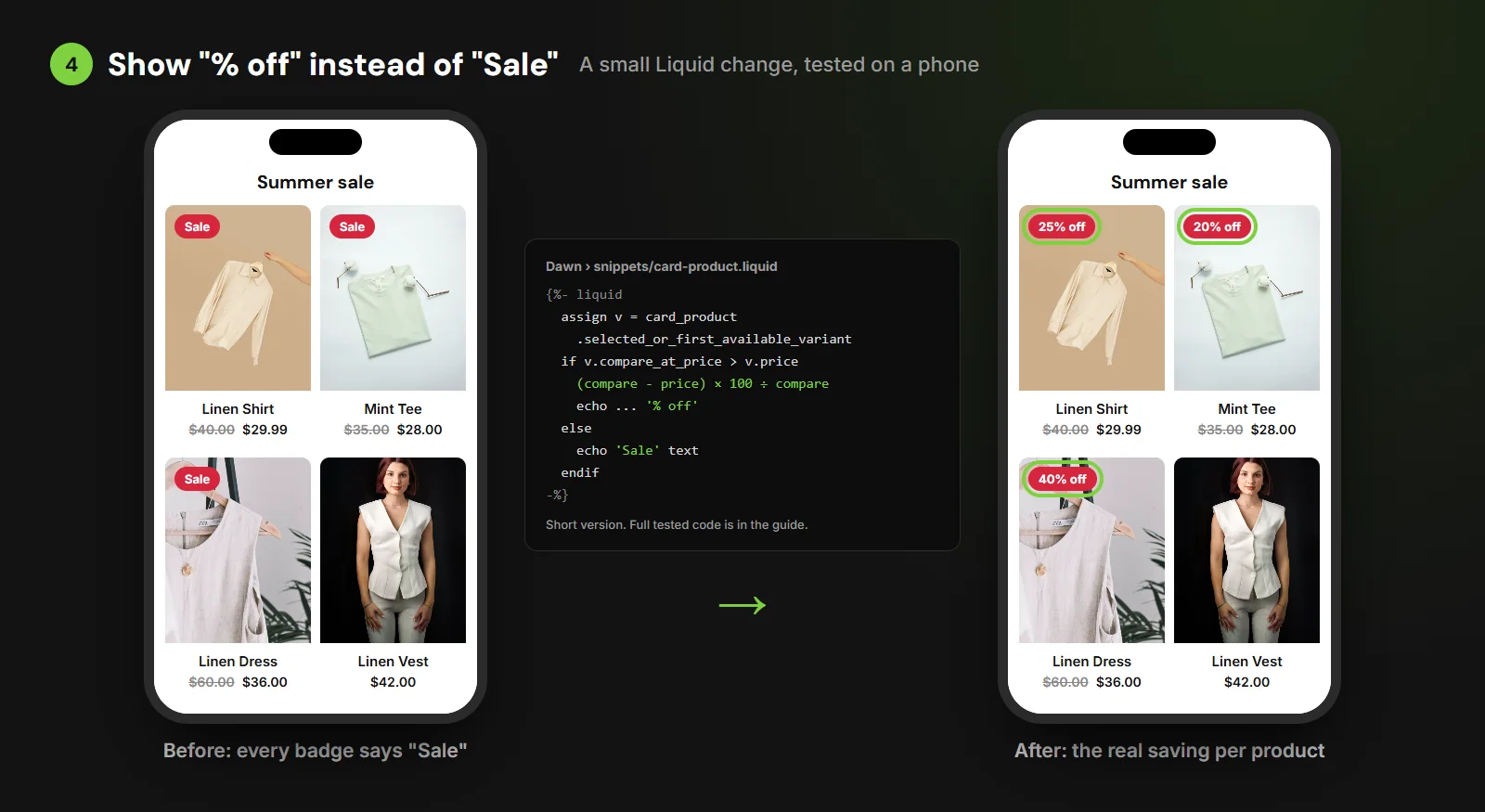
Neither theme has a setting to show the percentage. Many store owners want it, because “25% off” says more than “Sale”. It takes a small Liquid change. I tested the code below with several prices and on a phone-sized screen.
Make a backup first. Go to Online Store, then Themes, click the … button next to your theme and choose Duplicate. Then click … on your live theme again and choose Edit code.
Dawn: product cards
- In the file list, open snippets/card-product.liquid.
- Press Ctrl+F (Cmd+F on a Mac) and search for products.product.on_sale. It appears twice.
- Replace each of those two lines with the code below, then click Save.
{%- liquid
  assign sale_variant = card_product.selected_or_first_available_variant
  if sale_variant.compare_at_price > sale_variant.price
    assign percent_off = sale_variant.compare_at_price | minus: sale_variant.price | times: 100.0 | divided_by: sale_variant.compare_at_price | round
    echo percent_off | append: '% off'
  else
    echo 'products.product.on_sale' | t
  endif
-%}
Dawn: product page
Open snippets/price.liquid and search for products.product.on_sale. It appears once. Replace that line with this code and save:
{%- if compare_at_price > price -%}
  {{- compare_at_price | minus: price | times: 100.0 | divided_by: compare_at_price | round -}}% off
{%- else -%}
  {{- 'products.product.on_sale' | t -}}
{%- endif -%}
Dawn reloads the price when a shopper picks another variant, so the percentage updates as well.
Horizon: product cards
Open blocks/_product-card-gallery.liquid and search for content.product_badge_sale. Replace that line with this code and save:
{%- liquid
  assign sale_variant = product.selected_or_first_available_variant
  if sale_variant.compare_at_price > sale_variant.price
    assign percent_off = sale_variant.compare_at_price | minus: sale_variant.price | times: 100.0 | divided_by: sale_variant.compare_at_price | round
    echo percent_off | append: '% off'
  else
    echo 'content.product_badge_sale' | t
  endif
-%}
Here is how the code works. It takes the compare-at price minus the price, divides that by the compare-at price and rounds the result. So $40.00 down to $29.99 shows “25% off”. On cards, it uses the first available variant. If that variant isn’t on sale, the badge falls back to your normal sale text, so it never shows “0% off”.
Two notes. The words “% off” live in the code, so change them there if your store uses another language. And a theme update can replace these files, so keep a note of your change in case you need to add it again.
Remove the sale badge
Neither Dawn nor Horizon has an on/off switch for the Shopify sale badge. You have two options:
- Remove the compare-at price. The badge and the crossed-out price both go away. Use this when the sale is over.
- Hide only the badge with CSS. The crossed-out price stays, so shoppers still see the saving.
To hide it with CSS, go to Online Store, then Themes, and click Edit theme. Open Theme settings, click Custom CSS, paste the code for your theme and click Save.
/* Dawn: hide the Sale badge, keep Sold out */
.card-wrapper:has(.price--on-sale:not(.price--sold-out)) .card__badge {
  display: none;
}
.price--on-sale.price--show-badge .price__badge-sale {
  display: none;
}
/* Horizon: hide the Sale badge, keep Sold out */
.product-badges:has(.color-custom-badge-sale) {
display: none;
}Both snippets hide only the sale badge. The Sold out badge stays, which still helps shoppers. I tested them on a phone-sized screen with sale items and sold-out items side by side. Theme-wide custom CSS is limited to 1,500 characters, so this short code fits easily.
Which way should you use?
| Goal | Dawn | Horizon | Code? |
|---|---|---|---|
| Change the color | Sale badge color scheme | Sale badge background and text | No |
| Change the text | On sale | Product badge sale | No |
| Move it | 4 positions | 3 positions | No |
| Round or square | Corner radius | Corner radius | No |
| Show “% off” | 2 files | 1 file | Liquid |
| Remove it | Custom CSS | Custom CSS | CSS |
For most Shopify sale badge changes, start with the settings, because they survive theme updates. Use code only for the “% off” badge or to hide the badge, and always keep a backup. If you are still choosing a theme, my Dawn vs Horizon comparison covers the other differences.
Common problems and fixes
Sale badge not showing at all
First, open the product and check the compare-at price, because the Shopify sale badge depends on it. It must be higher than the price. A compare-at price equal to the price shows no badge. A compare-at price of $0.00 also counts as no sale, so clear the field instead of typing zero. Next, check that you aren’t relying on a discount. Codes and automatic discounts don’t show a badge. Last, make sure you edited the theme that is actually live.
Badge on the product page but not on the collection page
This happens when variants have mixed compare-at prices. One variant has a sale price, another has none, or one shows $0.00. The product page shows the sale for the selected variant. The collection card looks at the product as a whole, so it may show no badge. Give every variant a compare-at price higher than its price, or clear the ones that aren’t on sale.
Badge on products that aren’t on sale
Usually an old compare-at price is still there after a sale ended. Some import and pricing apps also fill in a compare-at price for you. Select the products, click Bulk edit, and clear the Compare-at price column for the items that aren’t on sale.
Badges disappear on Horizon collection pages
Horizon has buttons that let shoppers zoom out the product grid to see more items. In that small view, Horizon hides the badges on purpose. Switch back to the normal view and they return.
My text or color change doesn’t show
Check that you clicked Save, and that you edited the live theme, not a copy. Then reload the store page. In Dawn, also check which color scheme the badge uses. Editing a different scheme won’t change it.
Mistakes to avoid
- Editing a shared color scheme in Dawn. Make a new scheme for the badge instead.
- Using long badge text. It wraps on phones and covers the photo.
- Inventing “was” prices. Only use a compare-at price you really charged. Fake savings hurt trust, and many countries have rules about them.
- Editing code without a backup. Duplicate the theme first, every time.
Frequently asked questions
How do I add a sale badge in Shopify?
Open the product, click Compare at, enter the original price as the compare-at price and the lower price as the price, then save. Dawn and Horizon then show the Shopify sale badge on their own.
How do I change the sale badge text in Shopify?
Go to Online Store, then Themes, click the … button and choose Edit default theme content. Search for “sale”, change the On sale box (Dawn) or Product badge sale box (Horizon), and save.
How do I change the sale badge color in Shopify?
In Dawn, open Theme settings, then Badges, and pick a Sale badge color scheme. In Horizon, open Theme settings, then Badges, and set Sale badge background and Sale badge text.
Why is my Shopify sale badge not showing?
Most often the compare-at price is empty, $0.00, or not higher than the price. Discounts don’t show a badge either. If only the collection page is missing it, give all variants matching compare-at prices.
How do I change the sale badge to a percentage in the Dawn theme?
Edit snippets/card-product.liquid and snippets/price.liquid, and replace the products.product.on_sale lines with the tested code in this guide. Duplicate your theme before you start.
How do I remove the sale badge in Shopify Dawn?
Dawn has no switch for it. Either remove the compare-at price, or paste the Dawn CSS from this guide into Theme settings, then Custom CSS. The CSS keeps the crossed-out price and the Sold out badge.
A clear, on-brand Shopify sale badge is a small detail, but it helps shoppers spot your deals in a second. For more guides like this, see my Shopify tips, such as how to add trust badges. If you want badges, cards and pages that match your brand across the whole store, I handle details like this in my Shopify store redesign service. Message me on WhatsApp and I will take a look.



