


A Shopify product video shows what photos can’t: how a shoe bends, how a bag opens, how a cream looks on skin. Adding one takes minutes. Getting it to play the way you want is the hard part: many store owners upload a clip and see only a play button.
In this guide I show you how to add a Shopify product video, what Dawn and Horizon really do with it, and how to get video autoplay working where browsers allow it. I have added product videos to many client stores, and these are the settings and checks I use.
Here is what you will learn:
- The upload limits for size, length and format (as of November 2026)
- How to upload a file or add a
 YouTube or Vimeo link
- The real video settings in Dawn and Horizon
- How to make a product page video autoplay, with and without code
- Why videos won’t autoplay on an Apple iPhone, or with sound in Google Chrome
- The best size, speed tips and captions
 Apple iPhone, or with sound in
 Google Chrome
Shopify product video requirements
A Shopify product video can be an MP4, MOV or WebM file up to 1 GB and 10 minutes long. These are the limits in Shopify’s help center as of November 2026:
| Rule | Limit |
|---|---|
| File types | MP4, MOV, WebM |
| File size | Up to 1 GB |
| Length | 0.25 seconds to 10 minutes |
| Resolution | Up to 4K (4096 x 2160 px) |
| Frame rate | Up to 120 fps |
| Media per product | Up to 250 items |
Your plan also limits how many videos and 3D models the whole store can hold. Shopify lists 250 on Basic, 1,000 on Grow and 5,000 on Advanced, as of November 2026. Video storage is 50 GB on Basic and 500 GB on Grow and Advanced.
One detail catches people out. Removing a video from a product does not free storage. The file stays in Content, then Files, until you delete it there.
YouTube and Vimeo links don’t have to meet these file limits.
How to add a Shopify product video
You add a product page video in the same Media box as your photos. Every Online Store 2.0 theme made by Shopify, including Dawn and Horizon, can show it.
Upload a video file
- In your Shopify admin, go to Products and open the product.
- In the Media section, click Upload new and pick your file. You can also drag the file into the box.
- Wait for it to process, then drag it to its place in the media order.
- Click Save.
Keep a photo in the first spot. The first media item is the featured one, and Shopify shows it on collection pages, in the cart and at checkout. I put the Shopify product video second or third.
Add a YouTube or Vimeo video
- In the Media section, click Select existing.
- Click Add from URL.
- Paste the video link and confirm.
Shopify only accepts YouTube and Vimeo links, and a few rules apply:
- YouTube: set the video to Public or Unlisted. Use the normal youtube.com/watch?v= link. Shorts links don’t work, so change /shorts/ID to watch?v=ID.
- Vimeo: allow embedding on other sites, and use the plain vimeo.com/ID link, not a custom one.

Change the cover image and add alt text
Shopify makes a cover image (thumbnail) for every product page video. It is often a dull first frame. To change it, click the video under Media, click the pencil icon next to the cover image, and pick a better image.
In the same preview, click Add alt text and describe the video in one short line. Shopify recommends 125 characters or less.
Uploaded file or YouTube link: which is better?
For a short Shopify product video in the gallery, I upload the file. For long, talking demos, a YouTube link often works better.
| What | Uploaded file |  YouTube or  Vimeo |
|---|---|---|
| File limits | 1 GB, 10 minutes | None from Shopify |
| Storage | Uses your plan | Hosted by them |
| Quality | Streams 480p to 1080p | Their own player |
| Captions | Burn them in | YouTube auto captions |
| Link rules | None | Public, no Shorts link |
An uploaded clip streams at 480p, 720p or 1080p, based on the shopper’s connection, and shows no outside logo in the frame.
Product page video settings in Dawn and Horizon
Neither theme autoplays a video in the product gallery. Both show the cover image with a play button, and the video starts when the shopper taps it. I checked this in the theme code: Dawn 16.2.0 and Horizon 4.5.0, the latest versions on GitHub as of November 2026.
Dawn
In the theme editor, open the Default product template and click the Product information section. Under Media, the only video setting is Loop video.
When a shopper taps play, the video plays with sound and full player controls. Tapping its thumbnail starts it too. Dawn has no video autoplay setting for the gallery.
Horizon
In Horizon, click the Product media block inside Product information. Its video setting is a checkbox called Video looping, which is off by default.
Here is a detail most guides miss: in Horizon’s gallery, the video plays muted and without player controls. A tap only pauses or plays it. So if your Shopify product video has a voice-over, shoppers won’t hear it in the gallery.
Horizon also has a separate Video block with Source, Autoplay, Loop video, Cover image and Alt text. Under Autoplay the editor says “Videos will be muted by default”. This block keeps the player controls, so shoppers can turn the sound on.

How to make a Shopify product video autoplay
Video autoplay needs two things: a muted video, and a spot on the page that plays it on load. Here is how to do it in each theme.
Horizon: use the Video block (no code)
- Go to Online Store and click Edit theme next to your theme.
- In the top drop-down, choose Products, then Default product.
- In Product information, open the Details block and click Add block.
- Choose Video.
- Set Source to Uploaded and pick your video. Or choose External URL and paste a YouTube or Vimeo link.
- Turn on Autoplay, keep Loop video on, fill in Alt text and click Save.
This block shows the same video on every product that uses the template. For a different video per product, create a product metafield of the file type that accepts videos, then connect the block’s Video setting to it with the dynamic source icon.
Dawn: add a Custom Liquid block (small code)
Dawn has no Video block inside Product information, but it has Custom Liquid. This code finds the first uploaded Shopify product video and plays it muted, on a loop, with controls.
- In the theme editor, open Default product.
- In Product information, click Add block and choose Custom Liquid.
- Paste the code below into Liquid code.
- Drag the block where you want it, for example under Description. Click Save.
{%- assign pv = product.media | where: 'media_type', 'video' | first -%}
{%- if pv -%}
  <div class="pv-autoplay">
    {{ pv | video_tag: image_size: '1100x', autoplay: true, muted: true, loop: true, controls: true, preload: 'metadata' }}
  </div>
  <style>
    .pv-autoplay video { display: block; width: 100%; height: auto; max-height: 80vh; border-radius: 8px; background: #000; }
  </style>
{%- endif -%}
A few notes on the code:
- Shopify’s video_tag adds playsinline by itself, which iPhones need.
- Products without an uploaded video show nothing, so the block is safe on every product.
- YouTube and Vimeo links are skipped. They are a different media type.
- The controls stay on, so shoppers can pause the clip or turn on the sound.
I tested the output in Dawn and Horizon layouts at 360, 390 and 1280 px wide. The video autoplay started muted, the clip fit the column, and nothing scrolled sideways. The code also works in Horizon’s Custom Liquid block.
Why your video autoplay doesn’t work: common problems
Browsers block video autoplay with sound. Most problems with a Shopify product video come from that rule, or from a theme that waits for a tap.
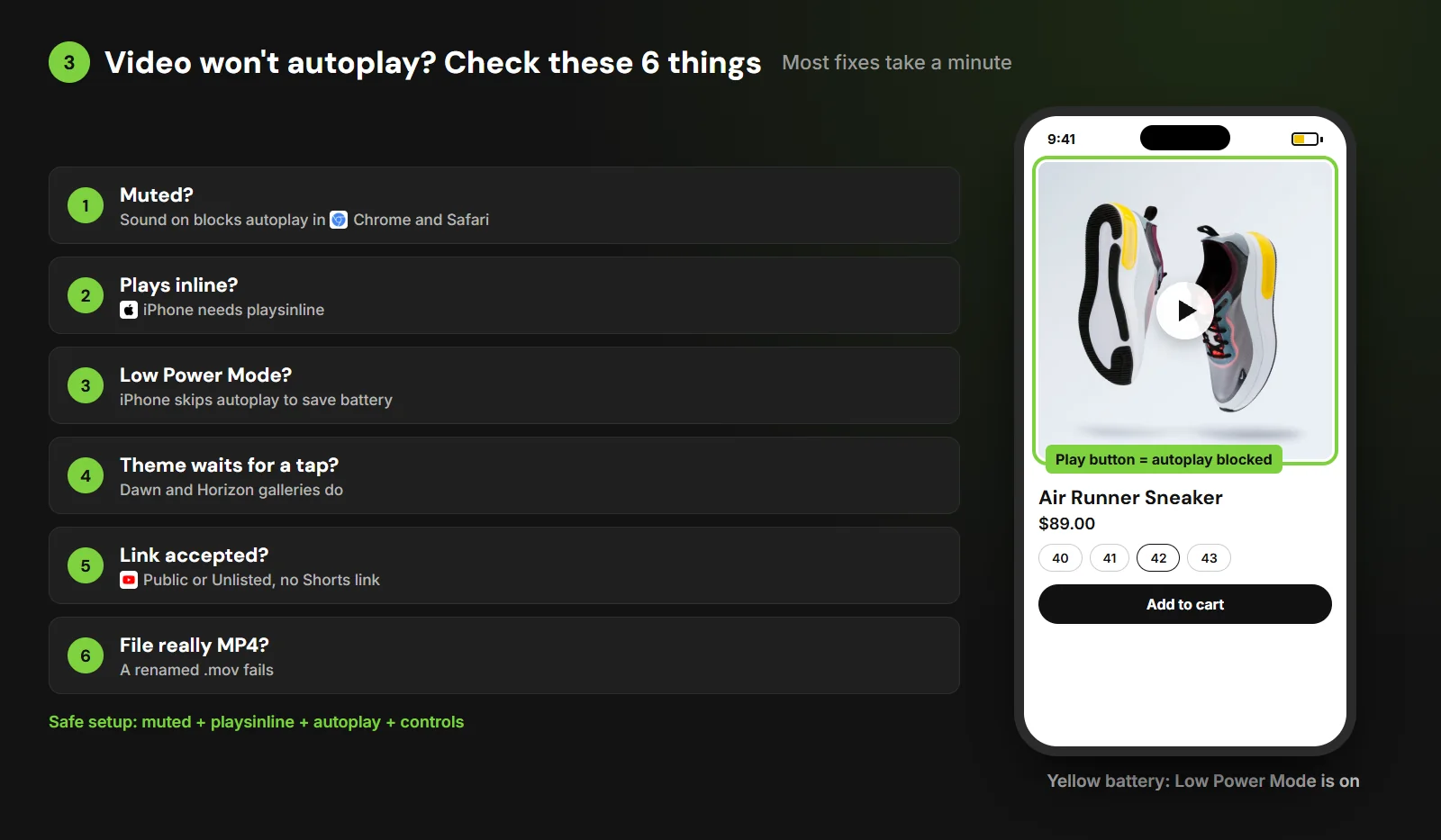
1. The video has sound turned on
Chrome always allows muted autoplay. With sound, it waits until the shopper has interacted with the site, unless they often watch media there. Apple’s Safari autoplays a video only when it is muted or has no audio track. The fix is to mute it, as the code above does.
2. iPhone Low Power Mode is on
This is the usual answer when an autoplay video shows a play button on an iPhone. WebKit, the engine behind Safari, turns off autoplay in Low Power Mode on iOS to save battery. It shows a play button instead. No code can override this. To test, turn Low Power Mode off in Settings, then Battery.
3. The video doesn’t play inline
On iPhone, a video without playsinline has to open full screen to play. Shopify’s own video code adds it. If you paste your own video HTML, add it yourself.
4. Your theme waits for a tap
Dawn and Horizon galleries never autoplay, by design. Use the Video block or the code instead.
5. The YouTube or Vimeo link is refused
Private videos, Shorts links and custom Vimeo links don’t work. Use the standard link format.
6. The upload fails or shows as a plain file
If a video uploads with no thumbnail and won’t play, its file extension doesn’t match its real format, for example a .mov file renamed to .mp4. A “Processing error” usually means the export settings are the problem, not the size. Export again as an H.264 MP4 and upload that file.
Best size and aspect ratio for a product page video
Export an H.264 MP4 at 1080p and 30 fps, in the same shape as your product photos. Shopify recommends the ratios 16:9, 9:16, 4:3, 3:4 and 1:1, with AAC, MP3 or Opus audio.
| Shape | Ratio | Export size | Best for |
|---|---|---|---|
| Square | 1:1 | 1080 x 1080 | Square galleries |
| Portrait | 3:4 | 1080 x 1440 | Fashion photos |
| Vertical | 9:16 | 1080 x 1920 | Phone-first clips |
| Wide | 16:9 | 1920 x 1080 | Demos, how-tos |
Why match? If your photos are square and the video is wide, the gallery jumps in height when shoppers swipe. My Shopify image sizes guide shows which photo shapes work best in each theme.

Keep gallery clips short. In my experience, 10 to 30 seconds is enough to show the product from every side.
Does a product video slow down your store?
A tap-to-play Shopify product video costs very little. Both themes load only the cover image at first, and the video loads when the shopper taps play.
Video autoplay changes that, because the file loads with the page. Shopify’s developer docs add one more detail: when looping is on, Shopify skips the streaming version and the browser downloads the full MP4. So keep looping clips short, and export them at 720p or 1080p rather than 4K.
Also remove the audio track from silent clips to make the file smaller, and compress your cover image with my free Shopify image compressor. For the full picture, see my Shopify speed optimization guide.
Accessibility: captions, sound and a pause button
Shopify’s accessibility best practices for themes say videos need captions, autoplaying videos must be muted, and the Space key should pause and play. Three habits cover most of this:
- Keep a pause option. The accessibility guidelines (WCAG 2.2) ask for a way to pause any motion that starts by itself and lasts more than five seconds. Player controls do that.
- Add captions to talking videos. As of November 2026, Shopify’s help pages don’t describe a caption upload for product videos. So burn captions into the video before uploading, or use YouTube. Its automatic captions can be wrong, so review them.
- Write alt text. One plain line about what the video shows.
If you sell in the EU, read my Shopify accessibility guide for the bigger checklist.
Which way should you use?
Here is how I set up a Shopify product video on client stores:
- Most stores: upload a short, silent clip as the second media item and turn on looping. No code, almost no speed cost.
- Want motion without a tap: in Horizon, add a Video block with Autoplay on. In Dawn, use the Custom Liquid code above.
- Long demo with a voice-over: use a YouTube link, so shoppers get sound, controls and captions.
Want a video on the home page too? See how to add a video to the Shopify homepage. Not sure which theme you have? See Dawn vs Horizon. For every media rule above, I check Shopify’s page on adding product media.
Frequently asked questions
What is the Shopify video size limit?
An uploaded Shopify product video can be up to 1 GB, up to 10 minutes long and up to 4K (4096 x 2160 px). Shopify accepts MP4, MOV and WebM files. YouTube and Vimeo links don’t have these limits.
Can you add video to Shopify product images?
Yes. Videos go in the same Media section as your product photos and show in the same gallery. Click Upload new, or use Add from URL for a YouTube or Vimeo link.
How do I add a YouTube video to my Shopify product page?
In the product’s Media section, click Select existing, then Add from URL, and paste a youtube.com/watch?v= link. The video must be Public or Unlisted. Shorts links don’t work.
Why does my Shopify autoplay video have a play button?
Usually the iPhone is in Low Power Mode, which turns off autoplay. Other causes: the video isn’t muted, or your theme’s gallery waits for a tap, as Dawn and Horizon do.
Why does my Shopify product video have no sound?
Autoplaying videos must start muted. In Horizon’s product gallery, videos also play muted with no volume control. Use a block with player controls, such as Horizon’s Video block, so shoppers can turn the sound on.
What is the best aspect ratio for a Shopify product video?
Give your product page video the same shape as your product photos. For most stores that means square (1:1). Shopify also recommends 3:4, 4:3, 9:16 and 16:9.
A short, clear clip often answers questions that photos can’t. For more practical guides, see my Shopify tips and free Shopify tools. If you would rather have your product pages planned and built for you, I do this as part of my Shopify store redesign service. Message me on WhatsApp and I will take a look.



