


Need a break from selling? Maybe January is slow, or you want to rebuild your store in peace. Most owners first look for a Shopify pause store button. As of November 2026, that option works differently than older guides say.
Shopify’s old Pause and Build plan is now a legacy plan, and new stores can’t switch to it. So the real choice is a password page or closing the store to reopen later. Every rule here comes from Shopify’s own pages, and I have paused and reopened many client stores this way.
Here is what you will learn:
- Which Shopify pause store options still exist, and what each one costs
- How to use private mode (a password page) for a short break
- How to deactivate and close Shopify store billing for a longer break
- What works and what stops if you are already on Pause and Build
- How to keep your domain, and how to reopen your store
- Tips for a quiet January without losing customers
Shopify pause store options in November 2026
You can still take a break, but not with a cheap pause plan, unless your store already has one. Shopify’s help center says the Pause and Build plan “is no longer available to new subscriptions”. Stores that are already on it can keep using it. Everyone else picks from the options below.
| Option | Plan fee | Shoppers see | Apps | Best for |
|---|---|---|---|---|
| Stay open with a notice | Full price | Your store | Keep billing | A few slow weeks |
| Private mode | Full price | A password page | Keep billing | Short breaks, rebuilds |
| Deactivate (close) | Stops after the cycle | Nothing | Uninstalled | Breaks of months |
| Pause and Build | Reduced fee | Products, no checkout | Keep billing | Stores already on it |
Shopify sums it up on its closing for vacations page: there is no vacation setting. Private mode is the short-term answer, and deactivating is the long-term one.

Option 1: Use private mode for a short break
Private mode is the simplest Shopify pause store option for a break of a few weeks. Your store stays as it is, and you keep full access to your admin. Without the password, shoppers can’t view products or pages or place orders. The catch: your plan fee and other recurring charges continue.
How to turn on private mode
- In your Shopify admin, go to Online Store, then Preferences.
- In the Store access section, turn on the Private mode setting.
- In the Password field, enter a password. Don’t use the password you log in to your admin with.
- In Message to your visitors, write a short note, such as “We are on a break. Orders open again on January 12.”
- Click Save.
Quicker way: on the Online Store page, click the Public label, select Private, and click Update. In the Shopify mobile app, the switch is called Password protection.

Edit the password page in Dawn and Horizon
Go to Online Store and click Edit theme. Open the Home page drop-down at the top and choose Password.
- Dawn: the page uses an Email signup banner section with a heading (“Opening soon” by default), a paragraph and an email form. Change the heading to something like “Back in January”.
- Horizon: the page has one section with a logo, two text blocks and an Email signup block. Edit the first text block, which also says “Opening soon” by default.
Keep the email form. Customers can sign up to hear when you reopen, so your break builds a small list.
Know the limits of private mode
Private mode hides every page from search engines as well as shoppers. For a week or two that is rarely a problem. Over a long break, it can cost you search traffic, so stores that live on search may do better staying open with a notice.
Option 2: Deactivate to close Shopify store billing
For a break of a few months, deactivating is usually the cheaper choice. To close Shopify store billing, you cancel your plan. Your subscription charges stop at the end of your current billing cycle, and Shopify keeps your store’s information for 2 years.
Deactivating doesn’t delete anything. You can reopen within 2 years without rebuilding. Data is only erased if you ask Shopify to delete it, and then the store can’t be reopened.
Before you close Shopify store access
- List your apps and their settings. All apps are uninstalled when you cancel, and pending app usage charges are billed right away. Apps that bill you outside Shopify keep charging until you cancel them on their side.
- Finish or refund open orders. This includes pre-orders and subscriptions.
- Export your gift cards. Shopify suggests exporting the gift card CSV so you can handle open balances. My Shopify gift card guide shows where they live.
- Export backups. Save CSV files of your products, customers and orders.
- Back up a paid theme. Paid themes are licensed to one store, so download a copy first.
- Check your domain renewal. Renewals are not canceled with your store. More on this below.
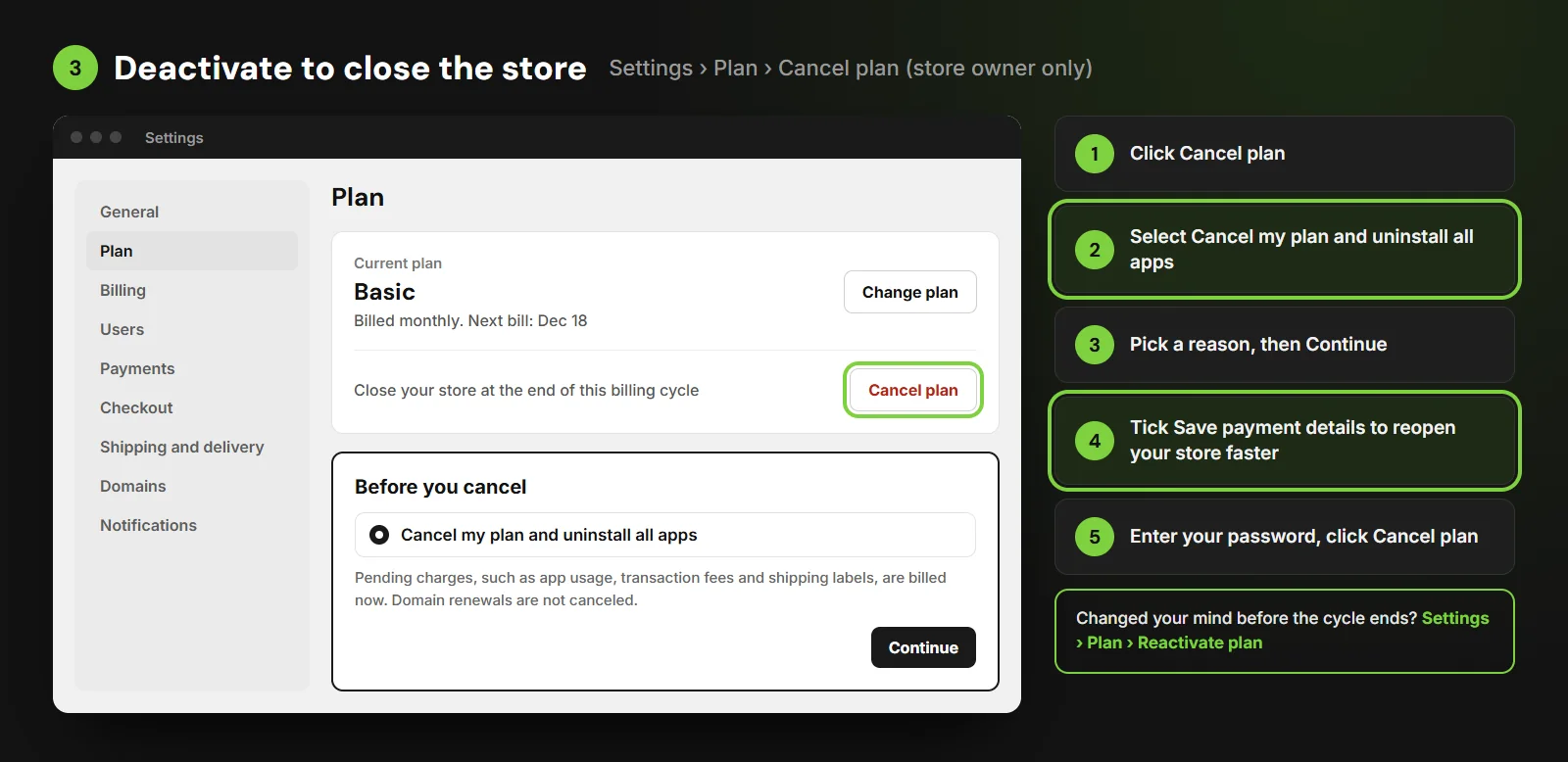
How to deactivate your store
- Log in as the store owner. Only the owner can do this. Go to Settings, then Plan.
- Click Cancel plan. If you are still in a free trial, click Cancel trial.
- Read the notes on domains and pending charges. Select Cancel my plan and uninstall all apps and click Continue.
- Pick a reason, add a comment if you like, and click Continue.
- Tick Save payment details to reopen your store faster.
- Enter your password and click Cancel plan.
Changed your mind before the billing cycle ends? Go to Settings, then Plan, and click Reactivate plan.
A note on timing. Shopify doesn’t refund plan fees, and your store stays active until the end of the cycle you paid for. But apps are removed the moment you cancel. So cancel close to your break date, or you will sell for weeks without your apps.
What keeps working after you close
- Payouts: pending Shopify Payments payouts still reach your bank on schedule. If one fails, you must reactivate to fix it (see my payouts guide).
- Order pages: customers can still see their order details on the Thank you and Order status pages.
- Chargebacks: customers can still file them for past orders. To send evidence, you must reactivate. See how to handle a Shopify chargeback.
- Credits: credits on your account stay available for 60 days, then they expire.
Already on Pause and Build? What works and what stops
If your store moved to Pause and Build before Shopify closed it to new subscriptions, you can stay on it. Your store runs at a reduced cost, you keep your admin, and customers can browse but not buy. You also can’t use integrations such as  Facebook and
 Google to publish your products.
| Still works | Stops working |
|---|---|
| Your admin and product edits | Checkout on every channel, POS too |
| Basic reports | Discounts |
| Your storefront (view only) | Abandoned checkout recovery |
| Sending draft order invoices | Paying or completing those orders |
| All apps (and their billing) | Gift cards |
What does it cost? The current help pages only say “a reduced monthly fee”. Shopify’s own Community blog listed it at $9 USD every 30 days in August 2023. Check your bills in Settings, then Billing, for what you actually pay.
Three rules matter most on Pause and Build:
- Apps keep billing. Every app stays active, so uninstall paid apps you don’t need. A charge after pausing usually means the app renewed before you removed it.
- There is no way back. Once you choose a new plan, you can’t return to Pause and Build. Next time, you would deactivate.
- Finance tools can lock. For example, Shopify’s business credit cards are locked while you are paused.
Shoppers can still see your products, which can confuse them. Shopify suggests hiding some product details or turning on private mode. My guide on how to hide prices in Shopify helps with the first.
How to keep your domain when you pause or close
When a store is deactivated, its custom domains are disconnected, not deleted. What you do next depends on where you bought the domain.
- Bought through Shopify: the renewal is not canceled when you close, so you may still be charged if it renews. To keep owning it for sure, Shopify recommends moving it to another domain provider. Go to Settings, then Domains, click the domain, then Domain settings and Transfer to another provider.
- Bought elsewhere: nothing moves. Keep renewing it with your provider.
- Already closed? You can still transfer a Shopify-managed domain from an inactive store, without paying first. Log in. When you land on a page whose address contains /access_account, change the end of the address to /access_account/domains.
A transfer can take up to 7 days, and you must finish it within 30 days or the domain locks again. If you move it to a platform without HTTPS, visitors see a security warning for 90 days because of Shopify’s HSTS policy.
If you only use private mode, none of this applies. Your domain stays connected.
How to reopen your Shopify store
From private mode
Go to Online Store, click Private, select Public and click Update. Your store is live again.
From a deactivated store
- Log in as the store owner. Forgot the store address? Use Shopify’s Forgot Your Store? tool.
- Pay any outstanding charges.
- Choose a plan. Your old plan may already be selected.
- Confirm your payment details, review the amount due today, and click Subscribe.
- Reconnect your domain: go to Settings, then Domains, click Connect existing domain and follow the prompts.
- Reinstall your apps and set them up again.
You must choose a plan Shopify sells today, so an older discontinued plan can’t come back. For current prices, see my breakdown of Shopify store cost per month.
From Pause and Build
Go to Settings, then Plan. Click Pick a plan, click Choose plan on the one you want, review it and click Subscribe. Your checkout comes back once you subscribe. If you added a password while paused, remove it.

Before your first sale back, run through my Shopify launch checklist and place a test order.
Taking a January break: slow-season tips
January is quiet for many stores. Before you use any Shopify pause store option, ask if a full stop is really needed.
- Stay open with a notice. For a week or two off, keep selling and tell people orders ship from a set date. A scrolling announcement bar does this well.
- Fix your delivery promises. Update shipping times on product pages, in your FAQ and in your shipping policy.
- Cut app costs. Go to Settings, then Billing, and check your current charges. Remove apps you don’t use.
- Use the time to build. Improve product pages or speed. My Shopify speed guide is a good start.
Common mistakes when you pause or close a store
- Thinking private mode is free. Your plan fee keeps running, and so does every app.
- Forgetting apps billed outside Shopify. Deactivating stops Shopify billing, not charges an app takes on its own website.
- Losing the domain. If you close Shopify store billing, a domain bought through Shopify can still renew. Decide early: keep it, move it or let it go.
- Leaving Pause and Build “just to test”. Once you pick a new plan, you can’t go back.
Which way should you use?
The right Shopify pause store choice depends on how long you will be away.
- Off for a week or two, store still busy: stay open and tell people about delays.
- Off for up to about a month, or rebuilding: private mode. You keep full access and your domain.
- Off for months, or not sure you will return: deactivate. Billing stops and your store waits for 2 years.
- Already on Pause and Build: stay on it until you are ready, and remove paid apps you don’t need.
A quick money check: as of November 2026, Shopify lists the Basic plan at $39 USD a month on monthly billing, or $29 a month paid yearly. Two months of private mode on monthly billing cost $78 plus apps. Deactivating costs nothing in plan fees, but you spend time reinstalling apps and reconnecting the domain. On client stores, I find closing starts to make sense at about one month.
Frequently asked questions
Did Shopify remove the Pause and Build plan?
For new subscriptions, yes. As of November 2026, Shopify lists Pause and Build as a legacy plan. Stores already on it can keep it, but can’t return after choosing another plan.
Can I pause my Shopify store subscription?
Not with a pause plan, unless your store is already on Pause and Build. You can use private mode, where charges continue, or deactivate, which stops your subscription at the end of the billing cycle.
How long can I pause my Shopify store?
A deactivated store’s information is kept for 2 years, so you can reopen any time in that window. Private mode lasts as long as you keep paying for your plan.
Can I close Shopify store billing but keep my domain?
Yes. A domain from another provider simply stays there. A domain bought through Shopify can be moved to another provider, even after the store is closed.
Do I get a refund if I deactivate my Shopify store?
No. Shopify has a no-refund policy for plan fees. Your store stays active until the end of the billing cycle you already paid for.
How do I reopen a closed Shopify store?
Log in as the store owner, pay any outstanding charges, choose a plan and click Subscribe. Then reconnect your domain and reinstall your apps.
A planned break is much easier than a rushed one, so pick your Shopify pause store option a week before you stop. For handy calculators, see my free Shopify tools. If you want help pausing, closing or reopening your store, I handle this as part of my Shopify store management service. Message me on WhatsApp and I will take a look.



