

If you run  Meta ads on Facebook and Instagram, the pixel is how Meta learns who visited and who bought. With a Shopify Meta pixel not working, Ads Manager shows no sales, or every sale twice, and your ads stop learning. The good news: the cause is almost always a setting, not a bug.
In this guide I show you how to test the pixel, set it up with the free  Facebook & Instagram app, and fix the nine causes I see most. I have fixed pixel tracking on many client stores, and this is my checking order.
Here is what you will learn:
- How the Meta pixel works on Shopify now, and what changed
- Four quick tests to see if your pixel is working
- The right Shopify Meta pixel setup, including data sharing levels
- Nine reasons for a Facebook pixel not working on Shopify, with fixes
- A symptom, cause and fix table you can check in two minutes
How the Meta pixel works on Shopify today
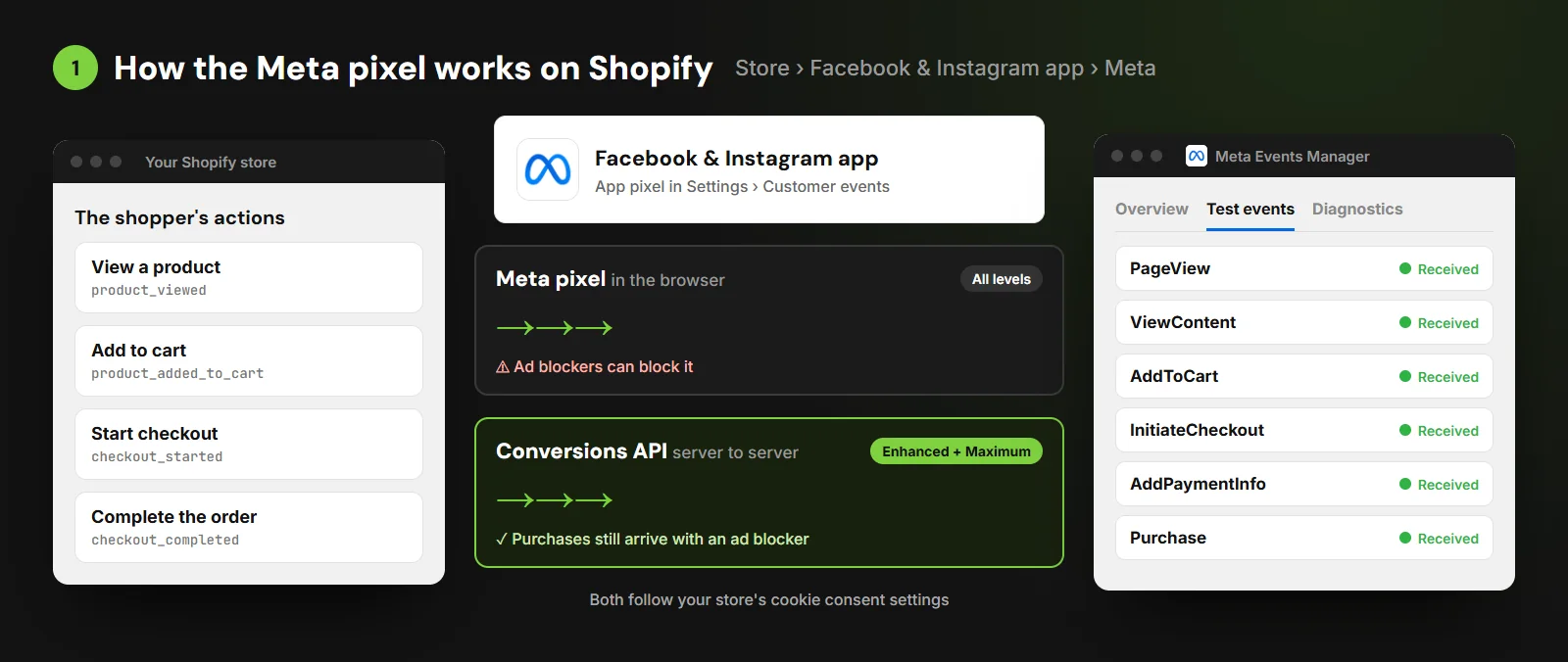
Years ago, you pasted pixel code into your theme. Today the pixel runs through Shopify’s pixel manager, and the official way to add it is the Facebook & Instagram app by Meta.
- The app adds the pixel. It shows up as an app pixel under Settings, then Customer events.
- The pixel runs in the browser. It tracks PageView, ViewContent, Search, AddToCart, InitiateCheckout, AddPaymentInfo and Purchase.
- The Conversions API runs on the server. On the Enhanced and Maximum levels, purchases also go from Shopify’s servers straight to Meta, where ad blockers can’t stop them.
Two older routes changed. In February 2025, Shopify turned Meta pixels pasted into Online Store, then Preferences, into custom pixels. And the old Additional scripts box doesn’t work on the new Thank you and Order status pages. Shopify moved all stores to them after its August 26, 2026 deadline.
How to check if your pixel is working (4 quick tests)
With any Shopify Meta pixel not working problem, first find where it breaks: in Shopify, in the browser, or in Meta. Run these tests in order.
Test 1: Check the pixel in Customer events
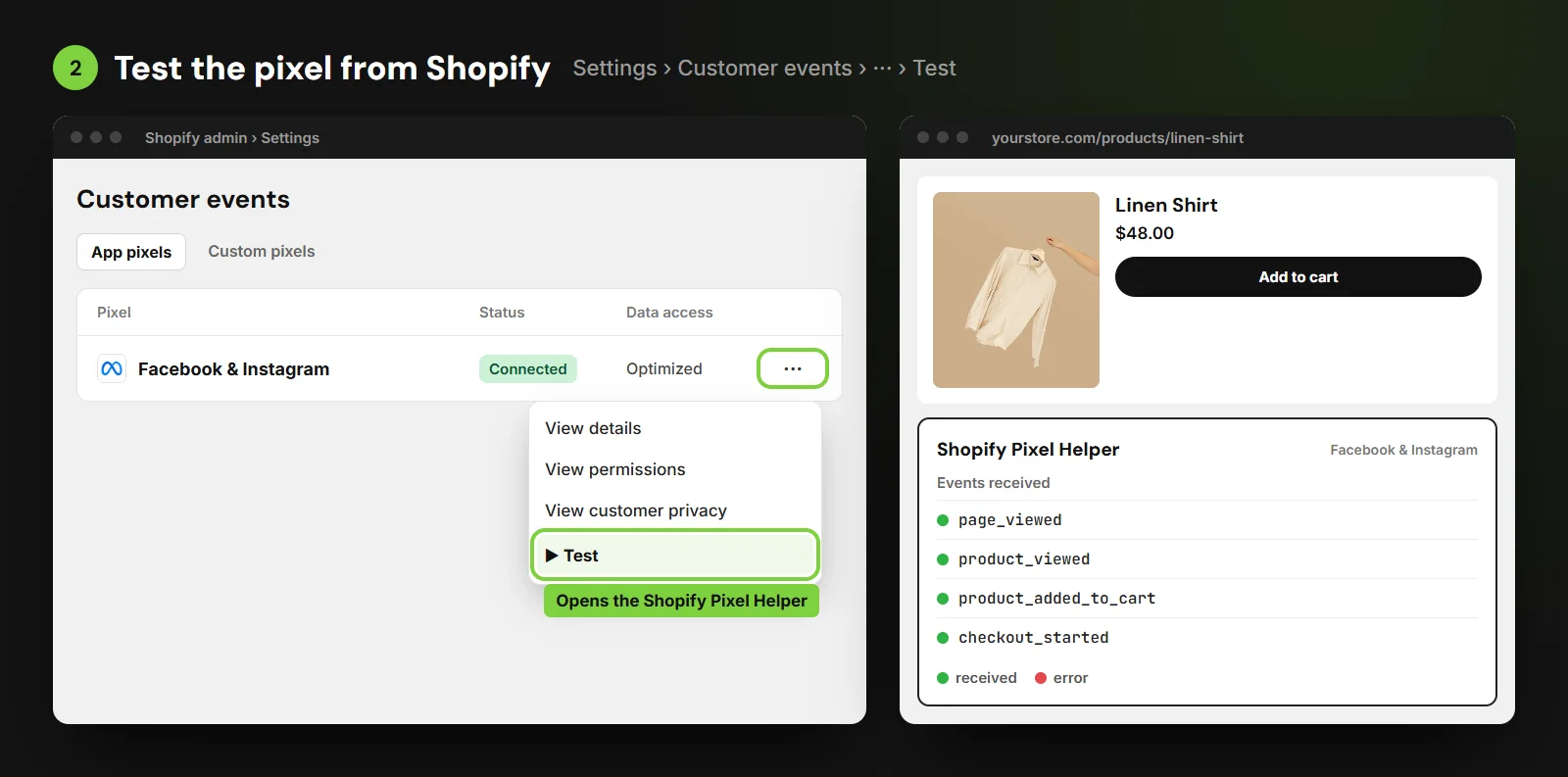
- In your Shopify admin, go to Settings, then Customer events.
- Find Facebook & Instagram in the list of app pixels.
- Check that it is connected. If it is missing, jump to the Shopify Meta pixel setup steps below.
Test 2: Run the Shopify Pixel Helper
- On the same page, click the … button next to the Facebook & Instagram pixel and click Test.
- Your store opens with the Shopify Pixel Helper panel.
- Open a product, add it to the cart and start checkout. Each step should add an event with a green dot; a red dot means an error.
- If you see Pixel is awaiting consent, accept your cookie banner or click Give consent to continue test.
Shopify uses its own event names here. The app maps them to Meta’s names, so checkout_completed becomes Purchase. To test it, place a test order.
Test 3: Use Meta Ads Data Advisor (the old Pixel Helper)
Meta’s free Chrome extension used to be called Meta Pixel Helper. Meta renamed it Meta Ads Data Advisor, and old installs update on their own.
- Install Meta Ads Data Advisor from the Chrome Web Store.
- Turn off your ad blocker for your store.
- Open your store and click the extension icon.
- Check the pixel ID. It must match the pixel your ads use, and there should be only one.
- Check each event: Active is good, Warning or Error needs a look.
Test 4: Watch live events in Meta Events Manager
- Open Meta Events Manager and click Data sources.
- Select your pixel, then click Test events.
- Enter your store URL and click Open website.
- Browse and add a product to the cart. Your events appear in the Test events tab as you go.
Keep the Test events page open while you browse; it only records during that time. Normal reports in Meta Events Manager can take 30 minutes or more.
Shopify Meta pixel setup: the right way
If Test 1 showed no pixel, set it up through the app. Both Shopify and Meta document this method.
- Install the app. Add Facebook & Instagram from the Shopify App Store. It is made by Meta and free to install. On November 18, 2026 it had 3.9 stars from 5,880 reviews.
- Connect your accounts. Follow the setup to connect your Facebook account, business portfolio, Page and ad account.
- Open data sharing. Go to Sales channels, then Facebook & Instagram. Click Settings, then Data sharing settings (some versions say Share data settings).
- Turn it on. In the Customer data sharing section, turn on the Enable data-sharing toggle.
- Pick a level. Choose Standard, Enhanced or Maximum. The table below explains the difference.
- Connect the pixel. Click Connect next to the pixel your ads already use, or Create new if you have none. Then click Confirm.
- Remove old code. Delete any pixel code you added by hand (see cause 3).

Standard, Enhanced or Maximum: which data sharing level?
The level decides how much data reaches Meta. It is behind many “my pixel misses sales” complaints.
| Level | What it uses | Ad blockers | Customer data sent |
|---|---|---|---|
| Standard | Meta pixel only | Can block it | Browsing only |
| Enhanced | Pixel + Conversions API | Purchase still sent | Name, email, phone, location |
| Maximum | Pixel + Conversions API + Meta’s newest ad tools | Purchase still sent | Name, email, phone, location |
On Standard, every event depends on the shopper’s browser, so ad blockers and privacy settings cause gaps. Enhanced and Maximum also send the purchase from server to server, which closes that gap for sales. Both share personal data, so make sure your privacy policy explains it. Shopify’s help page says that part is your job.
Facebook pixel not working on Shopify: 9 causes and fixes
Almost every Shopify Meta pixel not working case I see comes down to one of these nine causes. I list them in the order I check them.
1. Data sharing is off, or no pixel is connected
This is the simplest reason for a Facebook pixel not working: the app is installed, but data sharing is off, so no pixel loads. Open the app’s Data sharing settings, turn on customer data sharing and connect a pixel.
2. The app uses a different pixel than your ads
Many accounts have several pixels from old setups. If the app sends events to pixel A but your ads use pixel B, the ads see zero results. Compare the pixel ID in Meta Ads Data Advisor with the dataset in your ad set. To switch, click Change in the app’s data sharing settings.
3. Old pixel code is still in your theme
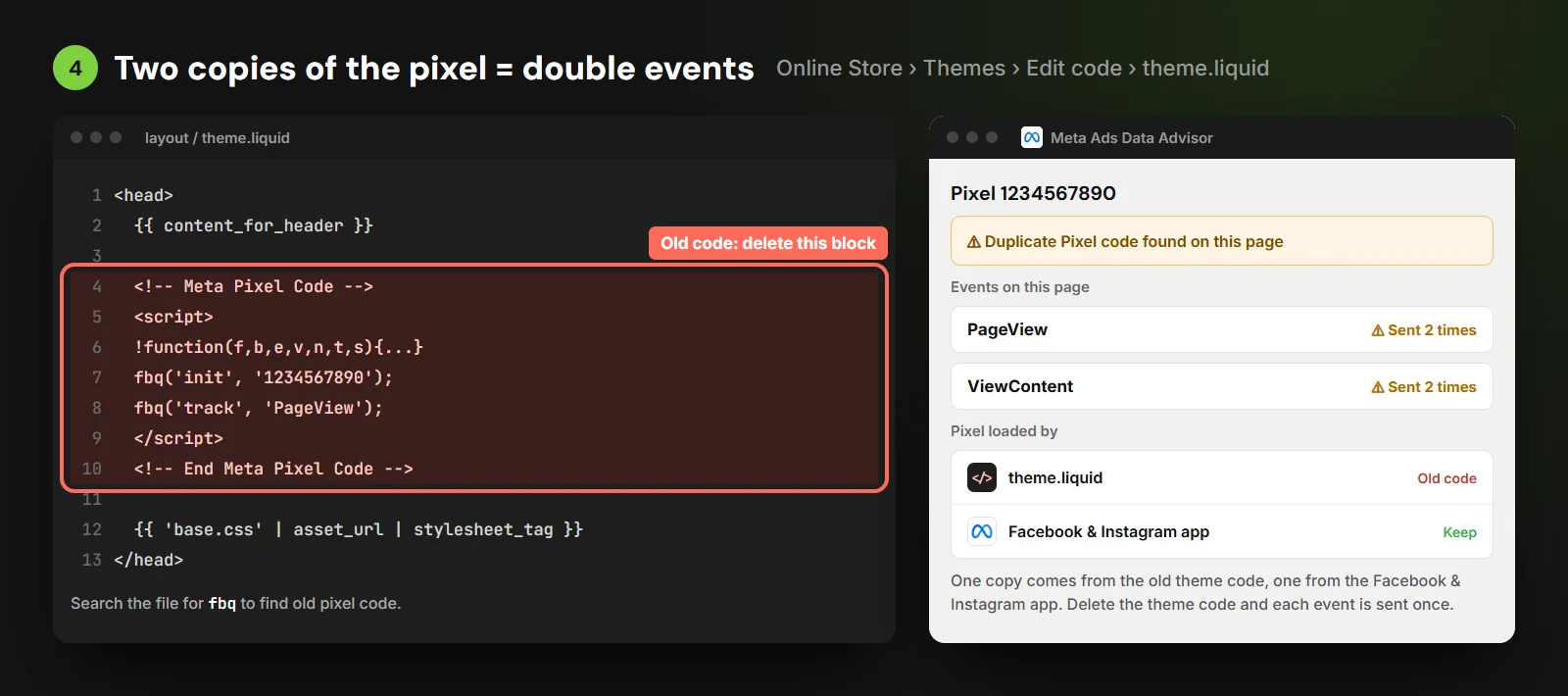
Shopify warns that theme code plus the app pixel gives you two pixels and duplicate or wrong data. Remove the old code:
- Go to Online Store, then Themes. Next to your live theme, click …, then Edit code.
- Open theme.liquid and search for fbq. Older code is labeled Facebook Pixel Code, newer code Meta Pixel Code.
- Delete the whole block, from the opening comment to the End comment, and click Save.
Only the live theme matters. If you changed your Shopify theme, check the new one too.
4. A second pixel runs from Customer events or another app
Open Settings, then Customer events, and click Custom pixels. You may find a Meta pixel that Shopify created from your old Preferences setting, or one an agency added. Other tracking apps can send Meta events too. If two sources send Purchase, each sale counts twice. Disconnect the extra one.
5. Cookie consent blocks the pixel
In markets that need consent, usually the EEA and the UK, pixels only run after the visitor gives permission. So a Facebook pixel not working in Europe is often just consent. Visitors who opt out of data sale or sharing are also excluded.
- Testing from Europe or with a VPN? Accept the cookie banner first, or clear your cookies if you declined it.
- A cookie banner app must sync consent to Shopify through the Customer Privacy API, or pixels may not fire even after a shopper accepts. Use the same regions in the app and in Settings, then Customer privacy.
Fewer events from these regions is normal. Don’t bypass consent; Shopify says that breaks its Terms of Service.
6. Your purchase code lived in Additional scripts
Many older stores fired Purchase from code in Additional scripts on the Thank you page. The new pages don’t support that box, so the code stopped. The app pixel tracks purchases on its own, so you don’t need a new script.
Also, if you use a custom domain, your customer account domain must be a subdomain of it, such as account.yourstore.com. If not, pixels won’t work on the Order status page.
7. Ad blockers and browser privacy
Ad blockers can block a browser pixel completely, and privacy features shorten cookies. That explains a Facebook pixel not working for some shoppers only. Your Shopify orders are fine. Only Meta’s view of them is affected. Switch to Enhanced or Maximum so purchases also go through the Conversions API.
8. You checked too soon
A new pixel shows “No activity yet” until real visitors arrive, and reports can lag 30 minutes or more. Use Test events for instant proof. Ads Manager and Meta Events Manager also count events in different ways, so small gaps between them are normal.
9. Traffic permissions block your domain
Your pixel ID is public, so Meta lets you limit which domains can send events. This is the Traffic permissions setting in Meta Events Manager. If an allow list leaves out your store’s domain, your real events get blocked. Add your domain; a top-level domain also covers its subdomains.
Quick fix table: symptom, cause and fix
Use this table as a quick checklist when you find your Shopify Meta pixel not working after a change. Start at the top row.
| Symptom | Likely cause | Fix |
|---|---|---|
| No pixel found at all | Data sharing off | Turn on, connect pixel |
| Events arrive, ads show 0 | Wrong pixel connected | Match pixel IDs |
| Every event fires twice | Old theme code or extra pixel | Remove the extra one |
| “Pixel is awaiting consent” | Cookie banner region | Accept cookies to test |
| Purchase stopped after upgrade | Old Additional scripts | Rely on the app pixel |
| Fewer sales than Shopify | Ad blockers, consent | Use Enhanced or Maximum |
| “No activity yet” | Too new or delayed | Use Test events, wait |
| Events suddenly dropped | Traffic permissions list | Add your domain |
Common mistakes to avoid
These mistakes cause most of the Shopify Meta pixel not working messages I get.
- Adding pixel code after installing the app. Older guides say to paste code into theme.liquid. With the app, that only creates duplicates.
- Testing with an ad blocker on. Or after you declined your own cookie banner. Your browser then hides a pixel that works fine.
- Connecting a new pixel without updating your ads. Your ad sets keep optimizing for the old one.
- Chasing domain verification. Verifying your domain in Meta Business Suite is free and controls who can edit your link previews. It doesn’t make pixel events fire, so fix the causes above first.
Which way should you use?
For almost every store, the Shopify Meta pixel setup through the Facebook & Instagram app is the right choice. It sets up the pixel and the Conversions API, Meta keeps it updated, and Shopify recommends app pixels over hand-added code.
A custom pixel only makes sense if you need something the app can’t do and you have a developer. Shopify doesn’t support custom pixels, and they have limits. A third-party tracking app can replace the app’s pixel, but never run next to it. Still waiting for orders? Read my guide to getting your first sale on Shopify.
If your Shopify Meta pixel not working problem remains after these checks, see Shopify’s Meta pixel help page.
Frequently asked questions
Why is my Meta pixel not working on Shopify?
A Shopify Meta pixel not working usually means data sharing is off in the Facebook & Instagram app, the wrong pixel is connected, or old code sits in your theme. Cookie consent, ad blockers and report delays can also make a working pixel look broken.
How do I check if my Facebook pixel is working on Shopify?
In Settings, then Customer events, click Test next to the Facebook & Instagram pixel. Then confirm with Meta Ads Data Advisor in Chrome and the Test events tab in Meta Events Manager.
Why is my Meta pixel not tracking purchases?
Check that checkout_completed fires in the Shopify Pixel Helper during a test order. If your Purchase event came from Additional scripts, that code no longer runs. Use the app pixel, and choose Enhanced or Maximum so purchases also go through the Conversions API.
Why does my Meta pixel say “No activity yet”?
The pixel has not received events yet. Visit your store with your ad blocker off and accept cookies. Then use Test events in Meta Events Manager, because normal reports can take 30 minutes or more.
Why is Meta Pixel Helper not working?
Meta renamed it Meta Ads Data Advisor. If your old extension is turned off, go to chrome://extensions, turn it back on and accept the new permissions. Also turn off your ad blocker for your store.
Do I need the Conversions API on Shopify?
You don’t need to set it up by hand. Choose Enhanced or Maximum in the app’s data sharing settings. The app then sends purchases through the Conversions API for you.
Most fixes for a Shopify Meta pixel not working take minutes, so check it after every theme or app change. For more guides, see my Shopify tips. If you would rather have someone check it for you, I fix pixel and tracking setups as part of my Shopify store management service. Message me on WhatsApp and I will take a look.



