

A Shopify favicon is the small icon next to your store name in a browser tab. It also shows in bookmarks, in browser history and, often, next to your store in Google search results. It is a tiny image, but a missing or blurry one makes a store look unfinished.
Adding one takes about two minutes. Making it look sharp, and getting Google to show it, takes a little more care. I have set up favicons on many client stores, and this guide covers everything I check.
Here is what you will learn:
- The right Shopify favicon size, and what Shopify does with your image
- How to add or change the favicon in the Dawn and Horizon themes
- How to make an icon that is easy to see at 32 pixels
- Why a favicon is not showing, and how to fix each cause
- How to get your favicon into
 Google search results
 Google search results
Shopify favicon size: what to upload
Both free Shopify themes, Dawn and Horizon, show the favicon at 32 x 32 pixels. I checked the theme code: it asks Shopify for a 32 x 32 copy of the image you upload. Dawn even says so under the setting: Displayed at 32 x 32px.
Shopify’s help center calls 16 x 16 or 32 x 32 pixels the ideal favicon size. It also says a larger image is reduced to 32 x 32. So a bigger file is fine. I upload a square PNG of 512 x 512 pixels. It shrinks cleanly, and the sharp original is ready if you ever want a bigger icon (more on that below).
The one rule that really matters: make it square. When the theme asks for 32 x 32, Shopify crops the image from the center. If you upload a wide logo, you only get its middle. A logo that says “Northwind” turns into a few letters from the middle, such as “THW”.
| Where it shows | Size used | Good to know |
|---|---|---|
| Browser tab (Dawn, Horizon) | 32 x 32 px | Made from your upload |
| Your upload | Square PNG, 512 x 512 px | 32 x 32 also works |
| Google Search | At least 8 x 8 px | Google advises over 48 x 48 |
| iPhone home screen | 180 x 180 px | Needs a small code edit |
| Checkout, customer accounts | Not shown | Shopify Plus only |

Want the sizes for every other image in your store too? My Shopify image sizes cheat sheet lists them in one place.
How to add or change your Shopify favicon
Your Shopify favicon lives in your theme settings, not in your store settings. Adding and changing it are the same job: select an image and save. Shopify’s guide to adding a favicon notes that you need the Basic plan or higher. The Starter plan can’t add one.
In the Dawn theme
- From your Shopify admin, go to Online Store, then Themes.
- Next to your current theme, click Edit theme.
- Click the gear icon on the left to open Theme settings.
- Open the Logo group.
- Under Favicon, click Select image. Upload your square PNG, or pick one you uploaded before, and click Done.
- Click Save.
In the Horizon theme
- Open the theme editor the same way: Online Store, Themes, Edit theme.
- Click the gear icon to open Theme settings.
- Open the Logo and favicon group. Your logo settings are here too.
- Under Favicon, click Select image, choose your square PNG, and click Done.
- Click Save.
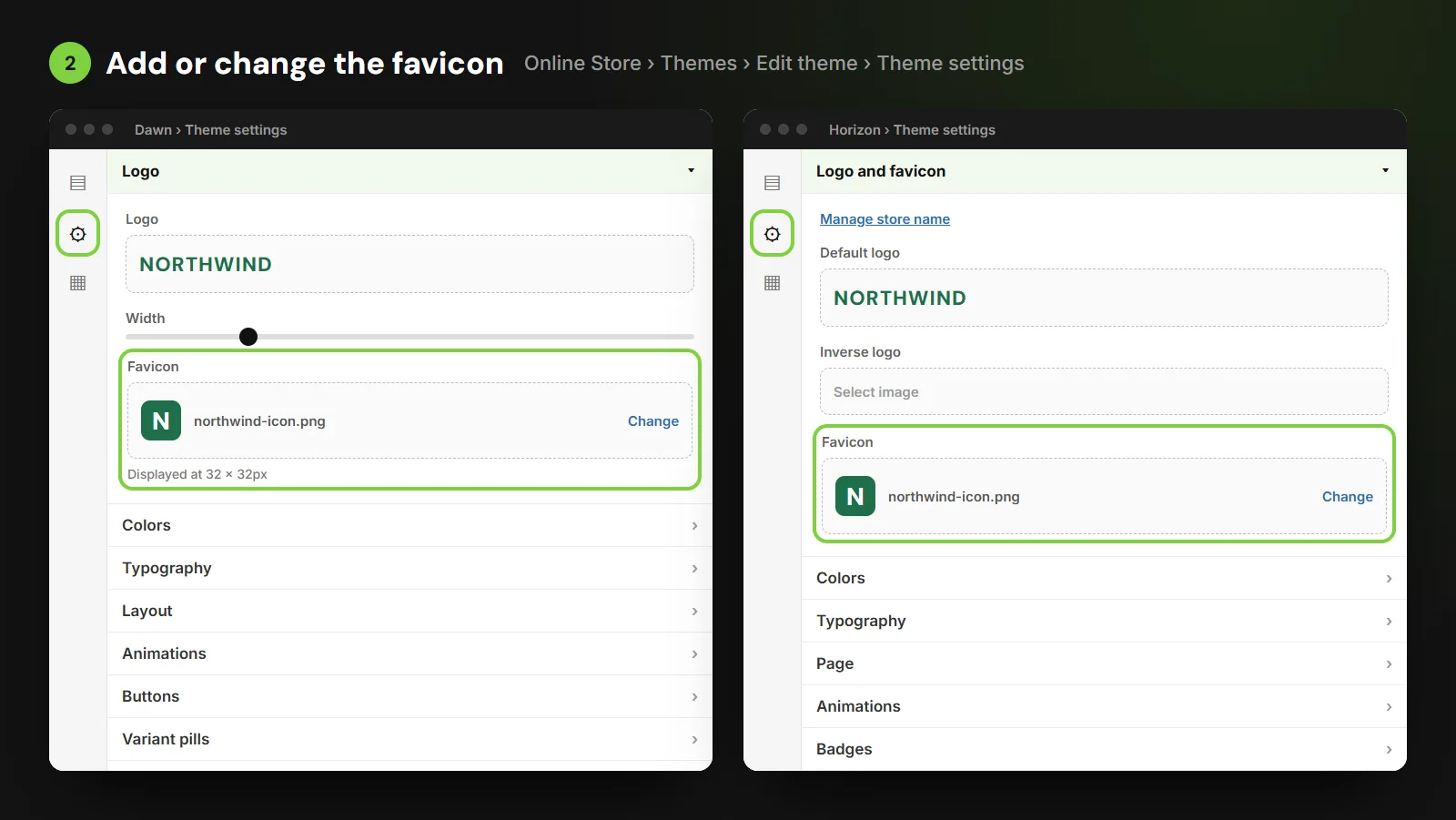
In other themes, look for a Logo or Favicon group in Theme settings. Shopify’s own steps say the name depends on your theme.
One thing confuses many store owners: your Shopify favicon doesn’t show inside the theme editor. Shopify explains that the editor is part of your admin, not your live store. To check your new icon, open your store in a new tab.
Not sure which of the two themes you use, or thinking of switching? My Dawn vs Horizon comparison explains the differences.
How to make a Shopify favicon people can see
At 32 pixels, small details vanish. A good icon is simple, bold and square. Here is what I use on client stores:
- Use a symbol or one or two letters. A full logo with words turns into a grey smudge.
- Fill the square. Trim the empty space around your mark so it uses most of the 32 pixels.
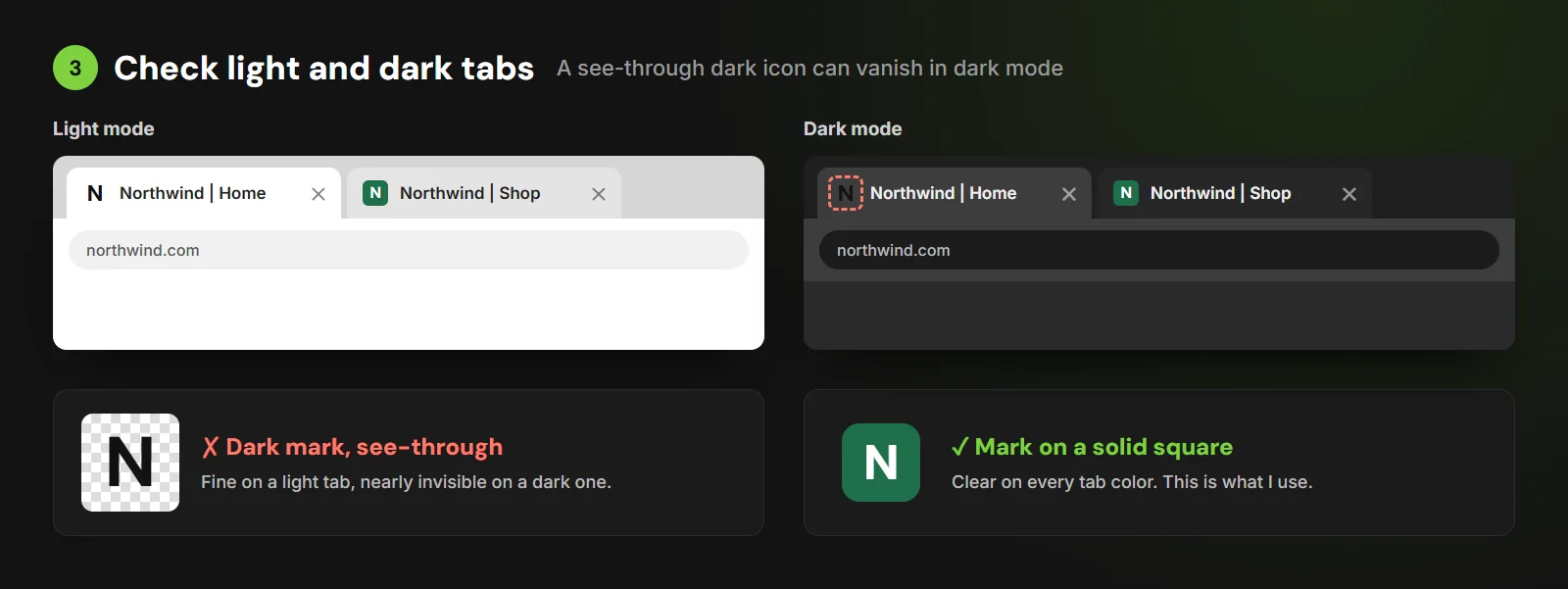
- Check both tab colors. Many people use dark mode. A black icon on a see-through background can disappear on a dark tab.
- Add a solid background when in doubt. Your mark on a colored square is clear on light and dark tabs.
- Save it as a PNG. PNG stays crisp, keeps a see-through background if you want one, and is the type both themes set for the favicon.
| Image you upload | Result at 32 px | Use it? |
|---|---|---|
| Full logo with words | Text can’t be read | No |
| Wide logo | Middle gets cropped | No |
| Dark icon, see-through | Hides on dark tabs | Risky |
| Mark on a solid square | Clear on every tab | Yes |
Do you need a favicon generator?
Not for a Shopify favicon. A favicon generator makes a set of files in many sizes. Shopify doesn’t use that set, because the theme makes its own 32 x 32 copy from a single upload. A generator is only handy if you have no icon yet and want to turn a letter or emoji into a square image. Then upload that one PNG.
Shopify favicon not showing? Common problems and fixes
If your Shopify favicon is not showing, work through these causes in order. The quick ones come first.
1. Your browser still shows the old icon
This is the most common reason for a Shopify favicon not showing after a change. Browsers save favicons and keep them longer than other page files. A normal refresh often won’t update the icon. Open your store in a private (incognito) window. If the new icon shows there, your setup is fine and visitors see it. Your own browser will catch up. To speed it up, clear your cached images and restart the browser.
2. You changed a theme that isn’t live
Each theme keeps its own Shopify favicon. If you edited a copy or a draft theme, your live store won’t change. Go to Online Store, then Themes, and check that the theme marked as current is the one you edited. If you change your Shopify theme later, set the favicon again in the new one.
3. You are checking inside the theme editor
As above, the editor never shows the Shopify favicon. Check your live store in a new tab.
4. The image is wide or full of text
Shopify crops a wide image from the center, and text becomes unreadable at 32 pixels. Upload a square image with a simple mark.
5. The icon blends into the tab
Sometimes the Shopify favicon is there, but you can’t see it. This happens with dark icons on see-through backgrounds in dark mode. Add a solid background or a light outline.
6. You uploaded an SVG
Shopify’s help center says SVG files can’t be resized or cropped unless they are turned into another format, and both themes resize the favicon. Google’s list of favicon formats doesn’t include SVG either. Upload a PNG to be safe.
7. It is missing at checkout
That is normal. Shopify says favicons don’t show on checkout and customer account pages unless you are on Shopify Plus.
8. The favicon code is missing from your theme
This can happen in older themes or themes someone has edited. Open your store, right-click the page and choose View page source. Search for rel=”icon”. If you can’t find it, the theme doesn’t output a favicon. In Dawn and Horizon, the line sits in the layout/theme.liquid file. For other themes, ask the theme developer.
Shopify favicon not showing on Google search
Google shows a small icon next to your store name in search results. A favicon not showing in Google for a while is normal, because Google has to crawl your home page first. Here are Google’s favicon rules from its Search Central guide, in plain words:
- Square: a 1:1 shape, at least 8 x 8 pixels. Google advises using one larger than 48 x 48 pixels.
- Linked on the home page: a link rel=”icon” tag in the home page code. Dawn and Horizon add it for you.
- Crawlable: Google must be able to reach your home page and the icon file. Nothing may block them.
- Supported format: BMP, GIF, ICO, PNG, JPEG, PPM or TIFF.
- Stable: the icon’s address shouldn’t change often.
- On brand: it should represent your store. Google replaces inappropriate icons with a default one.

How to get Google to show it
- Remove the password page. If your store is still password protected, Google only sees the password page. Go to Online Store, then Preferences, and turn off Private mode under Store access when you are ready to launch.
- Ask Google to recrawl. In Google Search Console, paste your home page address into the URL Inspection tool and click Request indexing.
- Wait. Google says crawling can take from several days to several weeks.
- Don’t keep swapping the image. Every new upload gets a new file address, and Google asks for a stable one. Pick your icon, then leave it alone.
Google decides when the icon shows, so nobody can promise a date. My routine on client stores is simple: a square icon, a recrawl request, then patience.
Optional: give Google and phones a larger icon
Dawn and Horizon only output the 32 x 32 icon. Google accepts that size, but it advises a larger one. iPhones also look for a separate “apple-touch-icon” when someone adds your store to their home screen. Two extra lines cover both. Skip this if you don’t edit code.
- Go to Online Store, then Themes. Click the … button next to your theme and choose Edit code.
- Open layout/theme.liquid and find the line with settings.favicon.
- Paste this code under the endif line that closes that favicon block, then click Save.
{%- if settings.favicon != blank -%}
  <link rel="icon" type="image/png" sizes="96x96" href="{{ settings.favicon | image_url: width: 96, height: 96 }}">
  <link rel="apple-touch-icon" sizes="180x180" href="{{ settings.favicon | image_url: width: 180, height: 180 }}">
{%- endif -%}
I checked this code with Shopify’s theme checker and tested the output in a browser. Your upload must be at least 180 x 180 pixels, because Shopify never makes an image larger than the original. Use a solid background, as see-through areas can look odd on a phone home screen. Google doesn’t say which icon it picks when a page lists several, so treat this as a bonus, not a guaranteed fix.
Shopify favicon checklist
Run through this list whenever you set up or change a Shopify favicon.
- Square image, 1:1, PNG format
- Uploaded at 512 x 512 pixels (at least 180 x 180 if you add the code above)
- A simple mark or one or two letters, no small text
- Clear on light and dark tabs
- Added under Theme settings in your live theme, and saved
- Checked on the live store in a private window, not in the editor
- Private mode turned off, so Google can see your store
- Home page sent to Google with Request indexing
- Same image kept in place while Google catches up
Frequently asked questions
What size should a Shopify favicon be?
Upload a square PNG. Shopify calls a favicon size of 16 x 16 or 32 x 32 pixels ideal, and Dawn and Horizon show it at 32 x 32. I upload 512 x 512 pixels, which Shopify shrinks cleanly.
How do I change the favicon on Shopify?
Go to Online Store, then Themes, and click Edit theme. Open Theme settings with the gear icon, then Logo (Dawn) or Logo and favicon (Horizon). Select a new image under Favicon and save.
Why is my favicon not showing up on Shopify?
Usually your browser still shows the old icon, or you edited a theme that isn’t live. Check in a private window, and confirm the favicon is set in your current theme. It also never shows inside the theme editor.
Why is my favicon not showing in Google search?
Google needs to recrawl your home page first, which can take days or weeks. Make sure the icon is square, private mode is off, and request indexing in Google Search Console.
Does the favicon show on Shopify checkout?
No, not on most plans. Shopify says favicons don’t show on checkout and customer account pages unless you are on Shopify Plus.
Can I use an SVG favicon on Shopify?
Use a PNG instead. Shopify can’t resize an SVG without converting it, both free themes resize the favicon, and Google’s list of favicon formats doesn’t include SVG.
A clear favicon is a small detail, but it helps your store look finished in every tab and search result. For more guides like this, see my Shopify tips. If you would rather have it done for you, I handle favicons, logos and settings like these as part of my Shopify store management service. Message me on WhatsApp and I will take a look.



