


A good Shopify FAQ page answers the questions shoppers ask before they buy. How long is shipping? Can I return it? Will it fit? When the answers are easy to find, people buy with more confidence and you get fewer emails.
You don’t need an app for this. Both of Shopify’s free themes, Dawn and Horizon, have a built-in FAQ block that opens and closes. In this guide I show you how to add a Shopify FAQ section and a Shopify FAQ page with it, step by step. I have set up FAQs on many client stores, and this is how I do it.
Here is what you will learn:
- How to add a Shopify FAQ section in Dawn and in Horizon
- How to make a dedicated FAQ page with its own page template
- How to add FAQs to your product pages
- How to write answers that help, and what FAQ schema does for SEO today
- Common problems and how to fix them
FAQ section, FAQ page or product FAQ?
There are three places to put an FAQ in Shopify. Most stores use two or all three.
| Option | Where it shows | Best for | Dawn | Horizon |
|---|---|---|---|---|
| FAQ section | Home page or any other page | The 4 to 6 most common questions | Collapsible content section | FAQ section |
| FAQ page | Its own page, linked in the menu | All questions, grouped by topic | Page template + Collapsible content | Page template + FAQ section |
| Product FAQ | Under the product details | Questions about one product or type | Collapsible row block | Accordion block |
My usual setup: a short Shopify FAQ section on the home page, a full Shopify FAQ page in the footer menu, and a few product questions near the Add to cart button.
How to add a Shopify FAQ section in Dawn
In Dawn, the Shopify FAQ section is called Collapsible content. Each question is a row that opens when a shopper taps it.
Step 1: Add the Collapsible content section
- In your Shopify admin, go to Online Store, then Themes, and click Edit theme.
- Open the page you want to change with the drop-down at the top. It starts on Home page.
- In the left sidebar, click Add section and choose Collapsible content.
- Drag the section to where you want it, for example above the footer.
Step 2: Set up the section
Click the section to see its settings. These are the ones that matter for an FAQ:
- Heading: change “Collapsible content” to something like “Frequently asked questions”.
- Container: No container, Row container or Section container. A container puts a colored box behind the rows.
- Open first row: tick it to show the first answer open when the page loads.
- Image: optional. It shows next to the questions, and Placement sets which side.
Step 3: Add one Collapsible row per question
The section comes with four sample rows. Click a row and fill in these settings:
- Heading: type the question, for example “How long does shipping take?”
- Icon: choose None for a clean list, or an icon such as Question mark, Truck or Return.
- Row content: type the answer. You can add bold text and links.
- Use the add button under the rows to add a new Collapsible row for each question. Delete the rows you don’t need, then click Save.

There is also a Row content from page setting. It shows the text of a normal Shopify page inside the row, which is handy for long answers like your shipping info. Use it or Row content, not both.
How to add a Shopify FAQ section in Horizon
Horizon makes this even faster. Its Shopify FAQ section is ready-made: it is called FAQ and comes with a heading and five sample questions.
Step 1: Add the FAQ section
- Open the theme editor and choose the page you want to change.
- Click Add section. Type “FAQ” in the search box, or look in the Text group.
- Choose FAQ. The section appears with the heading “Frequently asked questions”.
Step 2: Edit the questions and answers
In the sidebar, the section holds a Heading block and an Accordion block with five Accordion row blocks. They come with sample questions, such as “What is the return policy?”
- Click an Accordion row and change its Heading to your question.
- Expand the row and click the Text block inside it. Type your answer there.
- To add a question, use the add button inside the Accordion to add a new Accordion row.
- Tick Open row by default on the row you want open when the page loads. Click Save.

Style the accordion
Click the Accordion block to change how all rows look. Icon switches between Caret and Plus. Dividers adds lines between rows. Heading preset sets the size of the questions. You can also add the Accordion block inside other Horizon sections, for example next to an image.
How to make a dedicated Shopify FAQ page
A Shopify FAQ page gives every question a home that shoppers can find from the menu. You need a page, a page template, the FAQ section and a menu link.
Step 1: Create the page
- In your admin, go to Online Store, then Pages, and click Add page.
- Type a title, such as FAQ or Frequently asked questions.
- In Content, add one short line, like “Can’t find your answer? Email us at [email protected].” Or leave it empty.
- Keep Visible selected under Visibility and click Save.
Step 2: Create an FAQ page template
Your normal page template shows only the page text. So you make a copy of it just for the Shopify FAQ page. Shopify explains this in its guide to creating theme templates.
- Open the theme editor. Click the Home page drop-down at the top and choose Pages.
- Click Create template.
- Under Name, type faq. Under Based on, choose your default page template.
- Click Create template.
Step 3: Add the FAQ section to the template
You are now editing the new template. Click Add section and choose Collapsible content in Dawn or FAQ in Horizon. Place it below the page content and fill in your questions as shown above. Click Save.
For a long list, add one section per topic: “Orders”, “Shipping”, “Returns”. Each section gets its own heading, so shoppers can scan the page fast.
Step 4: Assign the template to your page
- Go to Online Store, then Pages, and open your FAQ page.
- In the Online store box, open the Theme template drop-down and choose faq.
- Click Save, then View to check the page.

Step 5: Link the page in your menu
Go to Content, then Menus, and open your footer menu. Click Add menu item, choose your Shopify FAQ page from the list, and save. Shoppers look for help links in the footer.
How to add FAQs to Shopify product pages
Some questions belong right next to the product: “Is it dishwasher safe?” or “What size should I get?” A short FAQ in Shopify product pages answers them at the moment people decide.
Product FAQs in Dawn
- In the theme editor, open Products, then Default product.
- In the Product information section, click Add block and choose Collapsible row.
- Set the Heading to your question and type the answer in Row content.
- Add one Collapsible row per question, drag them below the buy buttons, and click Save.
Product FAQs in Horizon
- Open the Default product template in the theme editor.
- In Product information, expand Details. This is the group that holds the title, price and buy buttons.
- Click Add block and choose Accordion.
- Edit the Accordion rows the same way as in the FAQ section, then click Save.
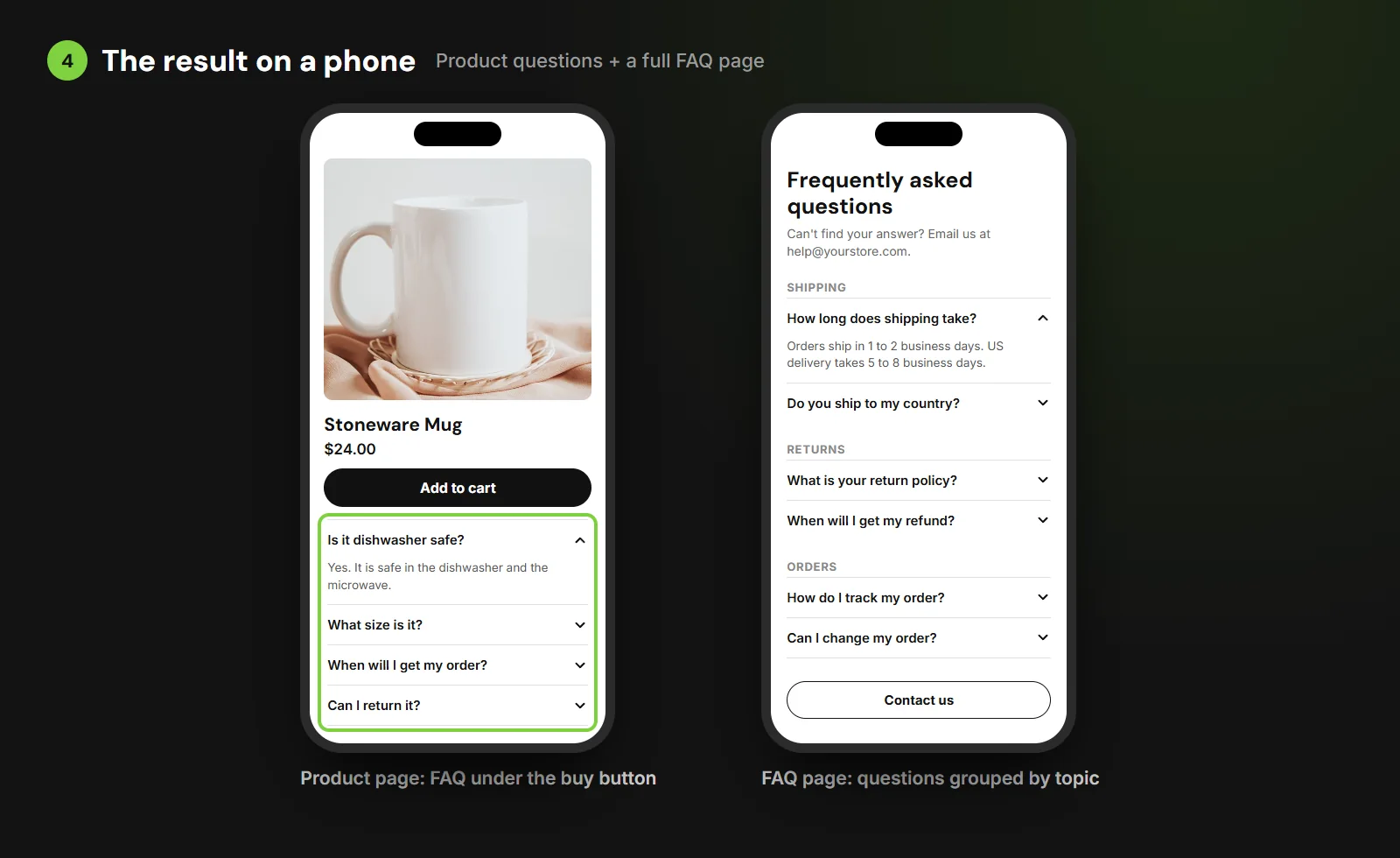
Want more questions below the product? Add a full Shopify FAQ section to the product template instead: Collapsible content in Dawn or FAQ in Horizon.
Different questions for different products
Blocks on a template show on every product that uses it. A mug and a T-shirt need different questions, so you have two choices:
- A template per product type. Create a product template named mugs with the mug questions, then pick it under Theme template on each mug.
- A page per product type (Dawn). Write the answers on a page, then choose it in Row content from page. To switch the page per product, connect that setting to a page metafield, the same way I explain in my size chart guide.
How to write FAQ answers that help
A Shopify FAQ page is only as good as its answers. These are the rules I follow on client stores:
- Use real questions. Read your emails, chat messages and return reasons. Use the words your customers use.
- Answer in the first sentence. “Orders ship in 1 to 2 business days.” Then add the details.
- Keep answers short. One to three sentences is enough for most questions. Link to a full policy page for the rest.
- Be specific. “5 to 8 business days to the US” helps more than “fast shipping”.
- Match your policies. If your refund policy says 30 days, your FAQ must say 30 days too. Update both at the same time.
- Put the most asked question first. Usually that is shipping or returns.
Not sure where to start? These questions fit almost every store:
| Topic | Questions to answer |
|---|---|
| Shipping | How long does shipping take? How much does it cost? Do you ship to my country? |
| Orders | How do I track my order? Can I change or cancel my order? |
| Returns | What is your return policy? How do I start a return? When will I get my refund? |
| Payment | Which payment methods do you accept? Is checkout secure? |
| Product | What is it made of? How do I care for it? Which size should I choose? |
Does a Shopify FAQ page help SEO?
Yes, but not the way older guides say. FAQ schema (FAQPage structured data) used to show your questions as drop-downs right in Google’s results. That is over.
In August 2023, Google limited these FAQ rich results to well-known government and health websites. Then Google announced that the FAQ rich result would stop showing in Google Search from May 7, 2026, and it removed the documentation in June 2026. So don’t pay for an app or code just to add FAQ schema. Google says markup it doesn’t use causes no problems, so you don’t have to remove it either.
The content of your Shopify FAQ page still helps. Your answers are real text on the page, and both Dawn and Horizon keep closed answers in the page code, so search engines can read them. Good answers can match the long questions people type into Google, and they help shoppers decide.
Common problems and fixes
I can’t find the Shopify FAQ section
Dawn has no section called “FAQ”. Look for Collapsible content. In Horizon, type “FAQ” in the Add section search box. Other themes may call it “Accordion” or “Collapsible tabs”.
My Shopify FAQ page shows only the title
The page still uses the default template. Open the page in Online Store, then Pages, choose faq under Theme template and save. If faq is missing from the list, you created the template in a theme that isn’t published.
The answer shows twice
In Dawn, a row shows both Row content and the page in Row content from page. Clear one of them.
My changes show on one product but not another
The products use different templates. Check the Theme template box on each product, and edit the template it uses.
All the rows are closed
That is the default. Tick Open first row in Dawn’s section settings, or Open row by default on a Horizon Accordion row.
Frequently asked questions
How do I add FAQ in Shopify product page?
In the theme editor, open your product template. In Dawn, add a Collapsible row block to Product information. In Horizon, add an Accordion block inside the Details group. Put the question in the heading and the answer in the content.
How do I create a FAQ page in Shopify?
Create a page called FAQ and make a page template named faq in the theme editor. Add Collapsible content (Dawn) or the FAQ section (Horizon) to it. Then choose that template for your Shopify FAQ page and link it in your menu.
Does Shopify have a FAQ page template?
Not a ready-made one in Dawn or Horizon. You make it in a few clicks: copy your default page template with Create template and add the Shopify FAQ section to the copy.
How do I edit the FAQ page in Shopify?
The questions live in the theme, not in the page. Open the theme editor, choose Pages and your faq template, then edit the rows. The text in Online Store, then Pages, only changes the intro.
How do I add FAQ schema in Shopify?
You can add it with an SEO app or custom code, but Google stopped showing FAQ rich results in May 2026. Clear answers on the page are worth more than the markup.
Do I need an app for a Shopify FAQ section?
No. Dawn’s Collapsible content section and Horizon’s FAQ section are free and built in. An app only helps for extras like a search box or hundreds of questions, and it usually costs a monthly fee.
Good answers save you time and help shoppers decide, so write them once and keep them up to date. For more practical guides like this, see my Shopify tips, such as the Shopify image sizes cheat sheet. If you would rather have it done for you, I set up FAQ pages as part of my Shopify store management service. Message me on WhatsApp and I will take a look.



